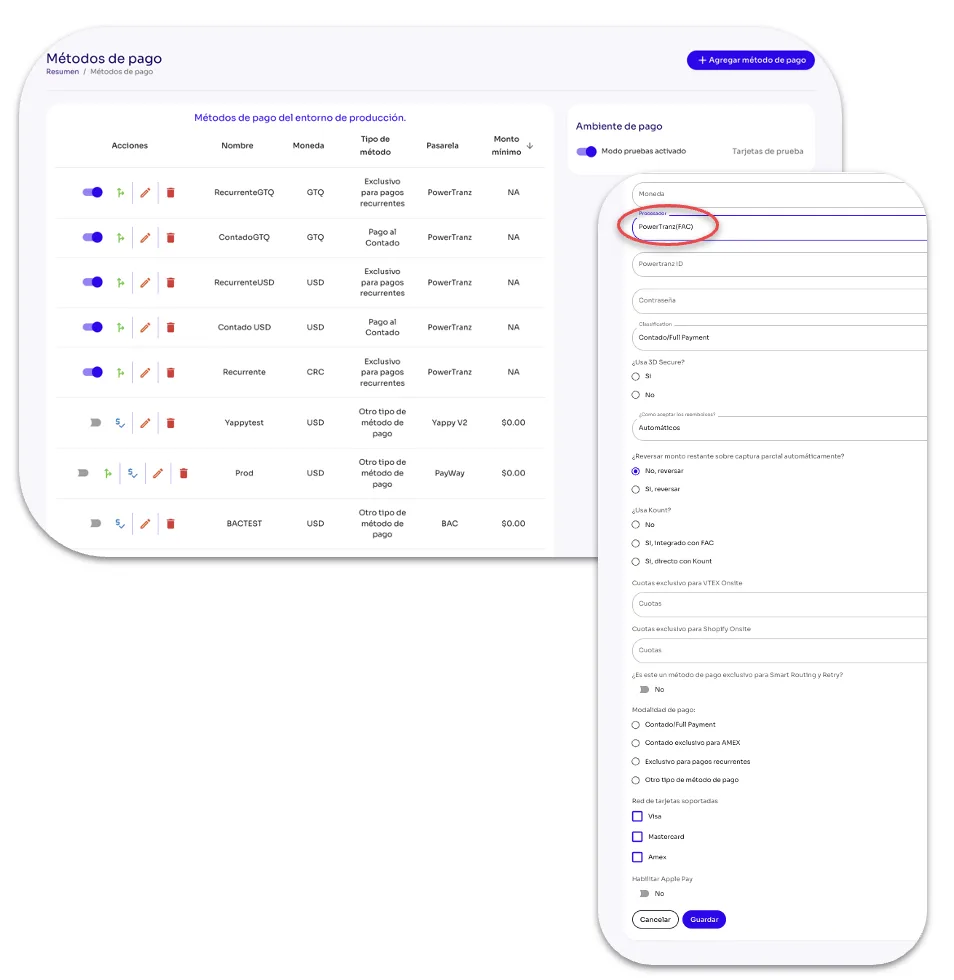
How Do I Add the Powertranz Payment Method in Tilopay?
To add the Powertranz Payment Method, you can access the form in the +Add Payment Method section from either Customizations or Payment Methods in the Tilopay Admin Panel.
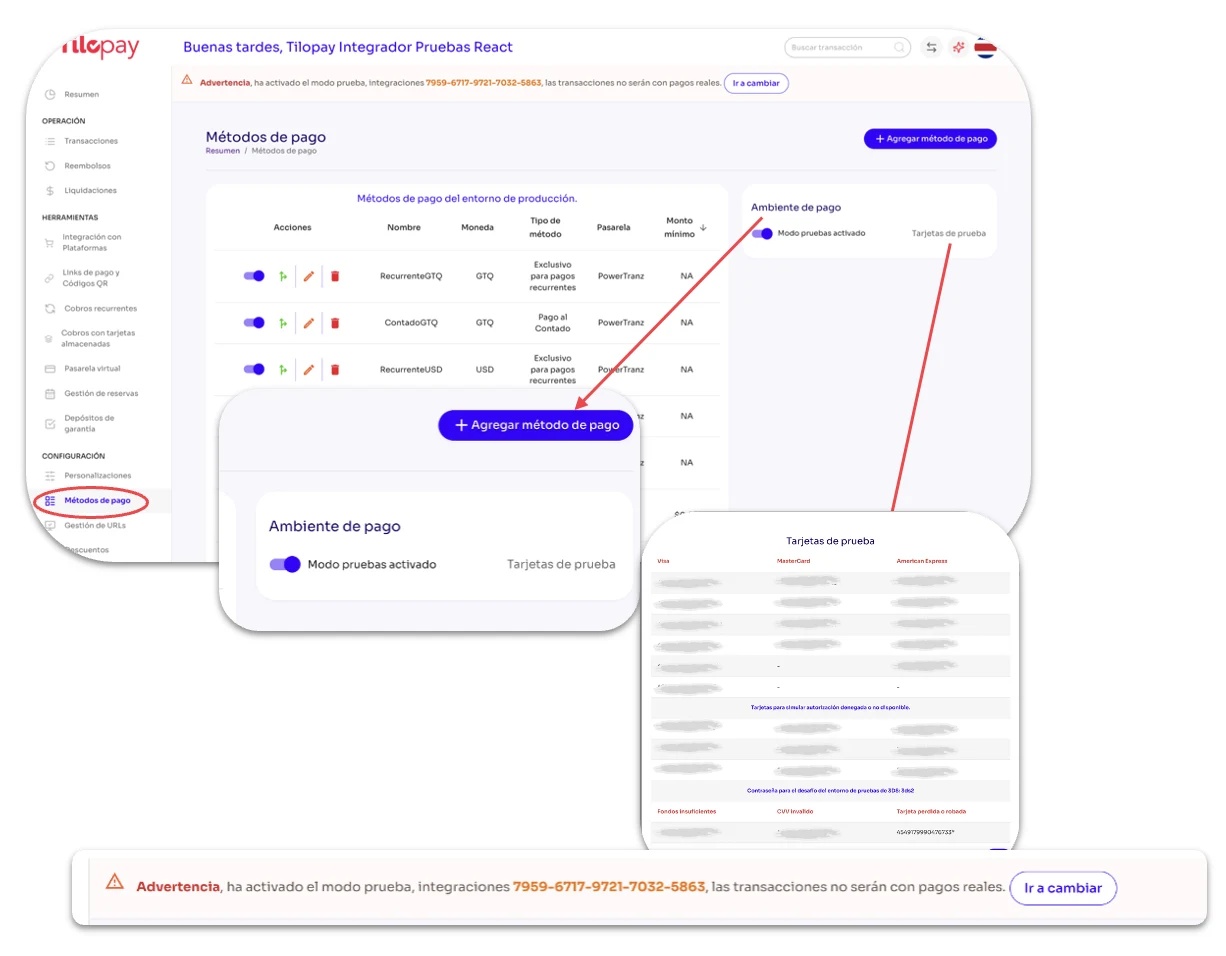
You can also use the toggle to enable Test Mode if you want to test the different Payment Methods you have enabled. Next to it, you’ll find test cards you can use to run tests in a secure environment.
When you enable Test Mode, a message will appear at the top of every screen in the Tilopay Admin Panel, letting you know that you are in this mode.
* Test Mode only works for test transactions paid in full, not for recurring payments.
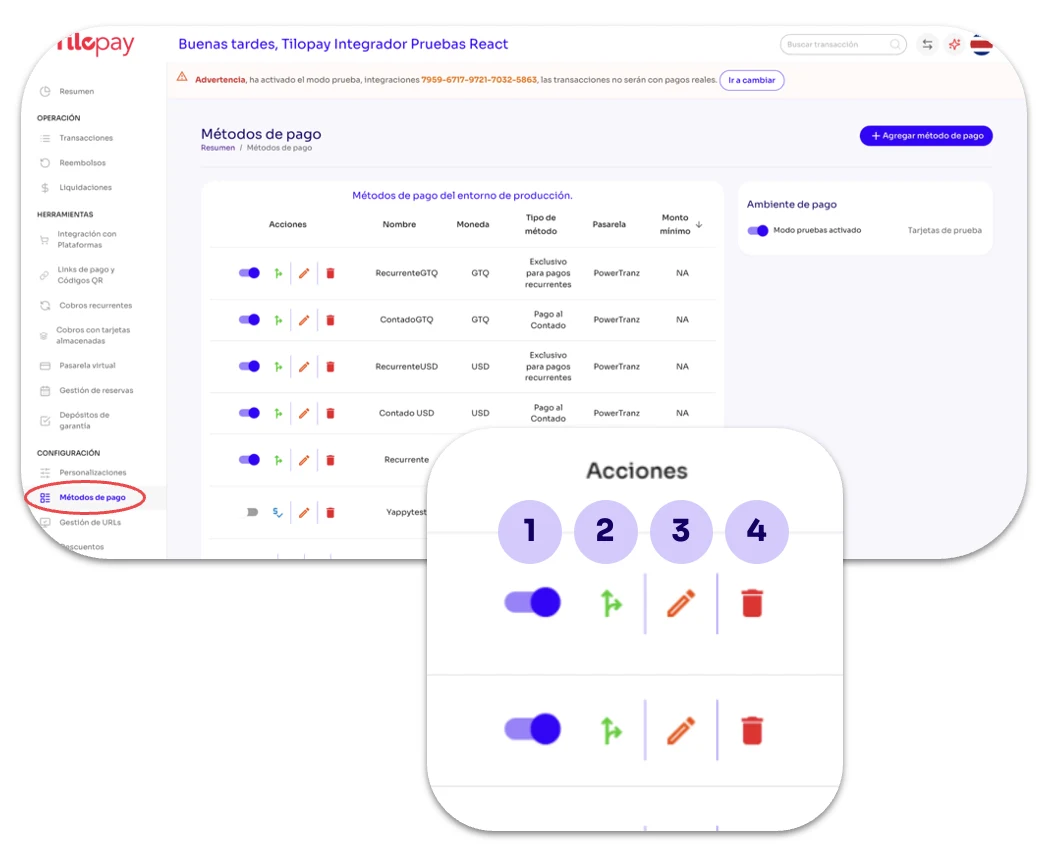
Enable Toggle: Use this to enable or disable the selected Payment Method.
SmartRouting: Tilopay gives you the option to enable SmartRouting for each Payment Method.
This intelligent transaction routing helps improve your approval rate, increasing your business revenue.
Edit: Use this when you need to Edit the Payment Method details.
Trash: Use this when you want to delete payment link records. This action CANNOT be undone.
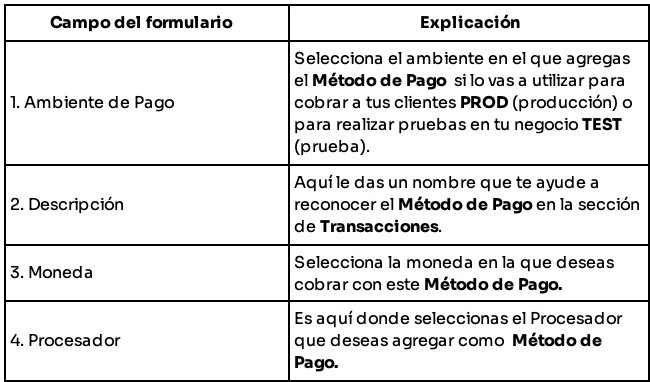
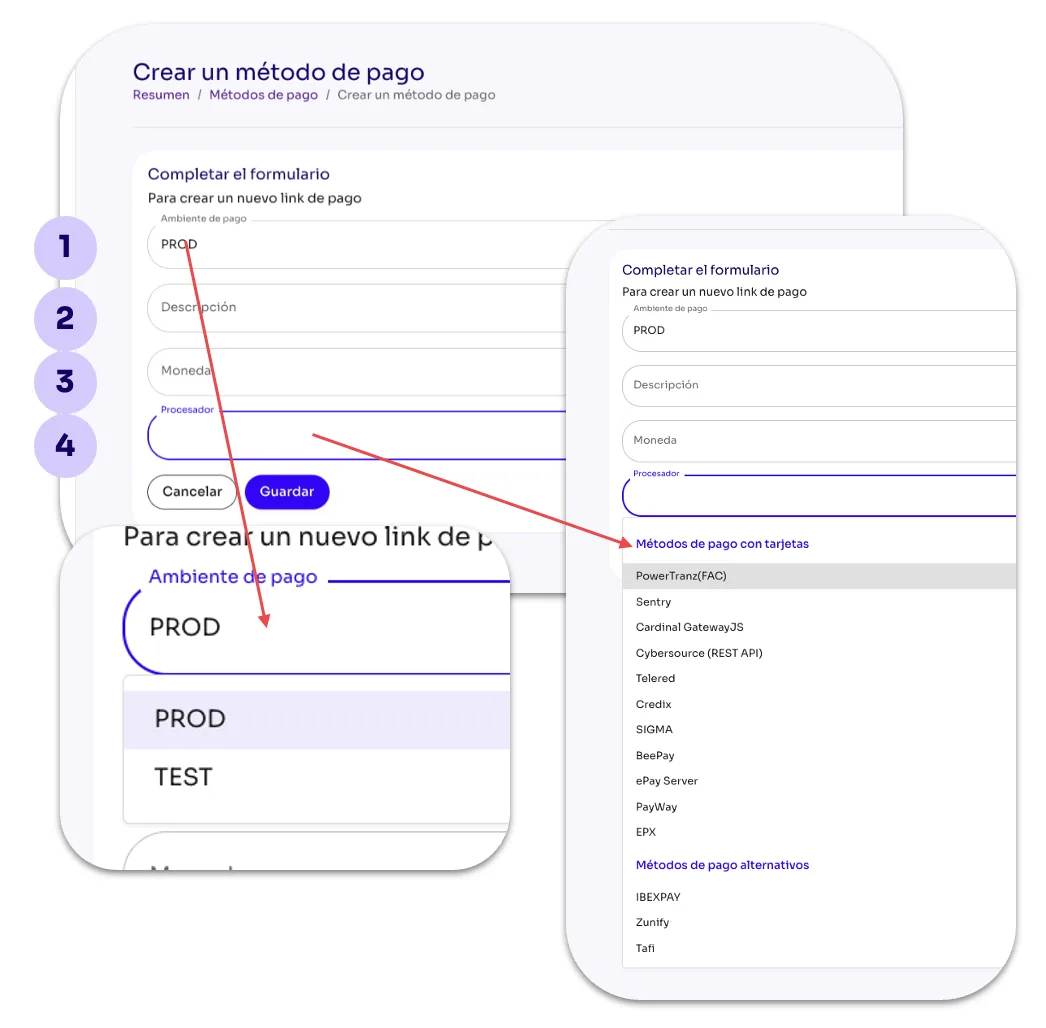
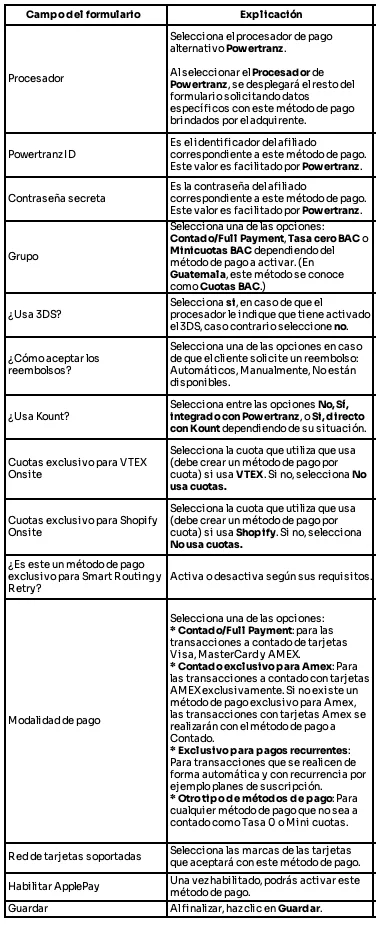
Once you have completed the form to add Powertranz as a Payment Method, remember to Enable It from the Payment Methods section.
With this Payment Method, you can ask soporte@tilopay.com to enable payments through ApplePay.