How Do I Create a Payment Link?
The Payment Links and QR Code module includes a Links section and a Catalog section.
The Payment Links and QR Code module in the Tilopay Admin Portal includes a Links section and a Catalog section.
In the Links section, you'll find buttons to Create a new payment link, Upload CSV to generate multiple payment links at once, and create an Open Payment Link that lets your customer enter the amount they want to pay.
Payment Links can't be edited. You can delete a link and create a new one with the correct information.
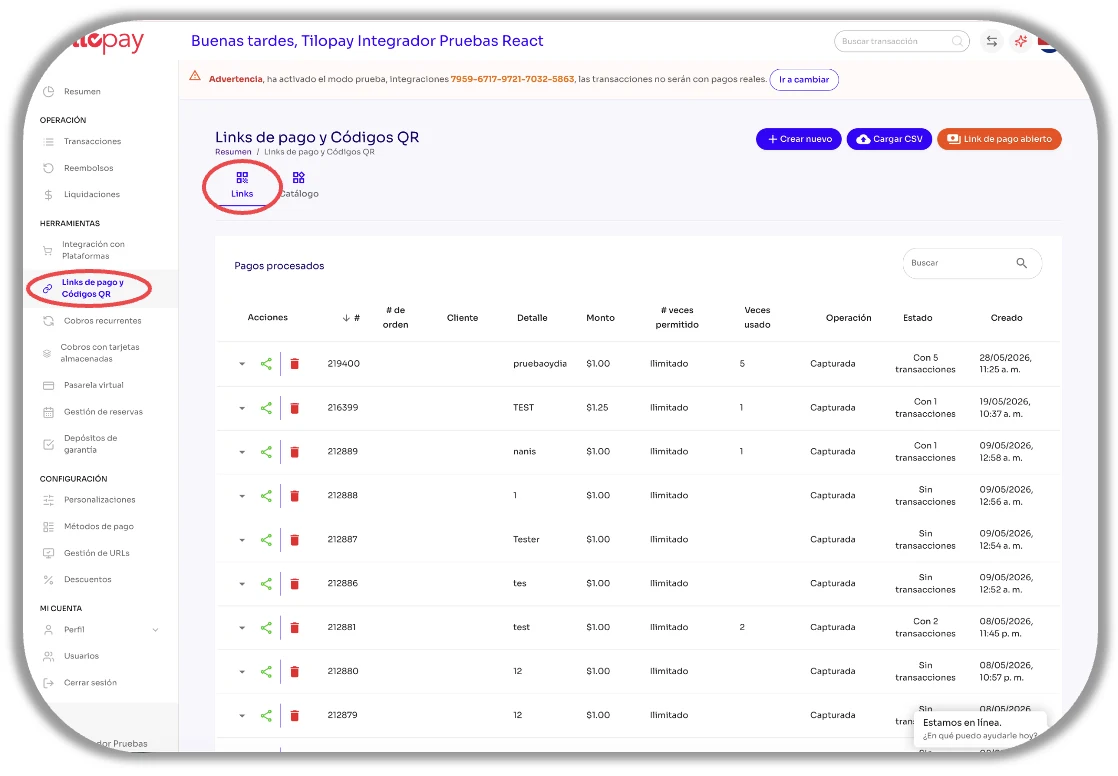
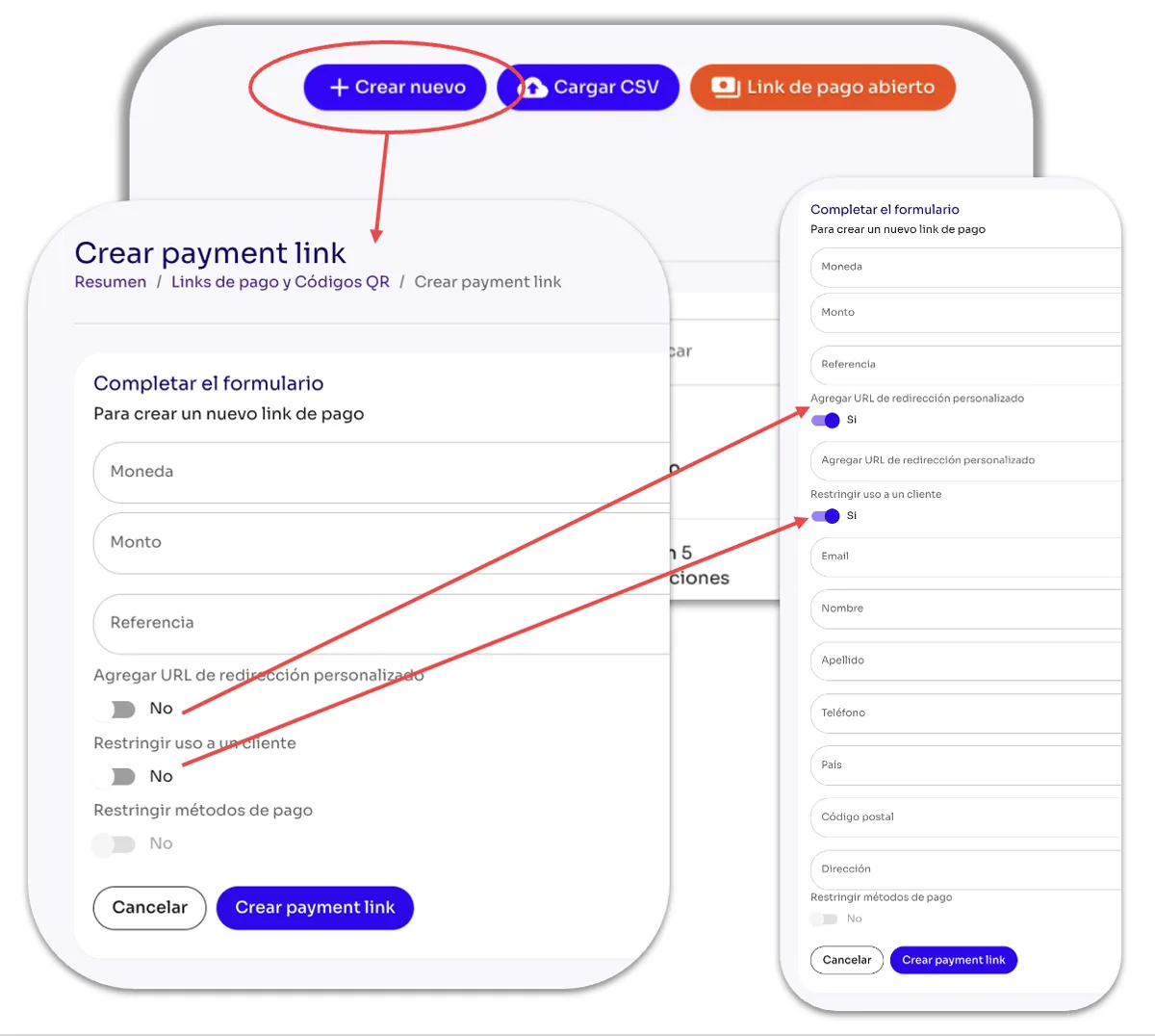
On the right side of the screen, you'll find the Create new button. Click it to open the form where you can create a Payment Link to collect payment.
Complete the form fields and click the Create Payment Link button at the bottom of the form to generate the link.
| Form field | Explanation | Required field |
|---|---|---|
| Currency | Select the currency you want to charge in. | Yes |
| Amount | Enter the amount you want to charge your customer. | Yes |
| Reference | Use this field to include the reason for the transaction or any related details. | Yes |
| Restrict use to one recipient | Enable this option to make the Payment Link single-use. If you want the Payment Link to be used multiple times without restrictions, leave it disabled. | |
| Customer details | If you'd like, when creating a single-use Payment Link, you can enter customer details to personalize it. |