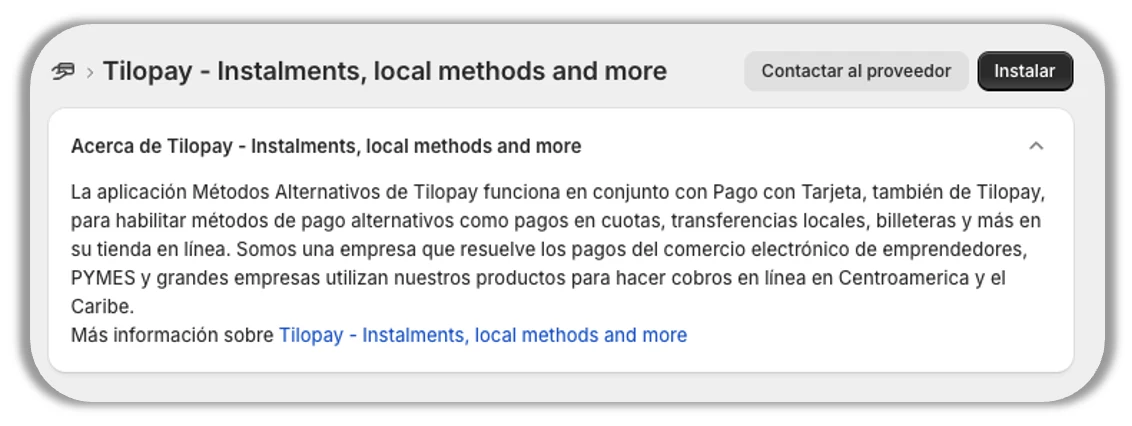
How do I set up the Tilopay Alternative Payment Method for Yappy on Shopify?
Yappy is only available in Panama.
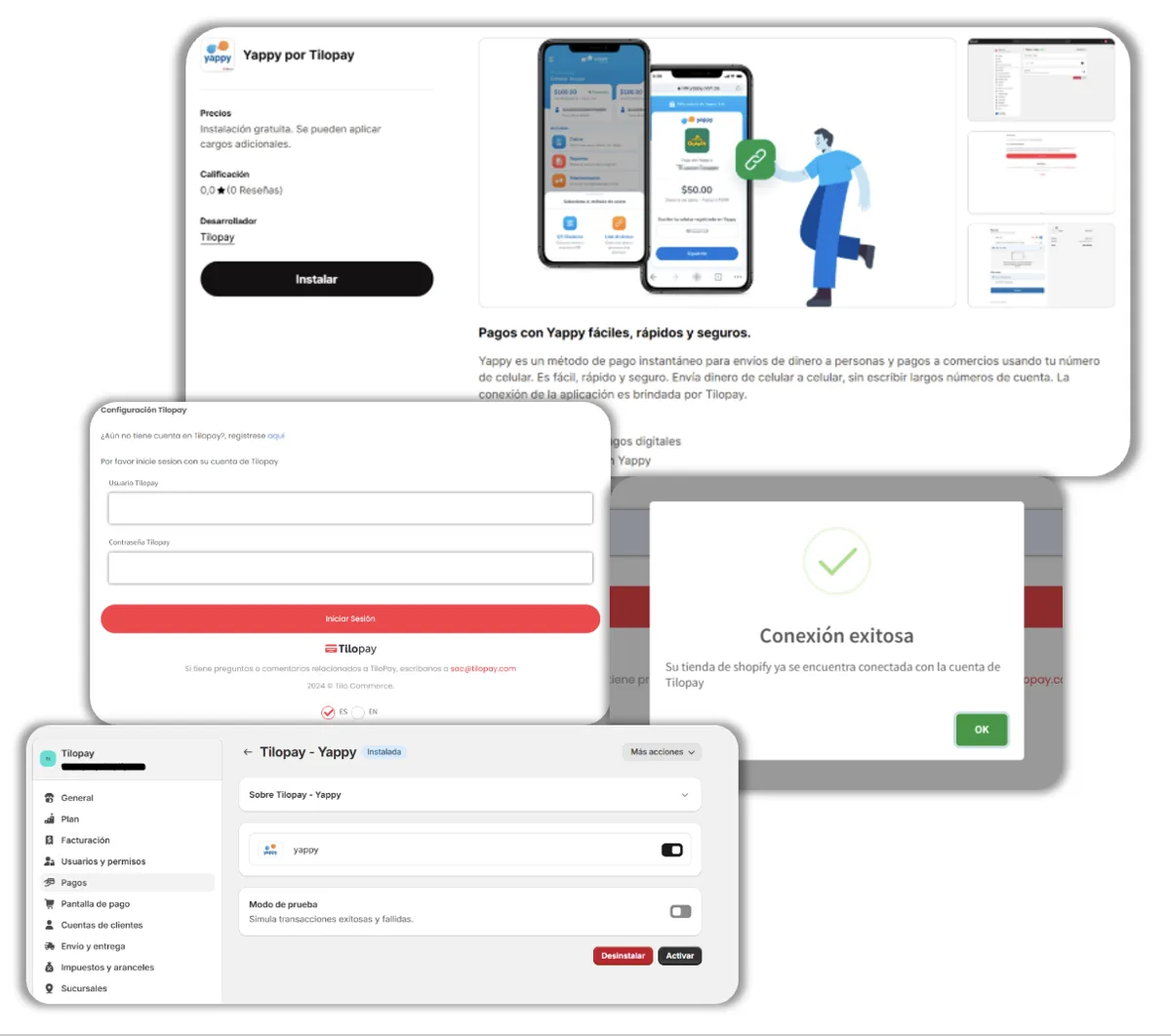
To allow your Shopify store to accept payments with Yappy, install it from: https://apps.shopify.com/tilopay-yappy-v2
Just click the Install button and follow the instructions.
The requested credentials are the same ones you use to sign in to the primary account in the Tilopay Admin Panel.
Test Mode for this Payment Method is NOT available in the Tilopay Admin Panel.
When you receive the Connection successful message, click the OK button and then Activate.
Follow these instructions to allow your Shopify store to accept one-time payments using alternative or local payment methods such as Yappy through Tilopay:
Sign in to your Shopify store’s admin panel
Go to Settings and click Payments
Under Additional payment methods, search for Tilopay as the provider and select from the available options to activate the Payment Methods available in your country.
Click each selected Provider to activate the Payment Methods you want to offer your customers and enable/disable Test Mode for your Shopify store.
* Remember that Test Mode must be enabled and disabled on both platforms for it to work properly.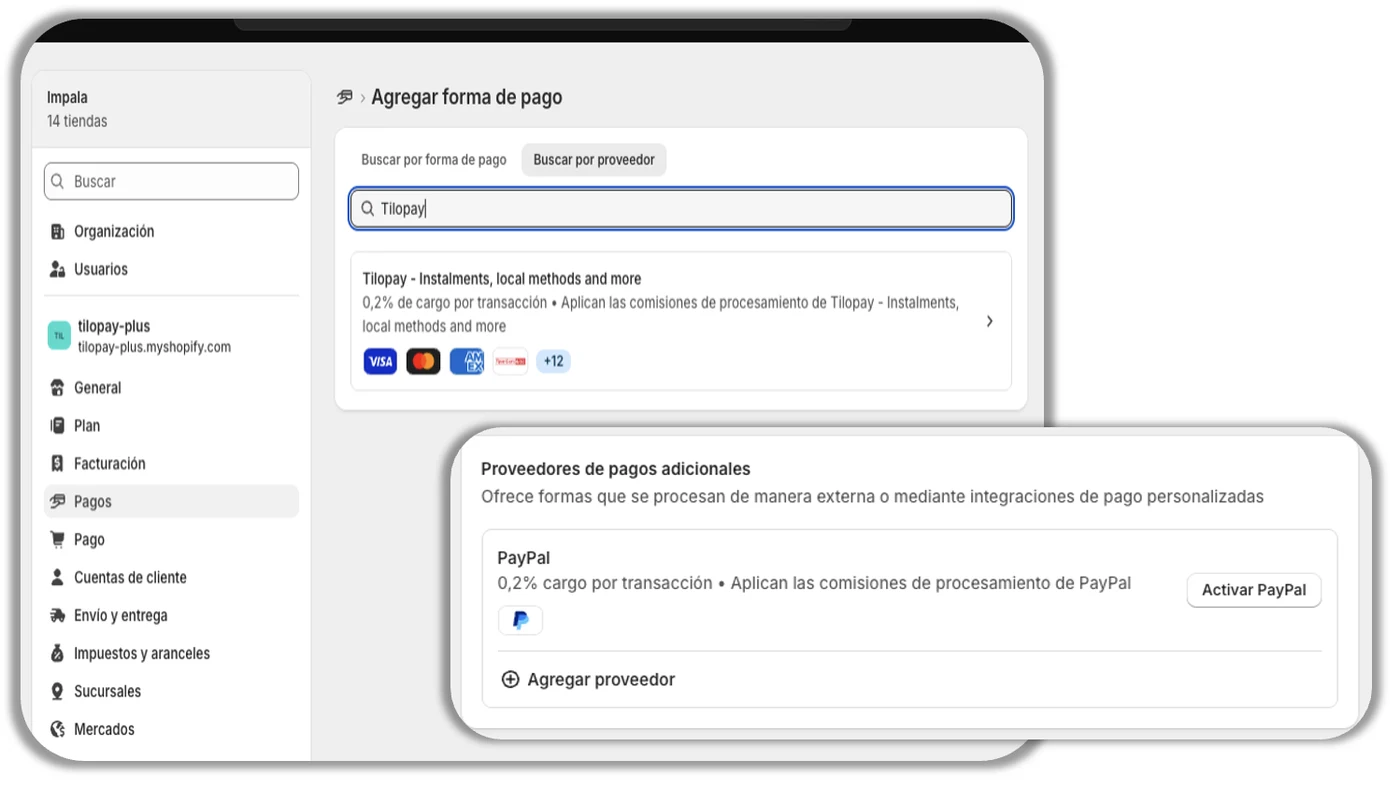
Once you activate the Payment Method, follow the instructions. When prompted to enter your credentials, use the username and password for the primary account you use to sign in to the Tilopay Admin Panel.
Shopify will let you know when you’re connected to Tilopay. You’ll then be asked to activate the payment methods you plan to use for your business by checking the corresponding box for each one (cards and alternative payment methods)
Then click Activate Tilopay.