What’s the Difference Between Native Checkout and Redirected Checkout in WooCommerce?
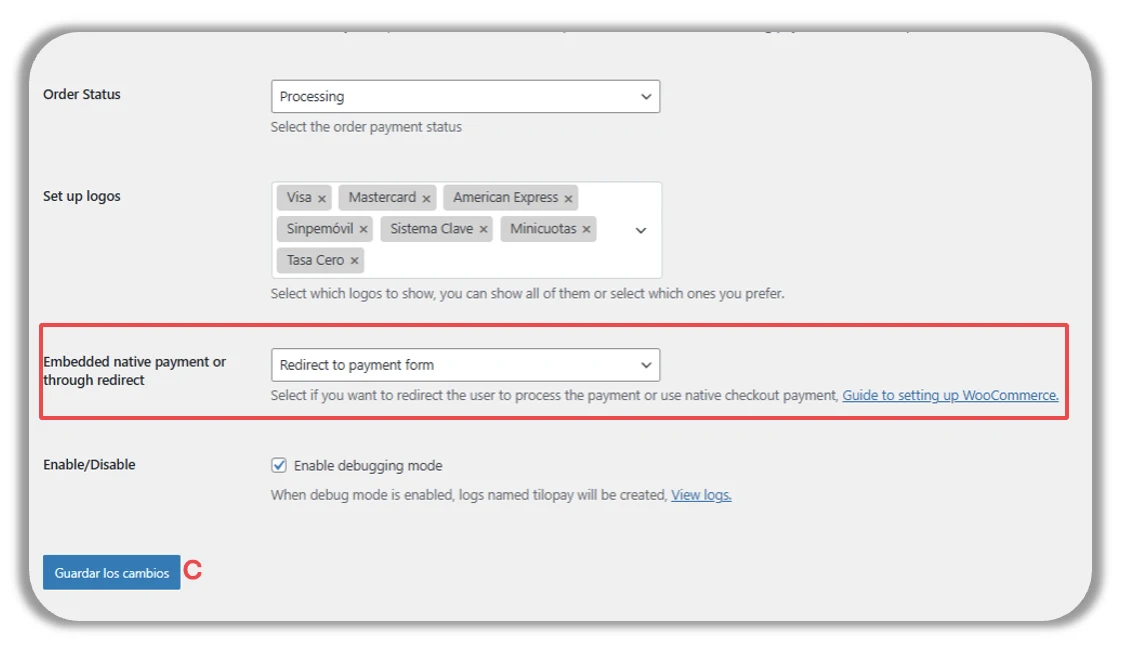
Near the end of the form for integrating the WooCommerce Platform, you can choose where you want your customer to complete their payment:
Directly in your Woo store by selecting Native Payment.
Directly through Tilopay by selecting Redirected Payment.
Enable debugging mode: When this box is checked, Tilopay and WooCommerce can access transaction logs. This is essential for answering your questions and helping you troubleshoot any transaction issues.
Click here to visit the WooCommerce page about checkout blocks.
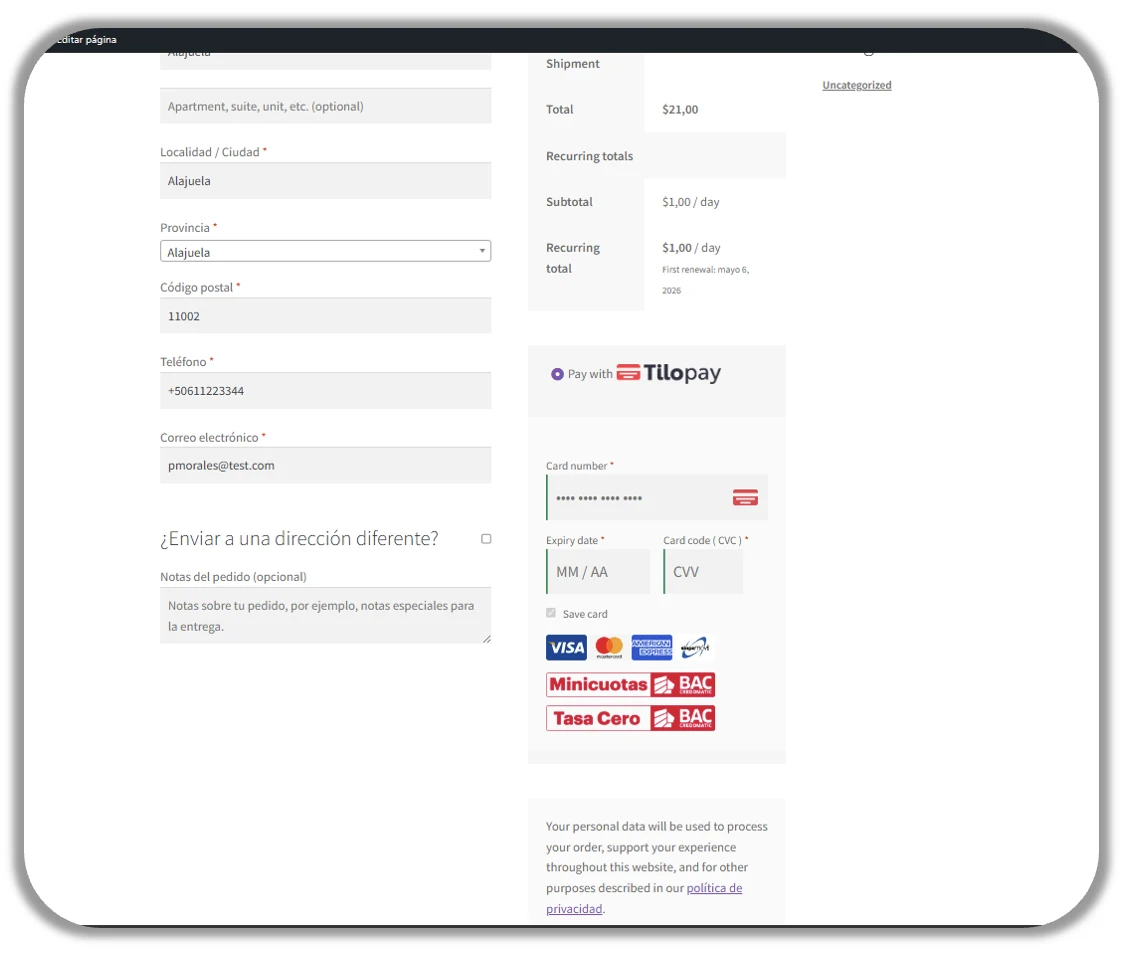
Checkout with Native Payment
This is how your customer will see the checkout when you select Native Payment for payments made with alternative or local payment methods.
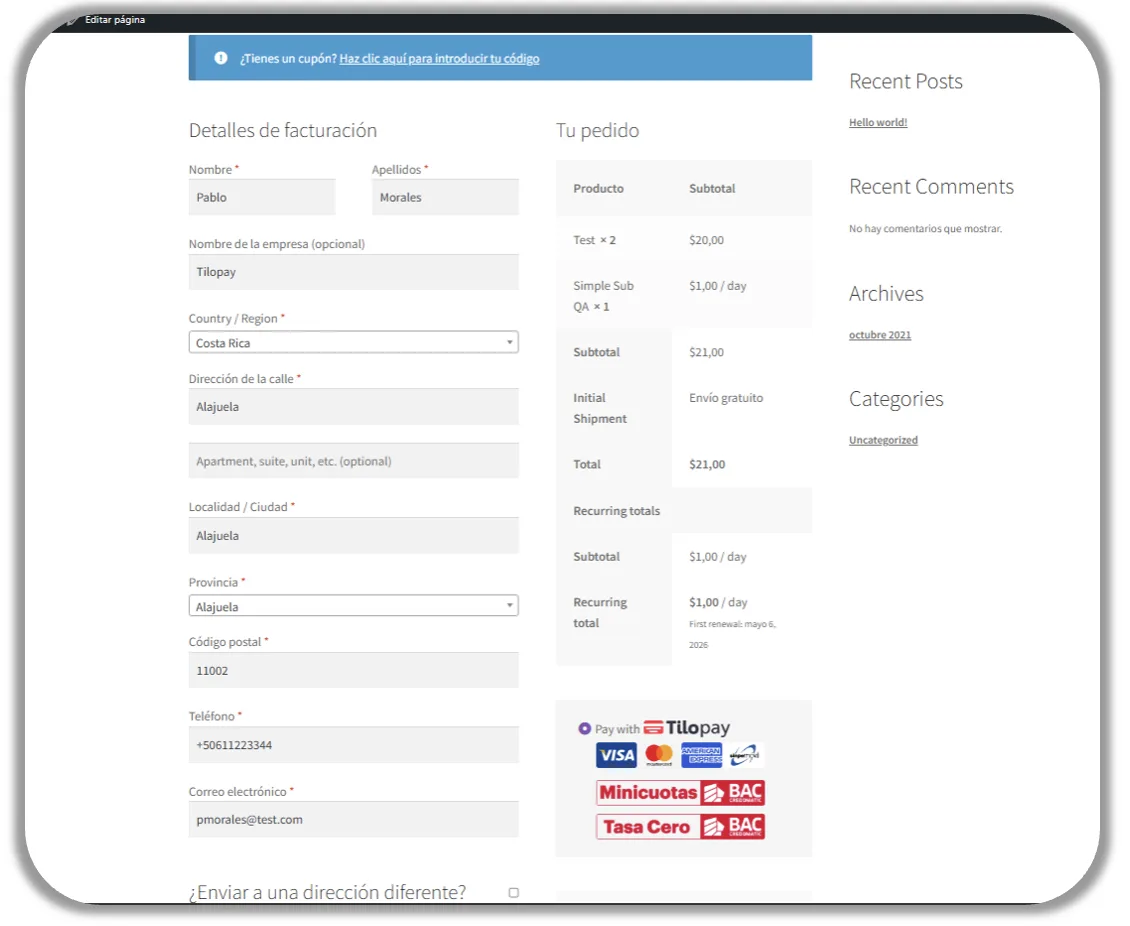
Checkout with Redirected Payment
This is how your customer will see the checkout when you select Redirected Payment for payments made with alternative or local payment methods.