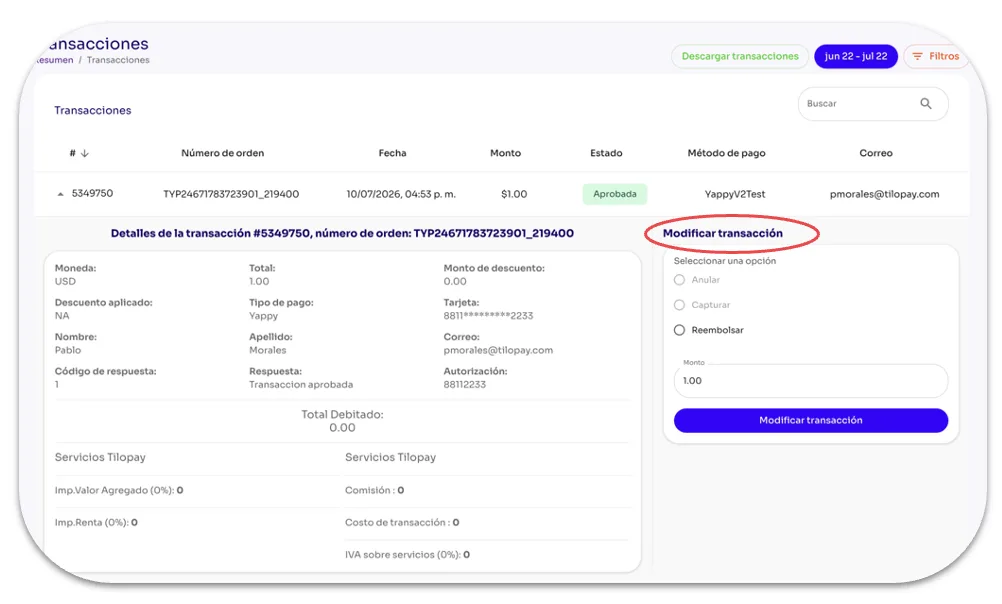
What can I do in the Transactions section of the Tilopay Admin Panel?
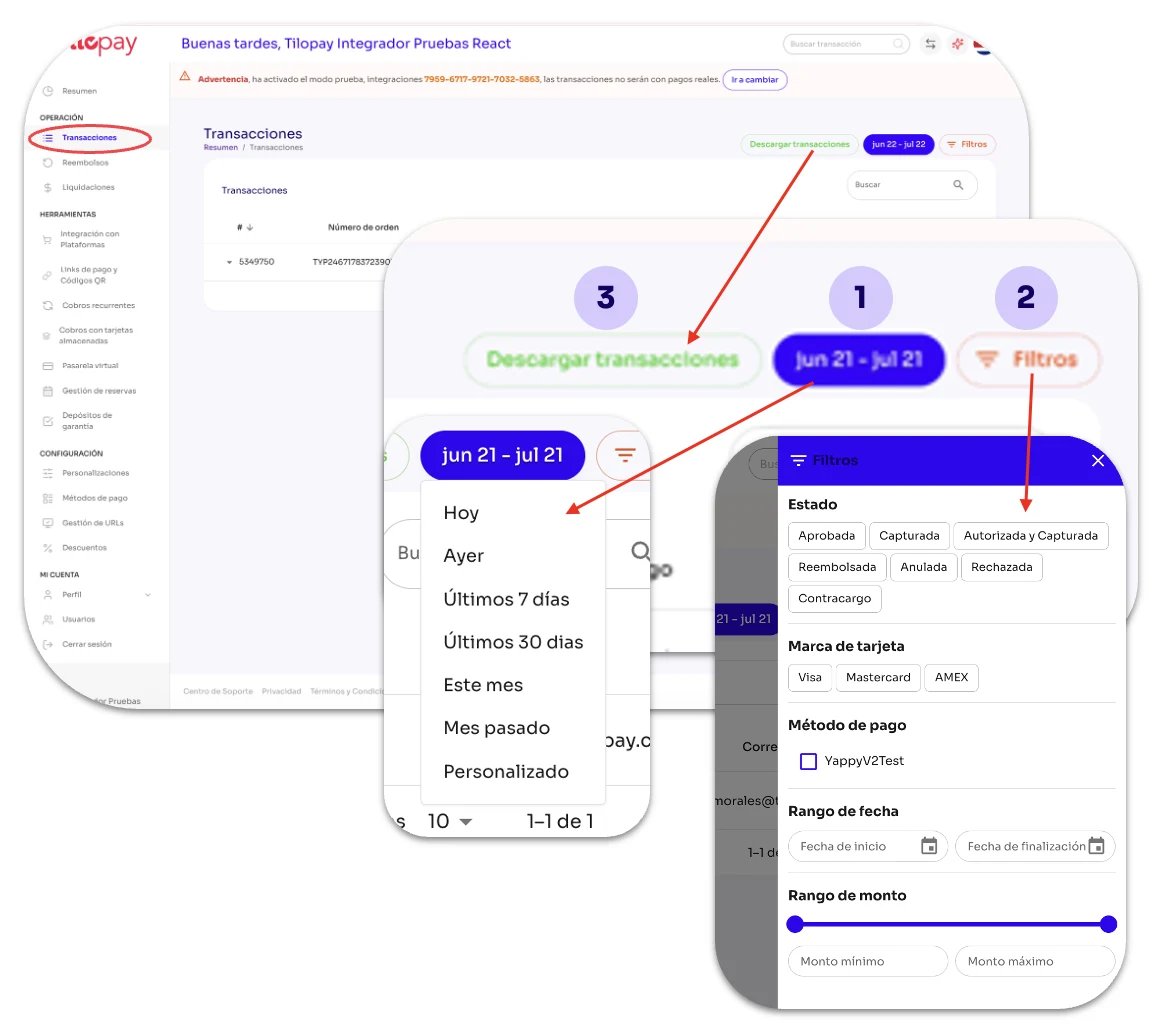
From the main interface of the Transactions section in the Tilopay Admin Panel, you can Download Transactions as a report for your selected date range.
Select the date range you need for the report using the red button on the right.
Use the options under Filter to include the transactions you need in the report.
Then download the report in .CSV or .xls format by clicking the red button on the left.
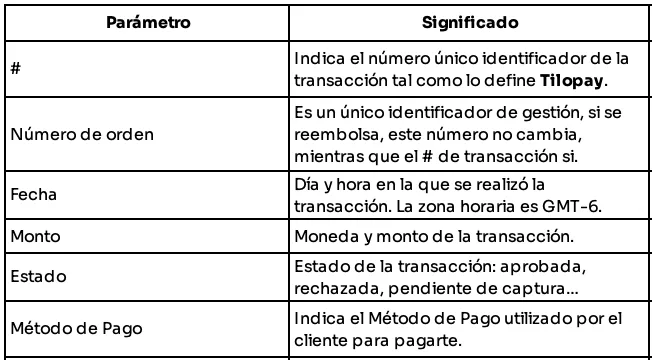
Transactions appear in a list with columns that prioritize the most relevant information.
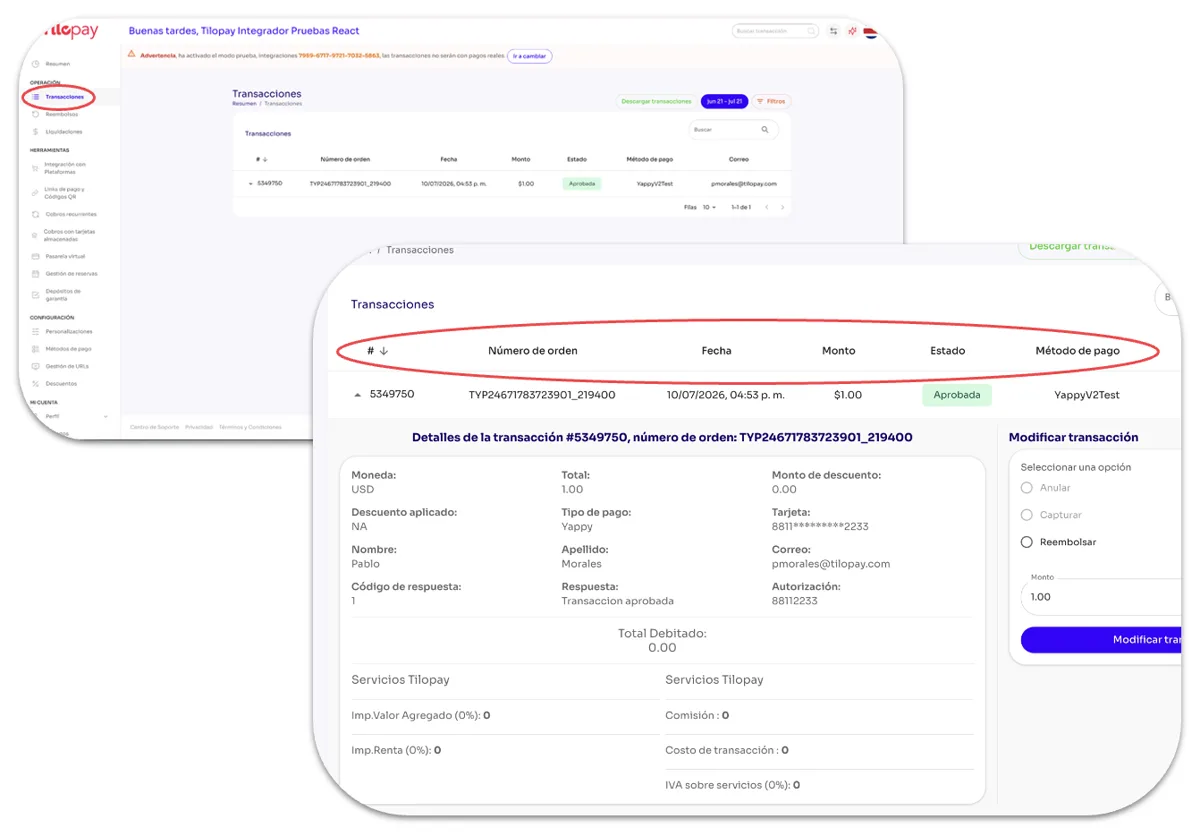
When you click a transaction, an expanded view of its details appears. This new format reduces visual clutter and improves navigation.
In the Modify transaction section of the detail view, you can perform operational actions on the transaction:
Capture: This is part of a two-step payment flow where you must capture the transaction after it has been approved to receive the funds. You have up to 7 days after the transaction is approved to capture it.
Refund: This returns money to a customer after a payment has been completed. Tilopay lets you issue partial or full refunds.
Reversal: This automatically or manually voids a payment when it isn't completed successfully.
These features let you manage transactions more efficiently from one place, directly in the Admin Panel.