¿Cómo instalar Cloudbeds?
Para instalar Cloudbeds haz lo siguiente:
Ingresa a Cloudbeds
Selecciona Marketplace y busca en Apps: Tilopay.
Selecciona Learn more y luego Connect App.
En Application Authorization, selecciona la propiedad a integrar en la app y luego haz clic en Continue.
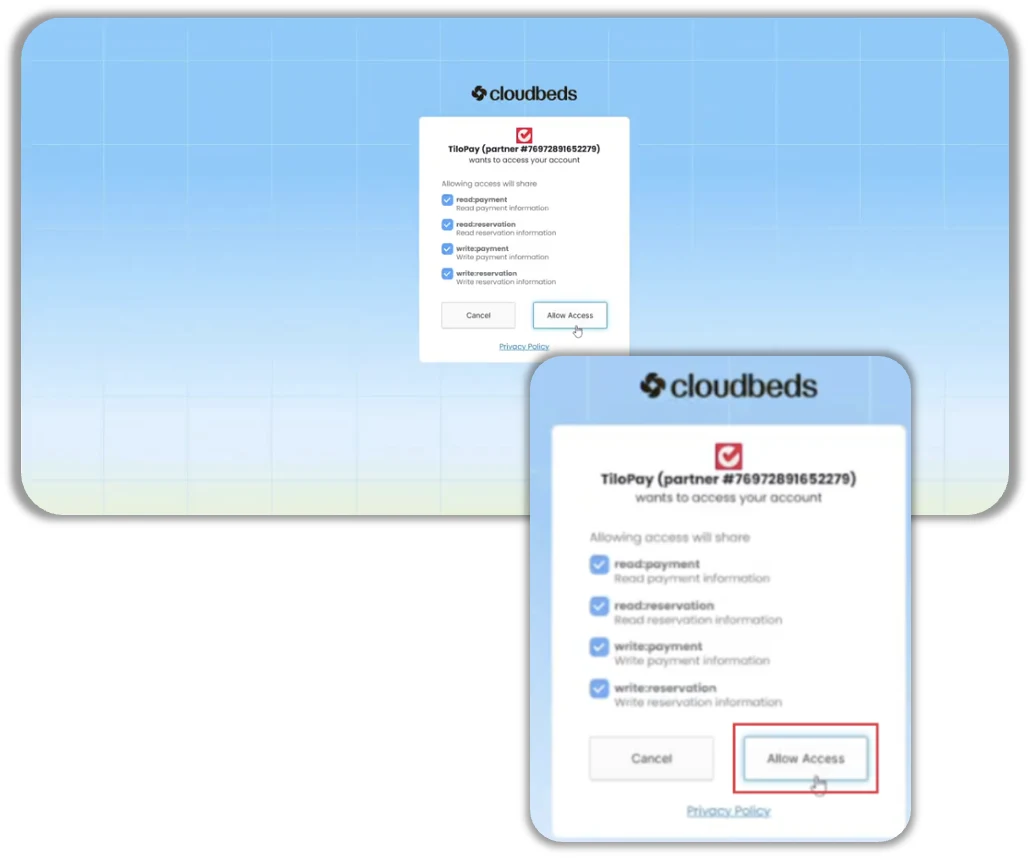
Selecciona las casillas de permisos y luego haz clic en Allow Access.
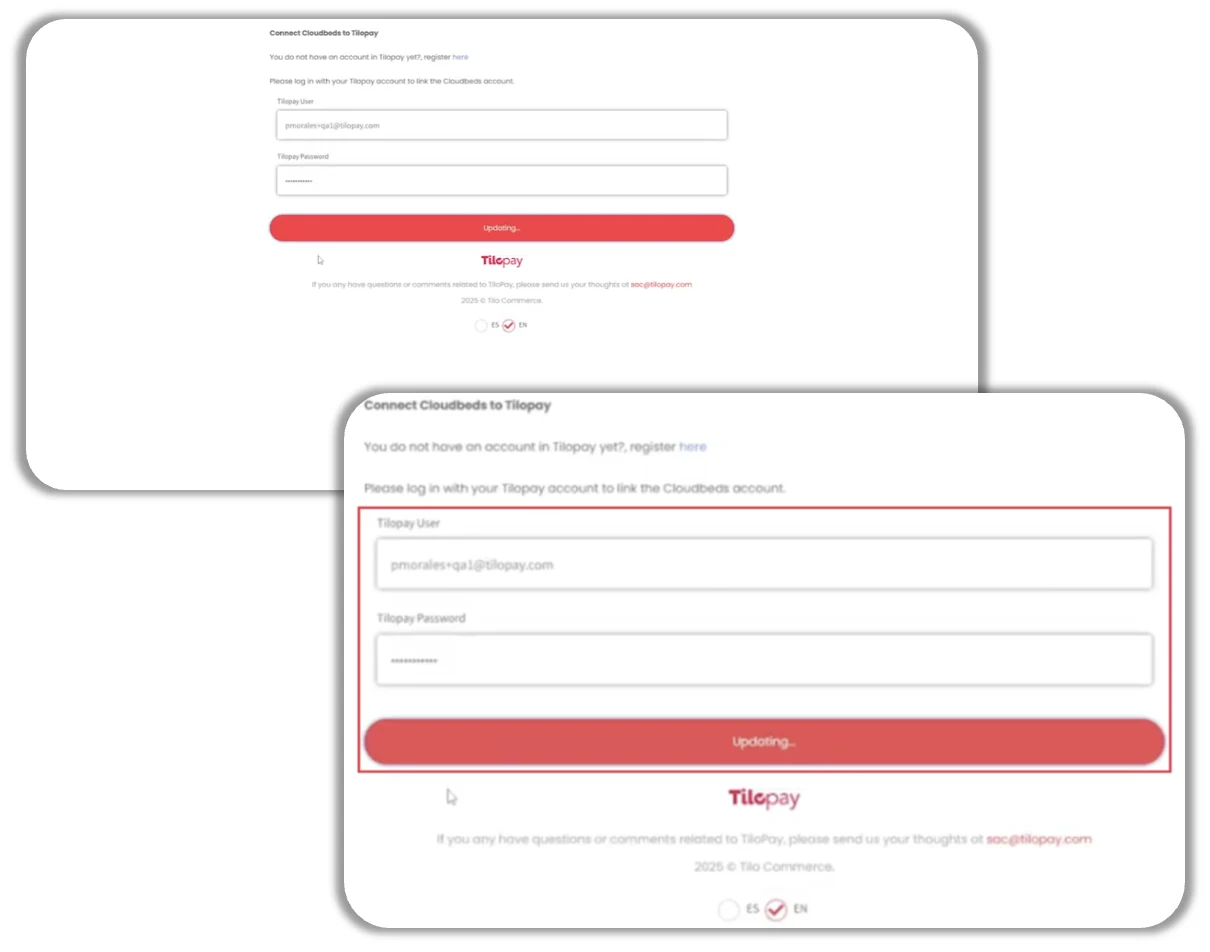
Al ser redireccionado al inicio de sesión de Tilopay, ingresa las credenciales del comercio afiliado, las mismas con las que te afiliaste a Tilopay.
Selecciona Ok.
La conexión ha sido establecida. Esta se puede verificar en la sección de Gestión de Reservas dentro del Panel Administrativo de Tilopay.
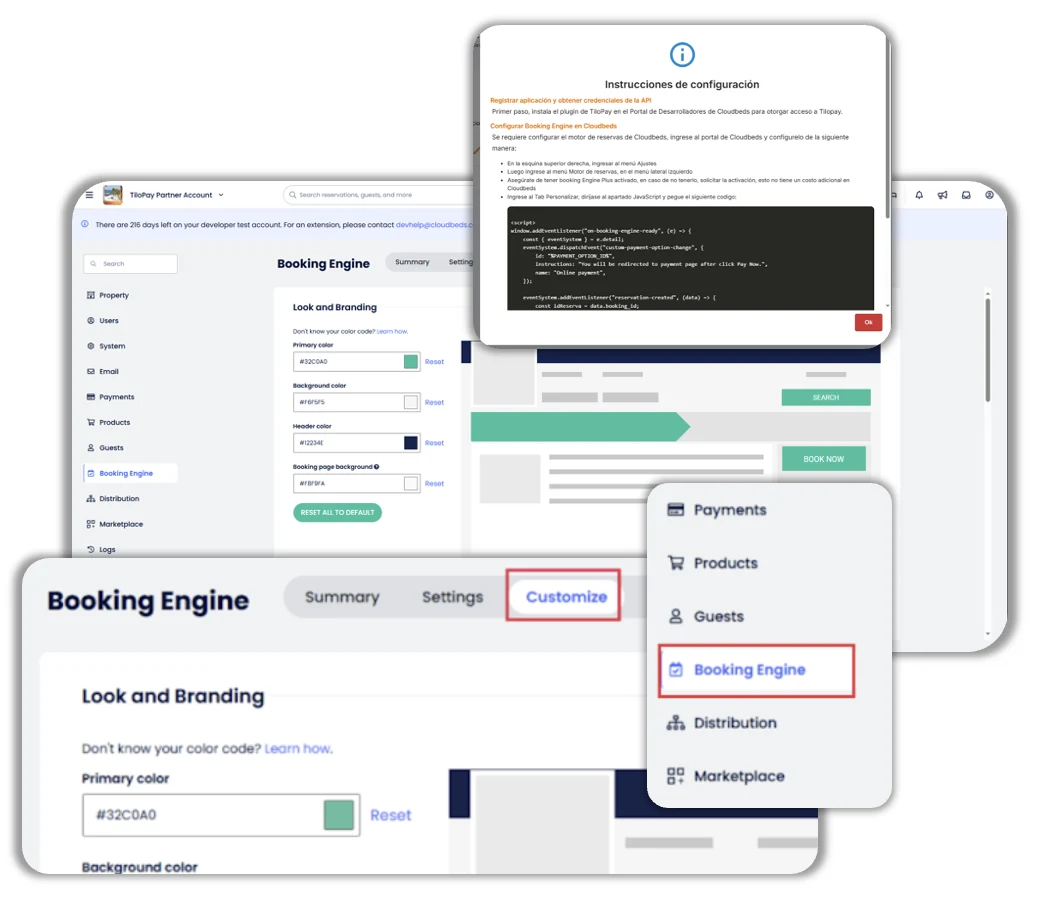
El JSON del motor de reserva (booking engine) Cloudbeds te da la oportunidad de introducir el texto que desees para cuando el cliente llegue al checkout.
Recuerda que estas instrucciones las encuentras en el botón de información. El código JSON es la información que aparece en la ventana de color negro.
Copia el JSON y en una ventana nueva del buscador, dirígete a Cloudbeds.
Selecciona Booking Engine y luego haz clic en Customize.
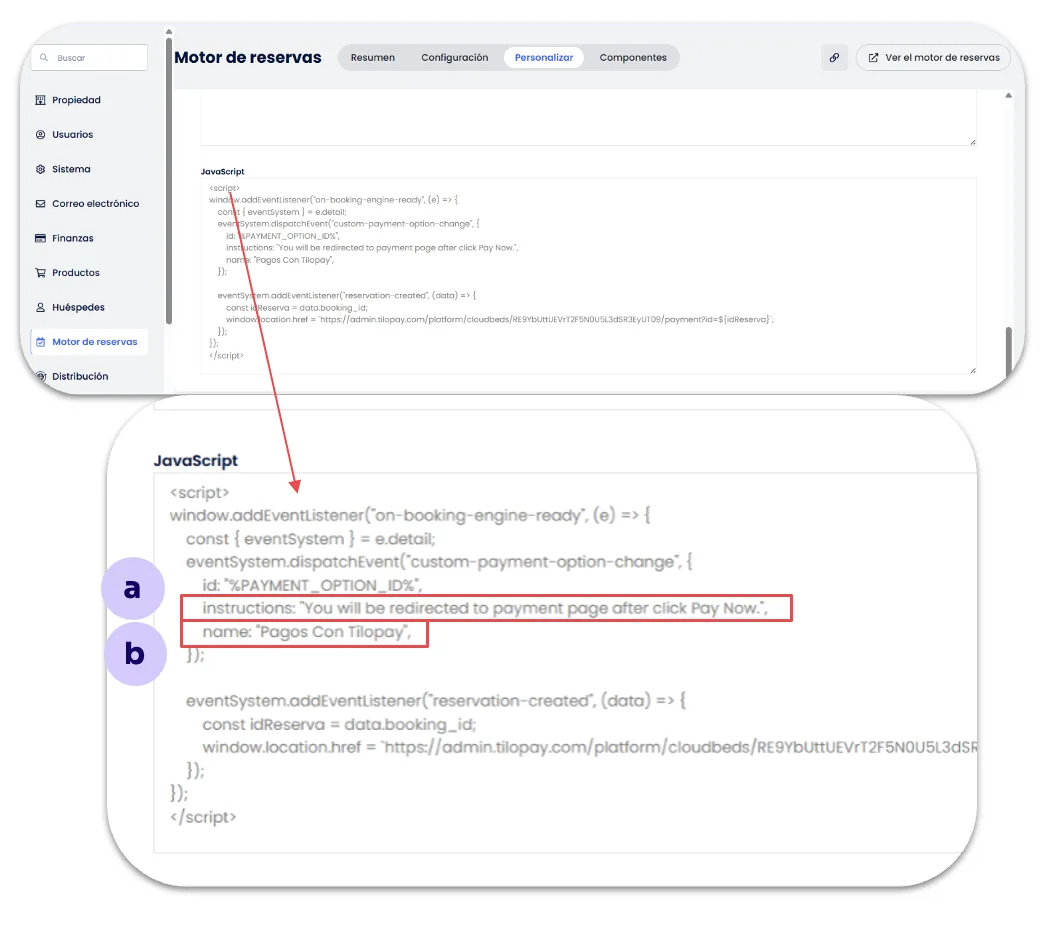
Desplázate hacia abajo hasta encontrar la sección de Javascript en la página.
Reemplaza el código de Cloudbeds por el JSON que copió desde Tilopay.
Una vez pegado el texto, se pueden modificar los siguientes campos.
a. Instructions: Texto que se va a mostrar durante el checkout en Cloudbeds.
b. Name: Nombre del método de pago dentro de Cloudbeds.