How to Install Cloudbeds
To install Cloudbeds, follow these steps:
Log in to Cloudbeds
Select Marketplace and search for Tilopay under Apps.
Select Learn more, then Connect App.
Under Application Authorization, select the property you want to integrate with the app, then click Continue.
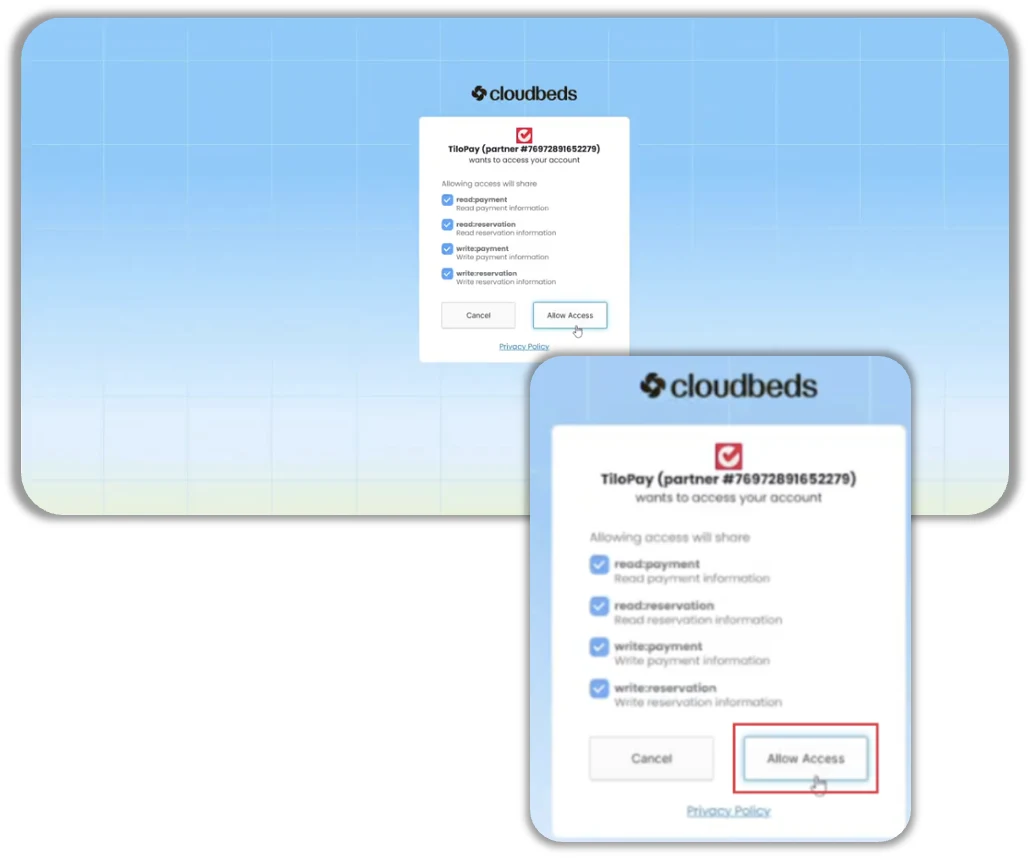
Select the permission checkboxes, then click Allow Access.
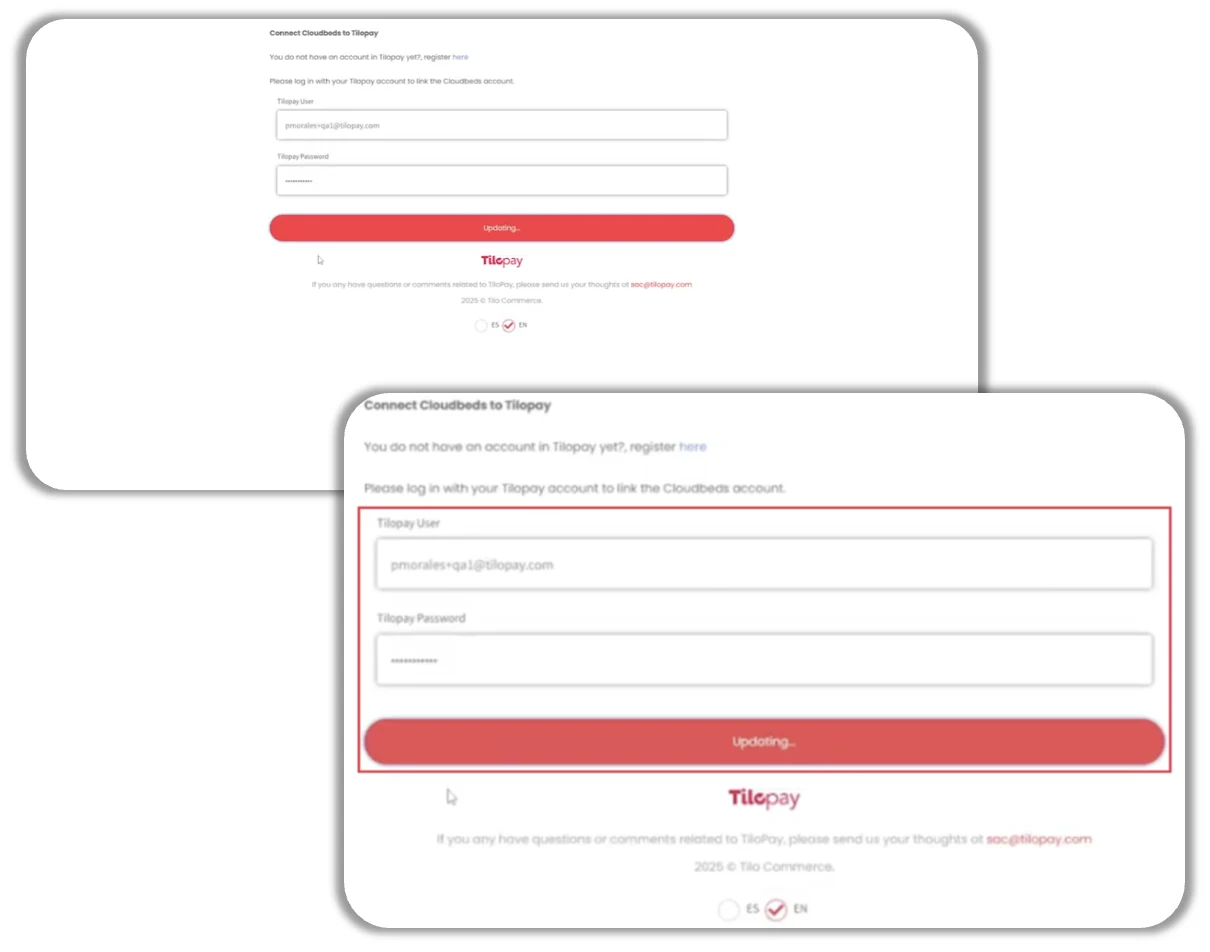
When you're redirected to the Tilopay login page, enter your merchant account credentials—the same ones you used when signing up for Tilopay.
Select OK.
The connection is now set up. You can verify it in the Reservation Management section of the Tilopay Admin Dashboard.
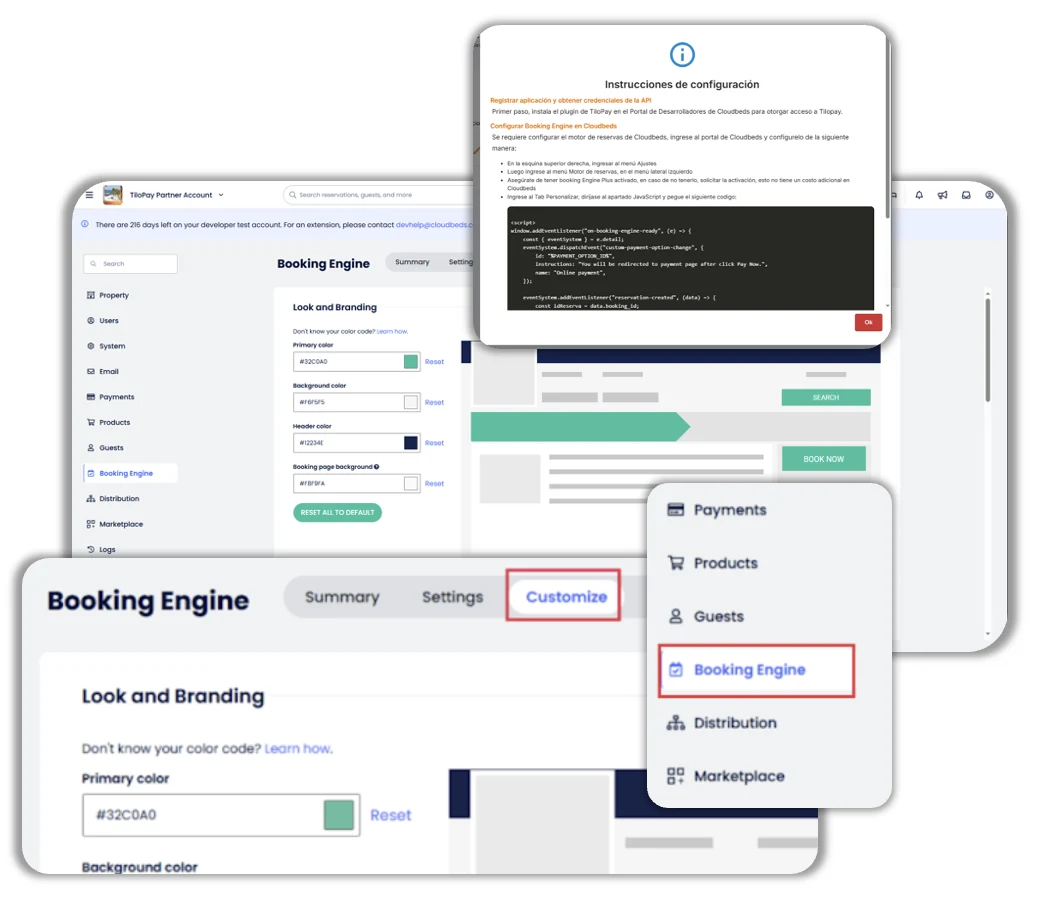
The JSON for the Cloudbeds booking engine lets you add custom text that customers will see when they reach checkout.
Remember, you can find these instructions by clicking the information button. The JSON code is the information displayed in the black window.
Copy the JSON, open a new browser window, and go to Cloudbeds.
Select Booking Engine, then click Customize.
Scroll down until you find the Javascript section on the page.
Replace the Cloudbeds code with the JSON you copied from Tilopay.
After pasting the text, you can edit the following fields.
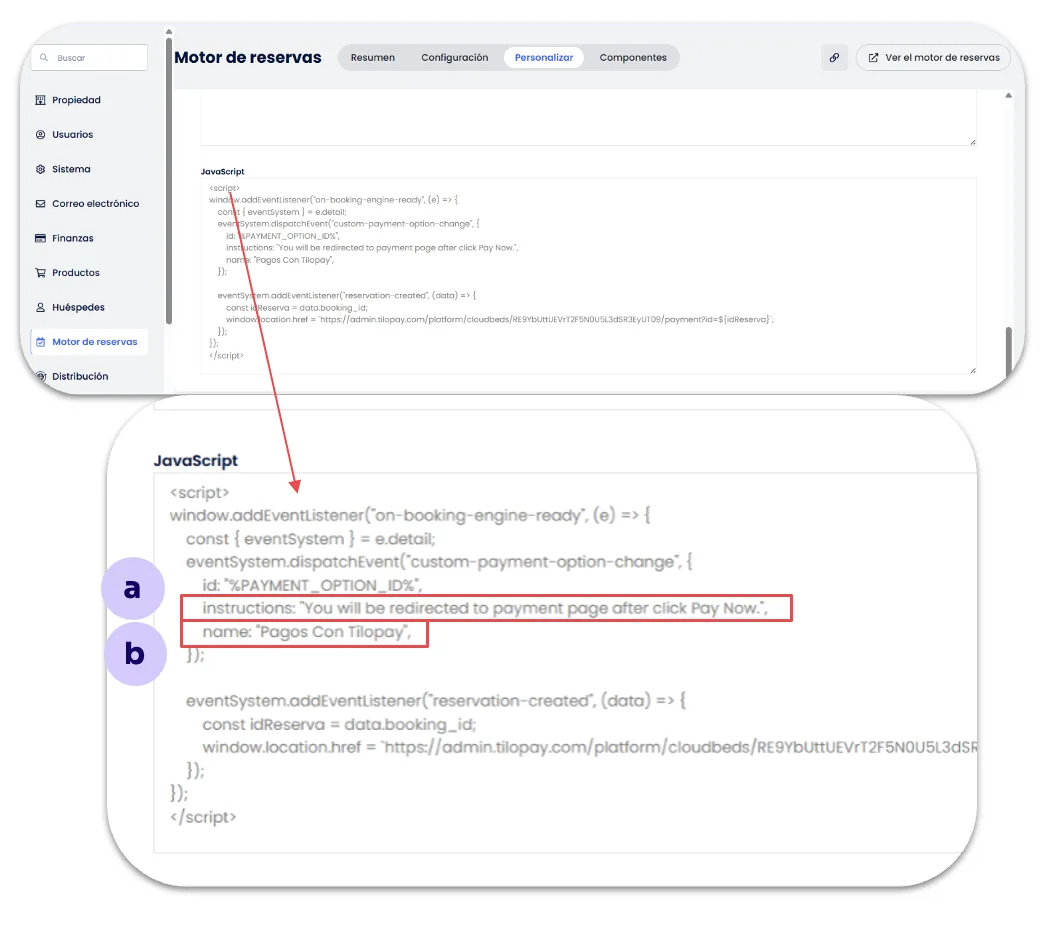
a. Instructions: The text displayed during checkout in Cloudbeds.
b. Name: The name of the payment method in Cloudbeds.