What can I do from any screen in the Tilopay Admin Dashboard?
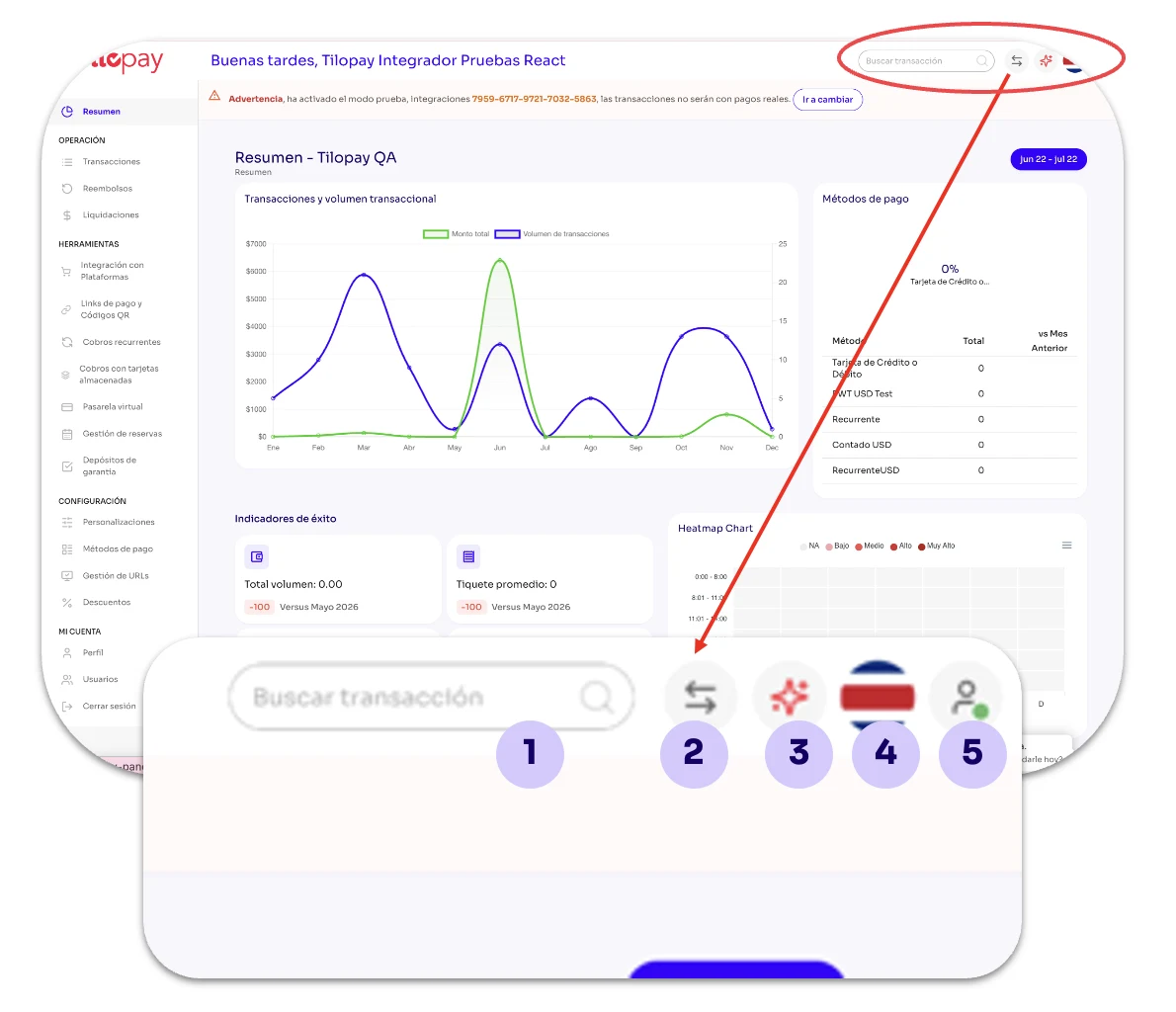
From any screen in the Tilopay Admin Dashboard, you can do the following:
The Search Transactions button is in the upper-left corner. You can use it to search for any transaction from any screen in the Tilopay Admin Dashboard.
On the right, you'll find buttons to:Switch Merchants if you have multiple businesses enrolled with Tilopay.
Open the Tilopay Assistance Chatbot, which provides articles about the different features of the Tilopay Admin Dashboard and answers to Frequently Asked Questions (FAQs).
Language, where you can switch the dashboard language between Spanish and English.
Profile, which you can also access from the My Account module, as well as a Help button and a button to Log Out of the Tilopay Admin Dashboard.
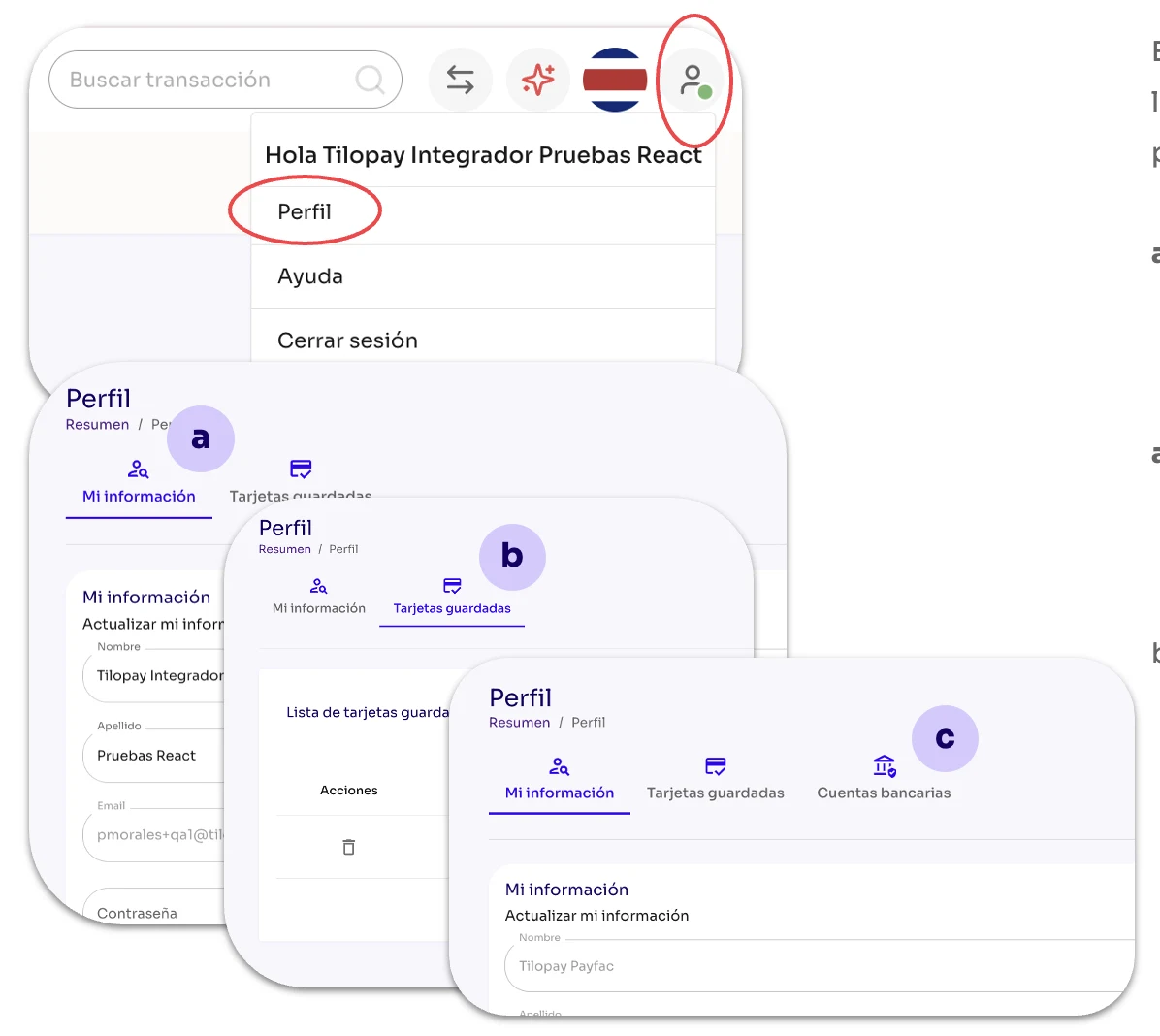
Under Profile, you can access the information you provided when you enrolled under the My Information tab and your Saved Cards under the tab of the same name.
a. My Information: From here, you can change the email address associated with your account by clicking the pencil icon in that field and following the instructions provided.
b. Saved Cards: This tab also lets you add or remove cards. If you have more than one card saved, you can select the one you want to use as your primary card.
c. Bank Account: This additional section will appear if you have Payfac Payment Methods. If you only have Aggregator payment methods, this section will not appear.
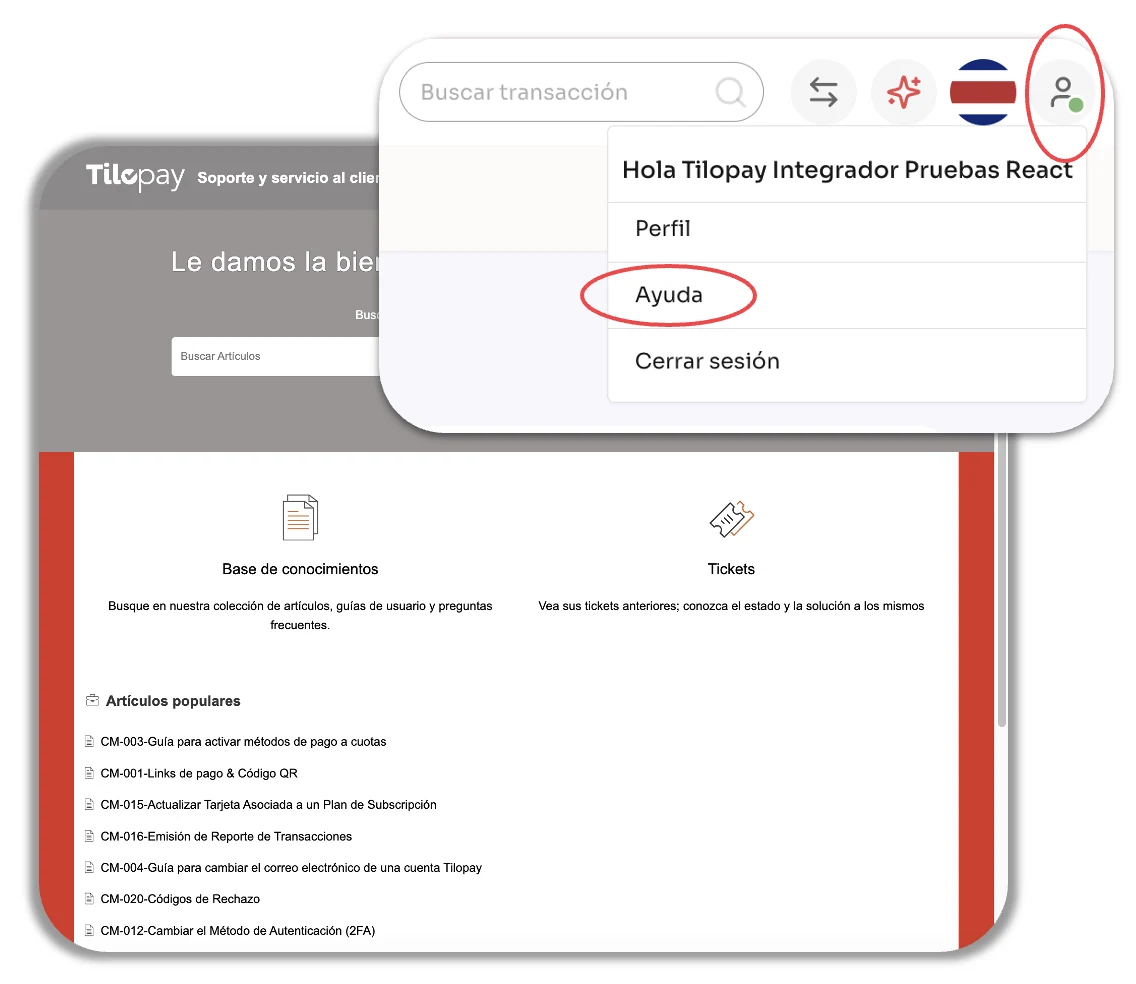
When you click the Help option, a new browser tab will open and redirect you to the Tilopay Support Portal, where you can access the Help article library and all the tickets you've opened with the Tilopay Customer Service Team.
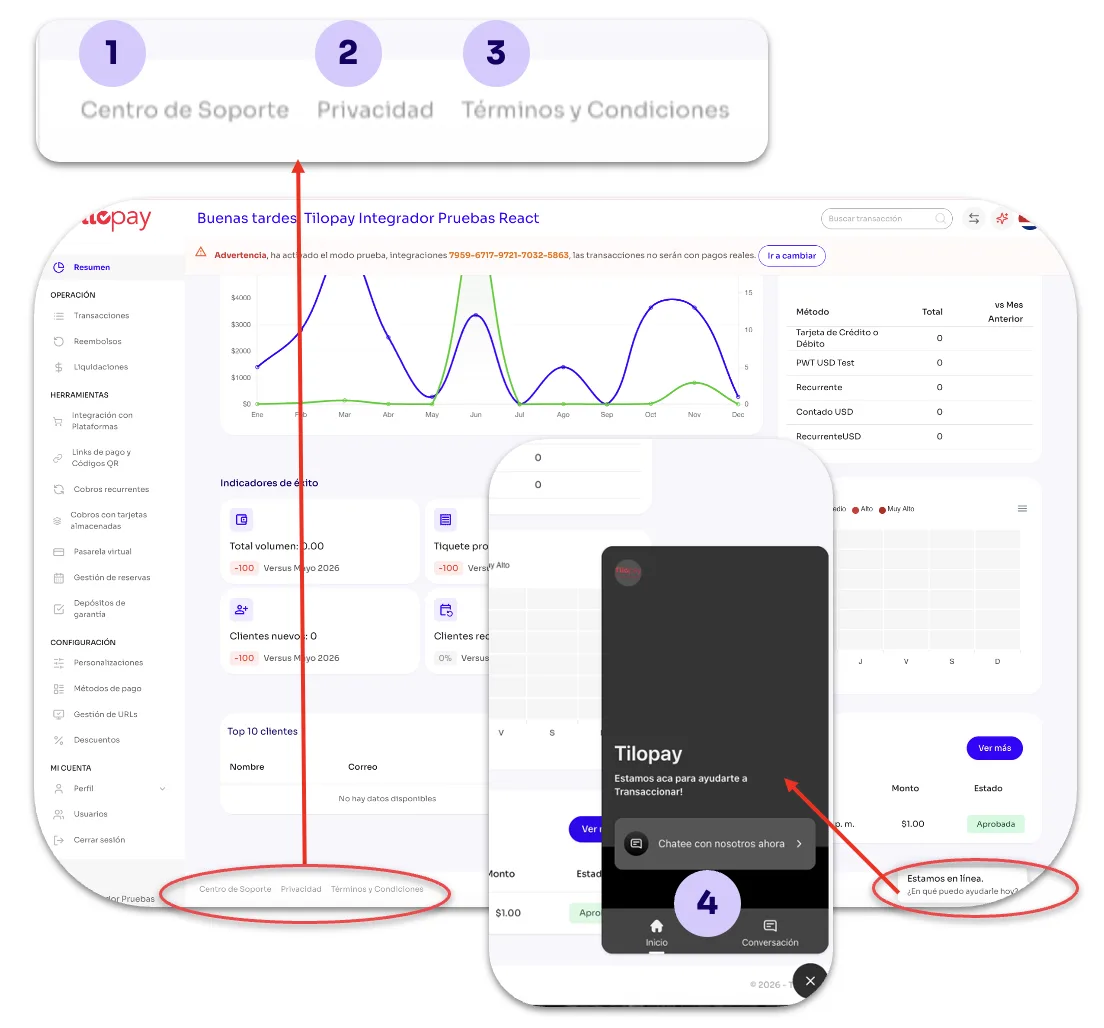
At the bottom of the screen, you'll always have access to:
Support Center: Like the Help button, this will take you to the Tilopay Support Portal , where you can access articles and your tickets.
Privacy: This button redirects you to Tilopay's Privacy Policy and Data Protection Policy, so you can read them whenever you want.
Terms and Conditions: This button redirects you to the Terms and Conditions, so you can read them whenever you want.
Chat: From here, you can start a Chat with our Sales Executives and Customer Service Representatives.