How do I set up Tilopay Alternative Payment Methods in WIX?
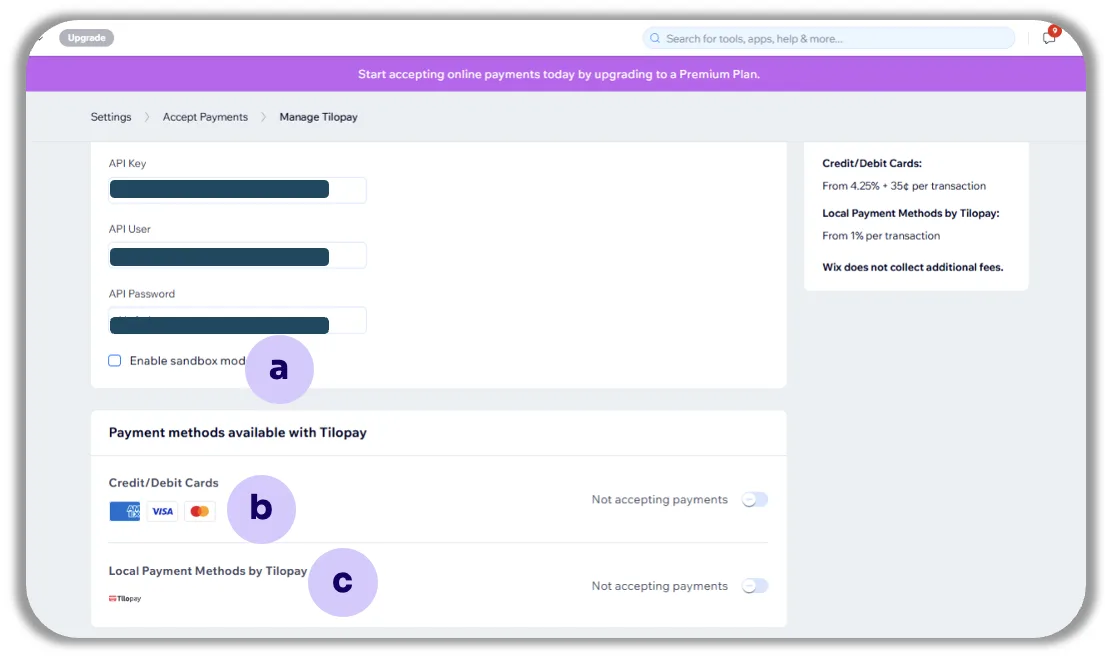
When you click the button to open the option to connect Tilopay to your Wix account, you'll see a form that you need to complete using the information from the Tilopay Admin Dashboard.
WIX is the platform available for your store to accept credit and debit cards in Central America and the Caribbean.
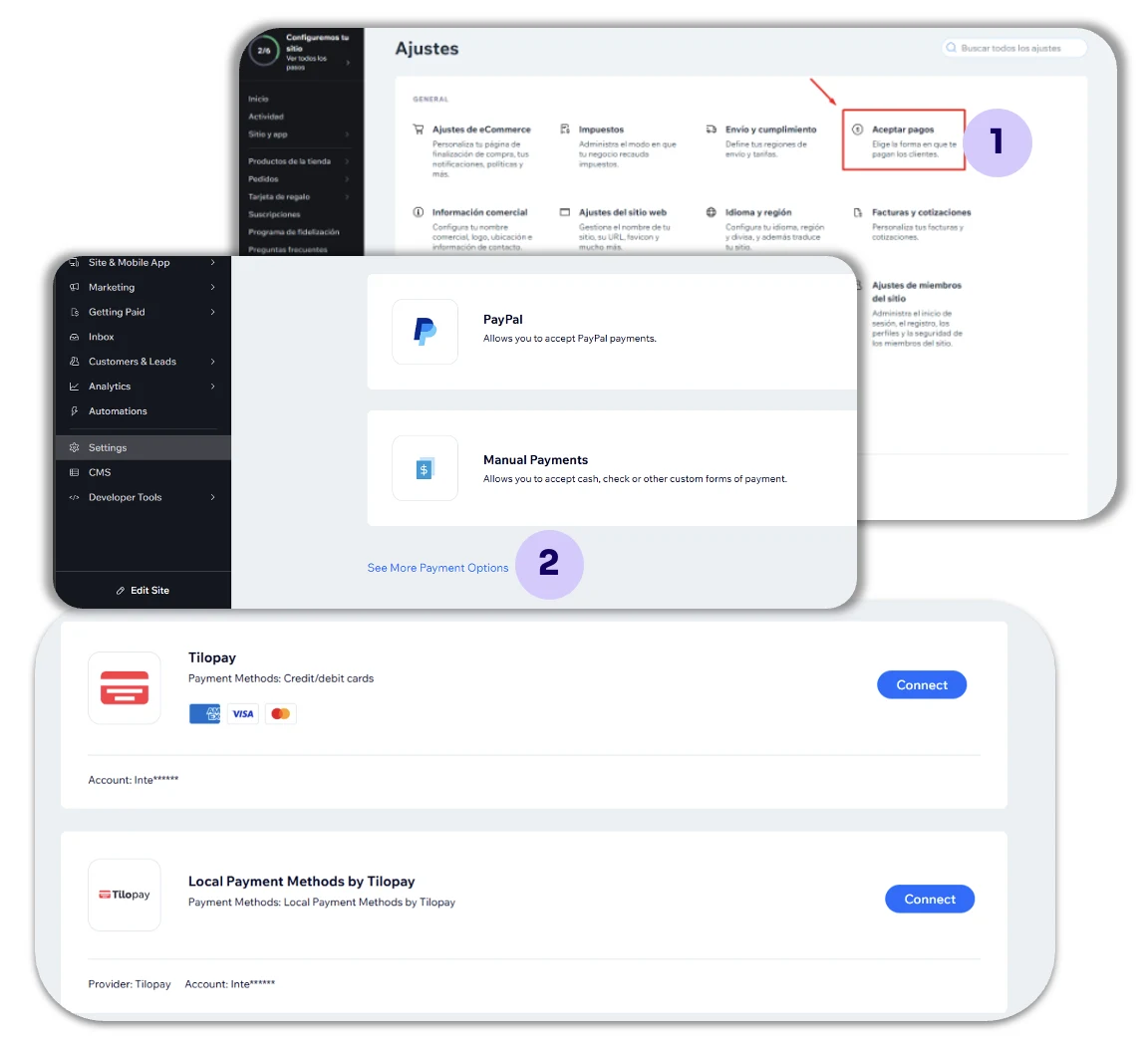
To enable the Tilopay Payment Method on your WIX site:
Go to the Settings tab and click Accept Payments.
Then click See More Payment Options and look for Tilopay.
Tilopay offers 2 Payment Methods for your Wix store:Credit/debit cards: When you set up this method, your customers will be redirected to the Tilopay checkout when they pay.
Local Payment Methods: When you set up this method, your customers will remain on the Wix platform until they complete their payment.
Once you've entered the Tilopay API information for your preferred Payment Method, WIX will show you the following options:
The option to enable or disable Test Mode for this Payment Method using the Sandbox checkbox.
Remember that you must enable or disable Test Mode on both platforms for it to work properly.
The card brands you want to accept in your store.
The option to enable the different alternative payment methods available in your country.