How Do I Configure the Tilopay Payment Method for Installment Payments in VTEX Payment Terms?
VTEX is the platform that enables your store to accept credit and debit cards in Central America and the Caribbean.
You must install the app that interacts with the VTEX connector and payment flow. You can find it at the following link: https://{VTEXACCOUNT}.myvtex.com/admin/apps/tilopaypartnercr.tiloappcreditcard@1.0.0/install
You must replace {VTEXACCOUNT} with your VTEX account to install the app.
To install the connector:
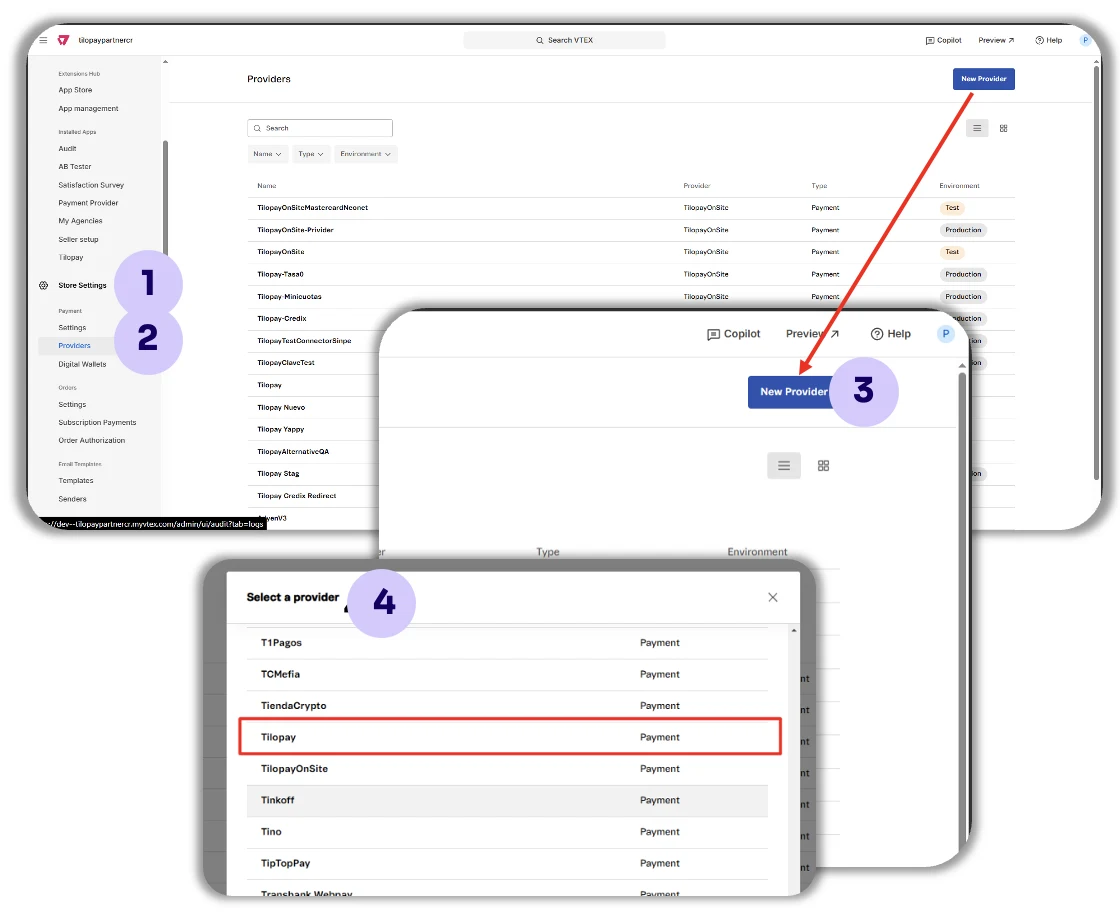
Click Settings
Then click Providers
Then click New Provider
Search for TilopayOnSite.
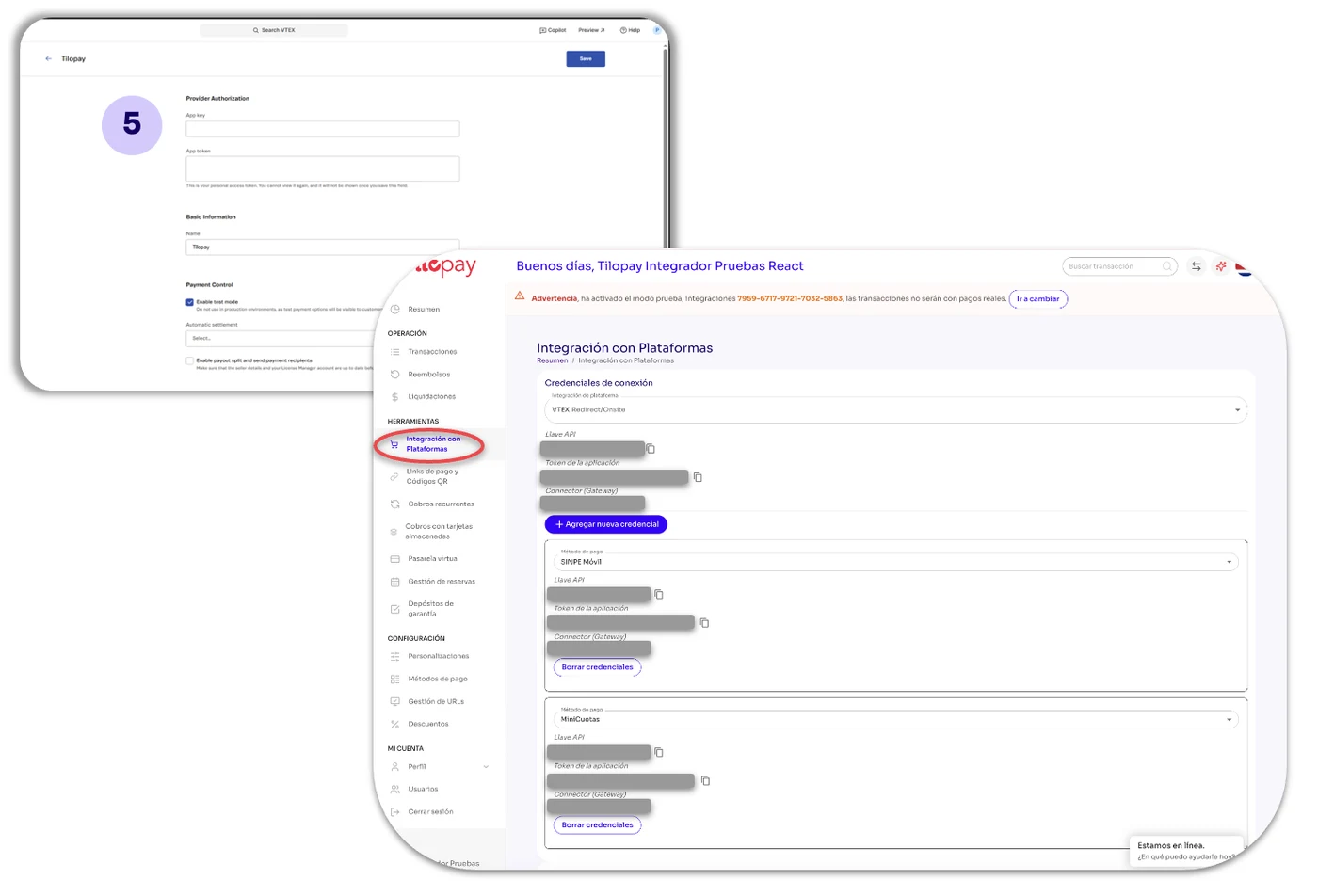
Complete the form using the API information from the Tilopay Admin Dashboard.
From the Tilopay Admin Dashboard:
Go to the Tools module, click Platform Integration, and select VTEX from the drop-down list.
Copy the API credentials into the form for your VTEX store referenced in step 5.
To create different Tilopay payment terms in VTEX:
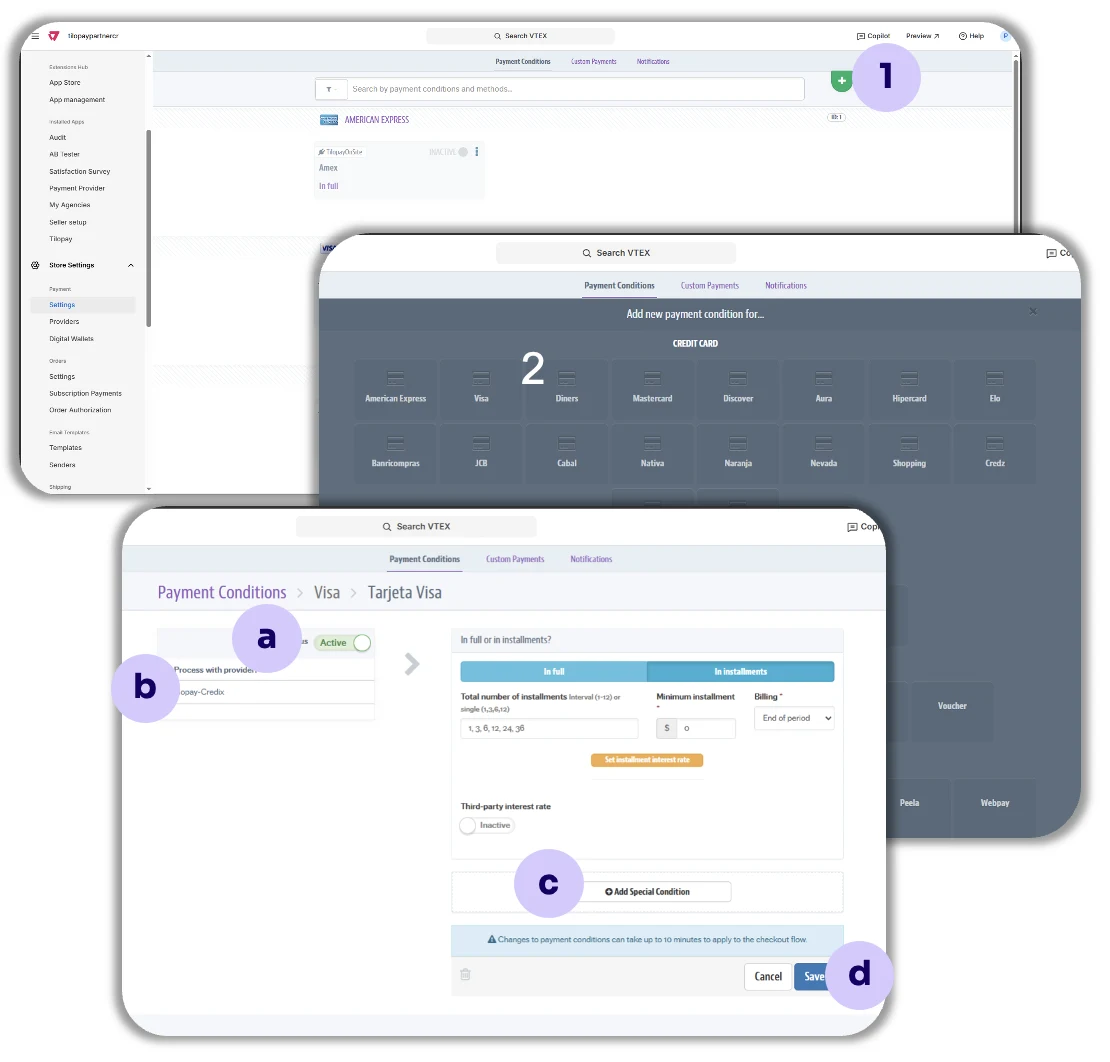
Go to the Payment Terms tab and click the plus sign ( + ).
Then select the card brands you will process in your VTEX store: Visa, MasterCard, and Amex.
Then configure the Payment Term as follows:
a. Status: Enable the payment term by clicking the corresponding toggle.
b. Process with affiliation: Select the TilopayOnSite connector from the drop-down list.
c. Add special condition: If you want, you can add special conditions for each payment term.
d. Save: Always remember to save your selections.
To configure Tilopay in VTEX for local or alternative payment methods
Go to the Custom Payments tab and complete the fields with the requested information.
Then create the Payment Term just as you did when configuring the TilopayOnSite connector in VTEX.
You must do this for each payment type you want to add: card payments, recurring payments, SINPE, etc.
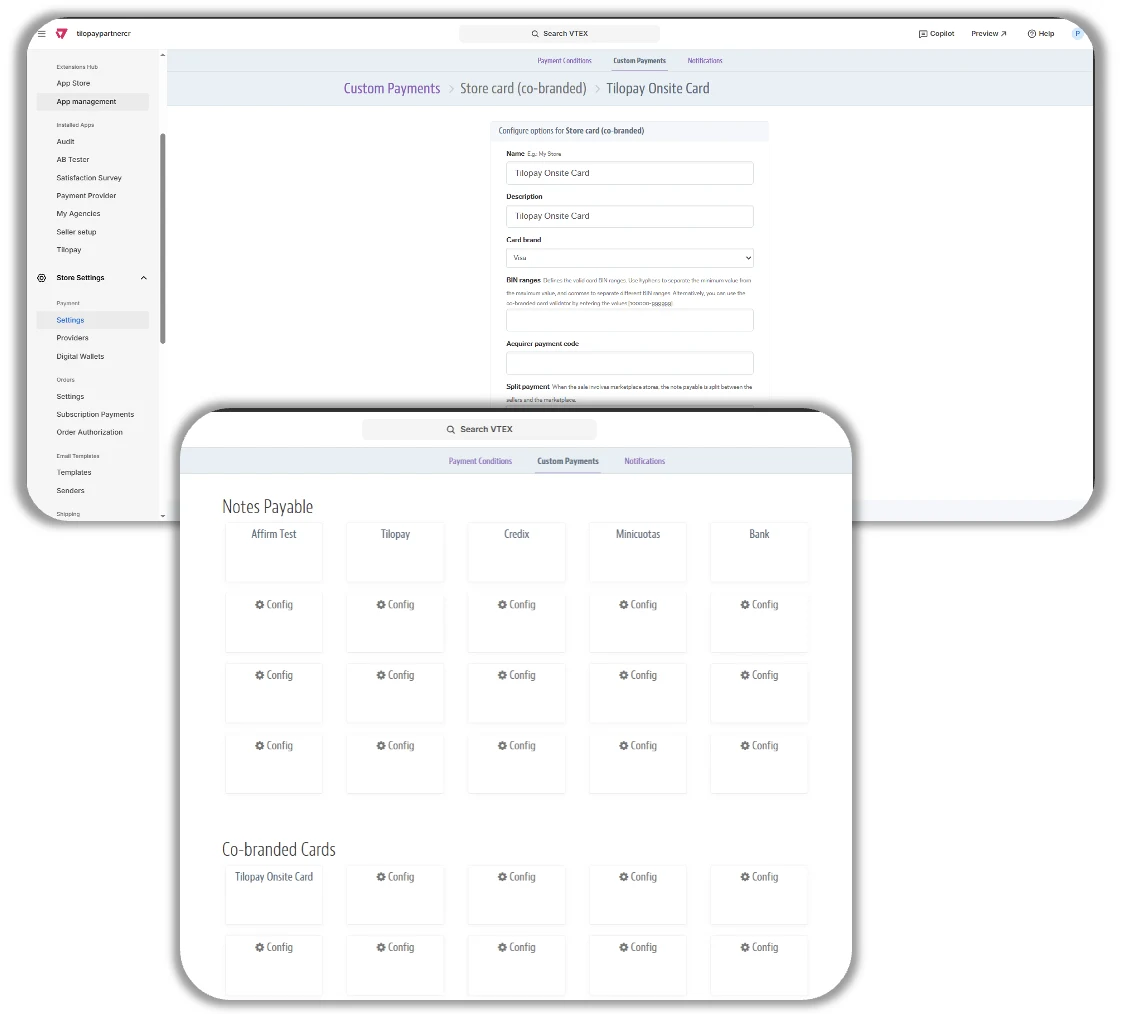
To configure Installment Payments in VTEX
To configure Installment Payments, go to the Store Settings menu in VTEX, select the Providers section, click the New Provider button, then search for and select TilopayOnSite from the list.
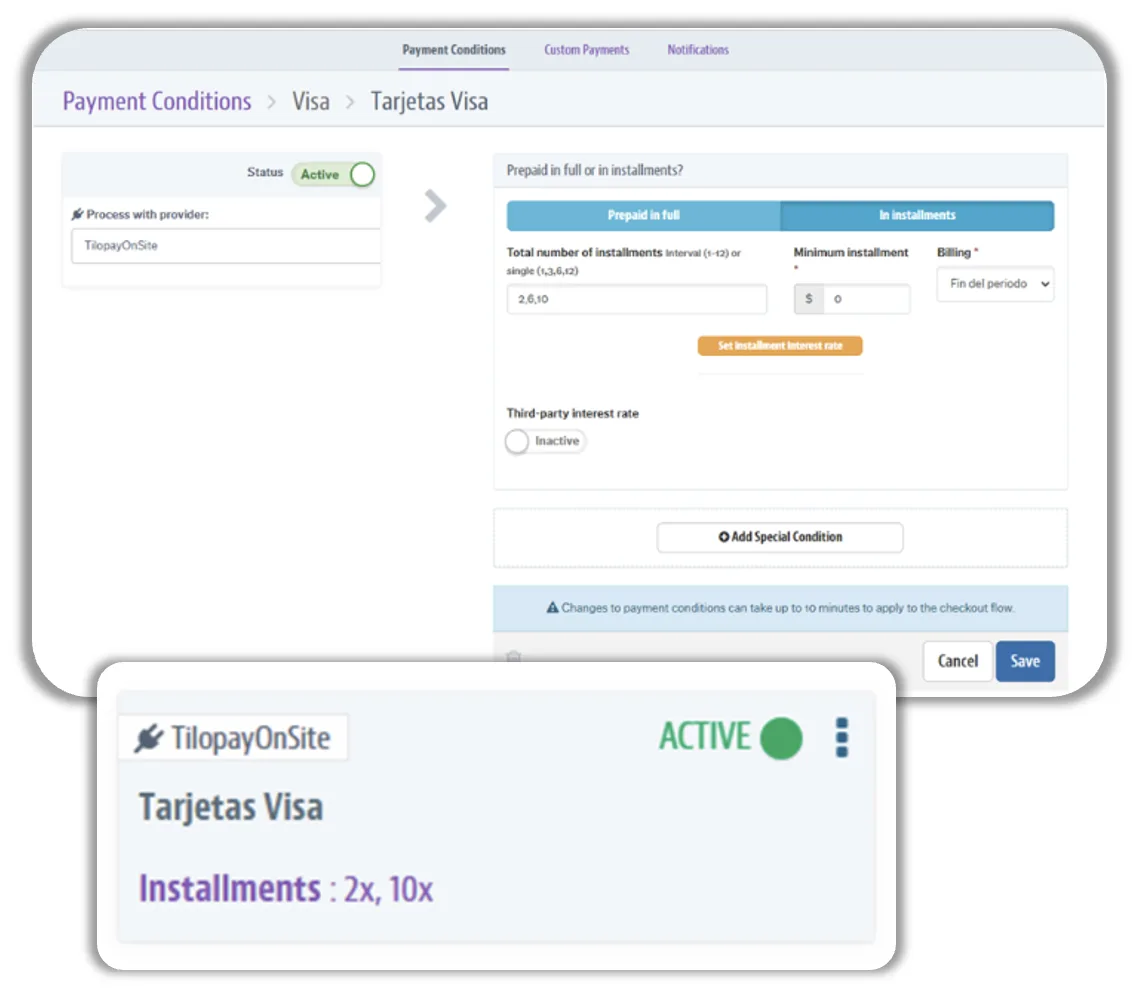
Next, enter your Tilopay API credentials in the fields displayed on the screen and follow the same steps used to enable card payments, but this time select In installments to enable installment payments.
You must define the installments you will offer in the Total number of installments field using the Single format. In other words, always include one-time payment (1) among the number of installments.
For example, if you will only accept 2, 6, and 10 installments with Visa, enter 1,2,6,10 under Total number of installments.
You must do the same for each card brand you will accept for installment payments.