
How to Set Up Hostfully in Tilopay
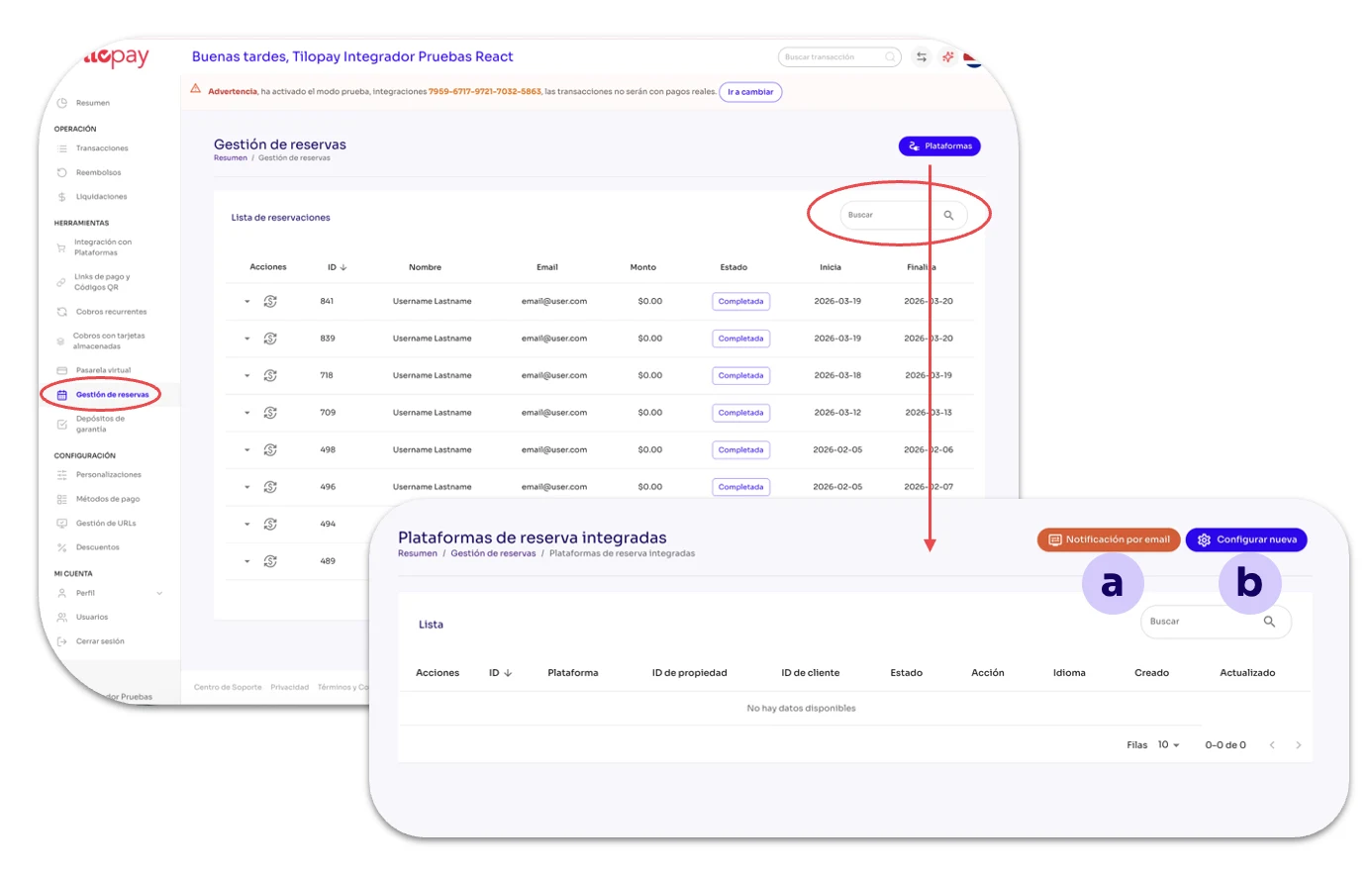
The Reservation Management section in the Tools module of the Tilopay Admin Panel is where you can integrate your hospitality platform with Tilopay.
The screen includes a field for Searching Reservations using any reservation details.
In the Reservation Management section, you'll find the Platforms button, which gives you access to two additional buttons:
a. Email Notification
b. Set Up New
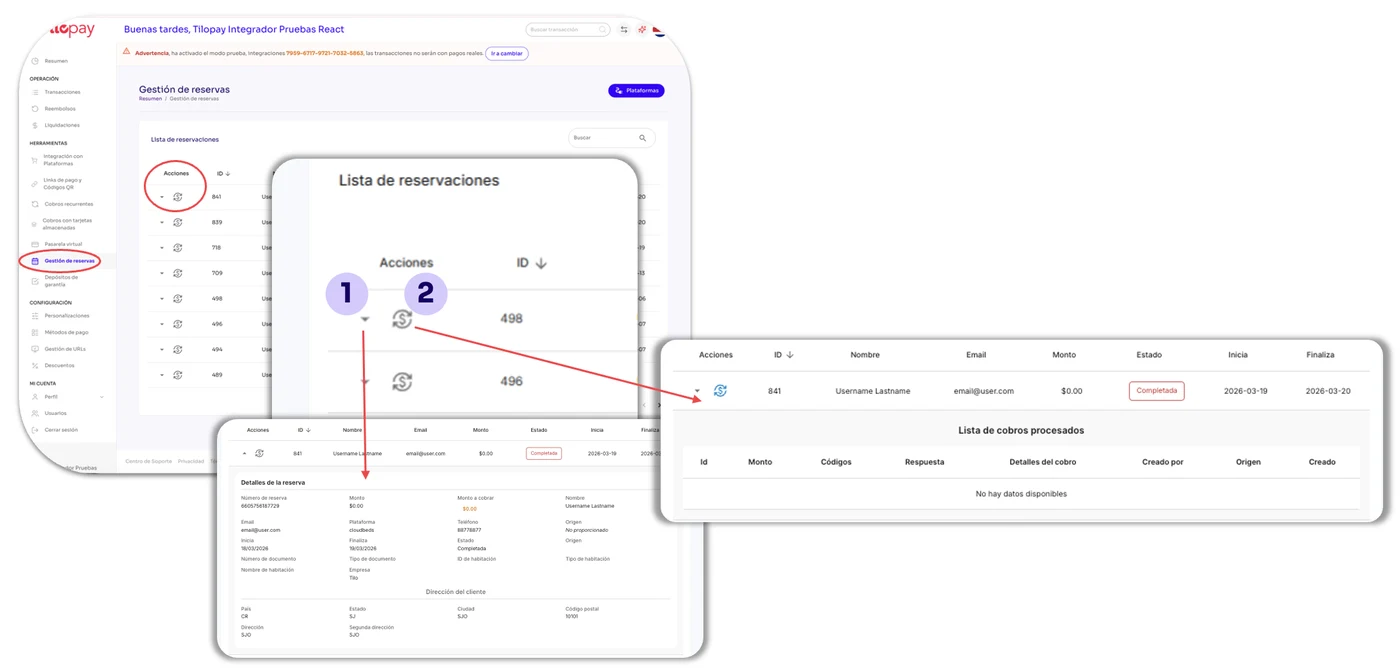
On the main Reservation Management screen, you'll have access to the List of reservations with transactions processed through Tilopay.
Details: This is the arrow icon on the left side of the Reservation. Click it to display the Reservation details.
Payment History: Displays the details of customers Enrolled in that plan.
Platforms Button
Click the blue Platforms button to display all the platforms you've integrated with Tilopay.
The Actions buttons give you access to:
Information: Information and setup instructions for the selected platform.
Update: Opens the integration form so you can edit it.
Trash: Use it when you want to delete subscribers. This action CANNOT be undone.
You'll also find buttons for Email Notification and Set Up New platform.
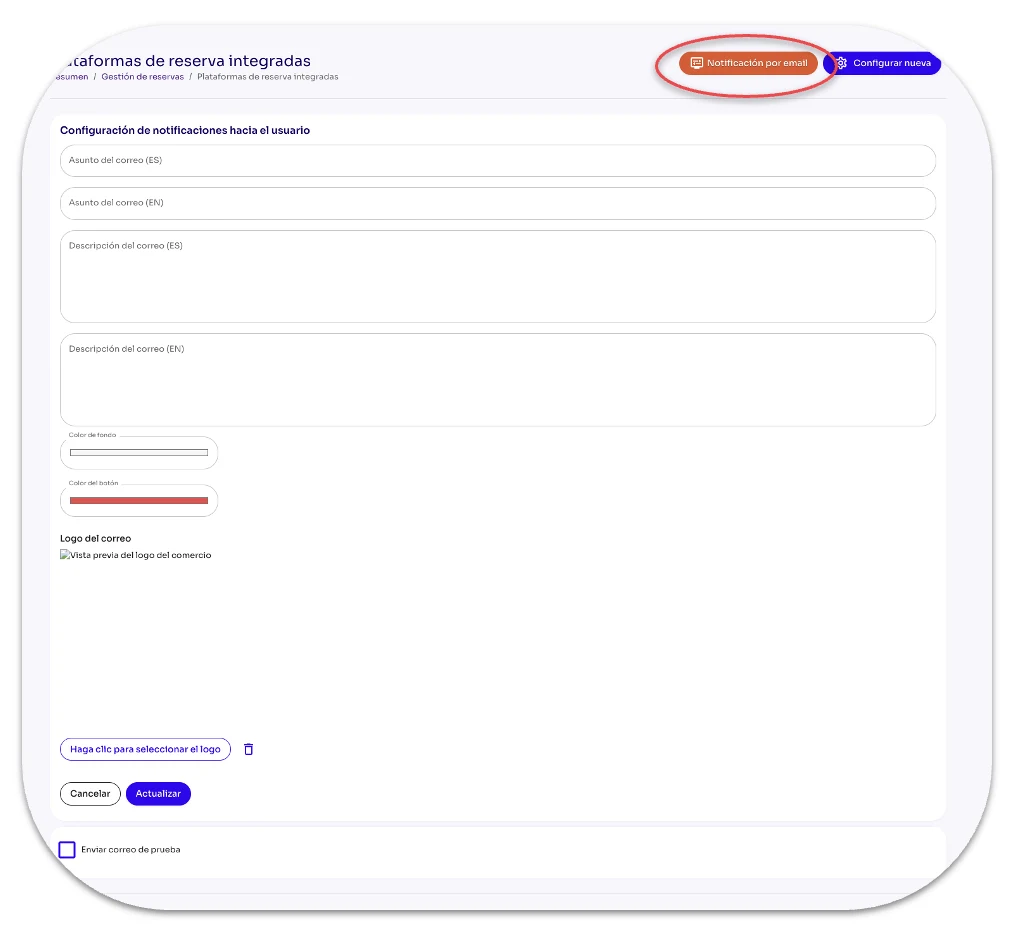
Email Notification
As the name suggests, the Email Notification button lets you configure notifications for your customers.
Email subject (ES): Enter the title you want to use for your message in Spanish.
Email subject (EN): Enter the title you want to use for your message in English.
Email description (ES): Enter the text you want to send your customers in Spanish.
Email description (EN): Enter the text you want to send your customers in English.
Text color: You'll see a full range of colors so you can select the one you want for the text.
Button color: You'll see a full range of colors so you can select the one you want for the button included in the email.
Email logo: Use the Click to select the logo button to find your logo on the device (computer or mobile phone) you're using.
Set Up New
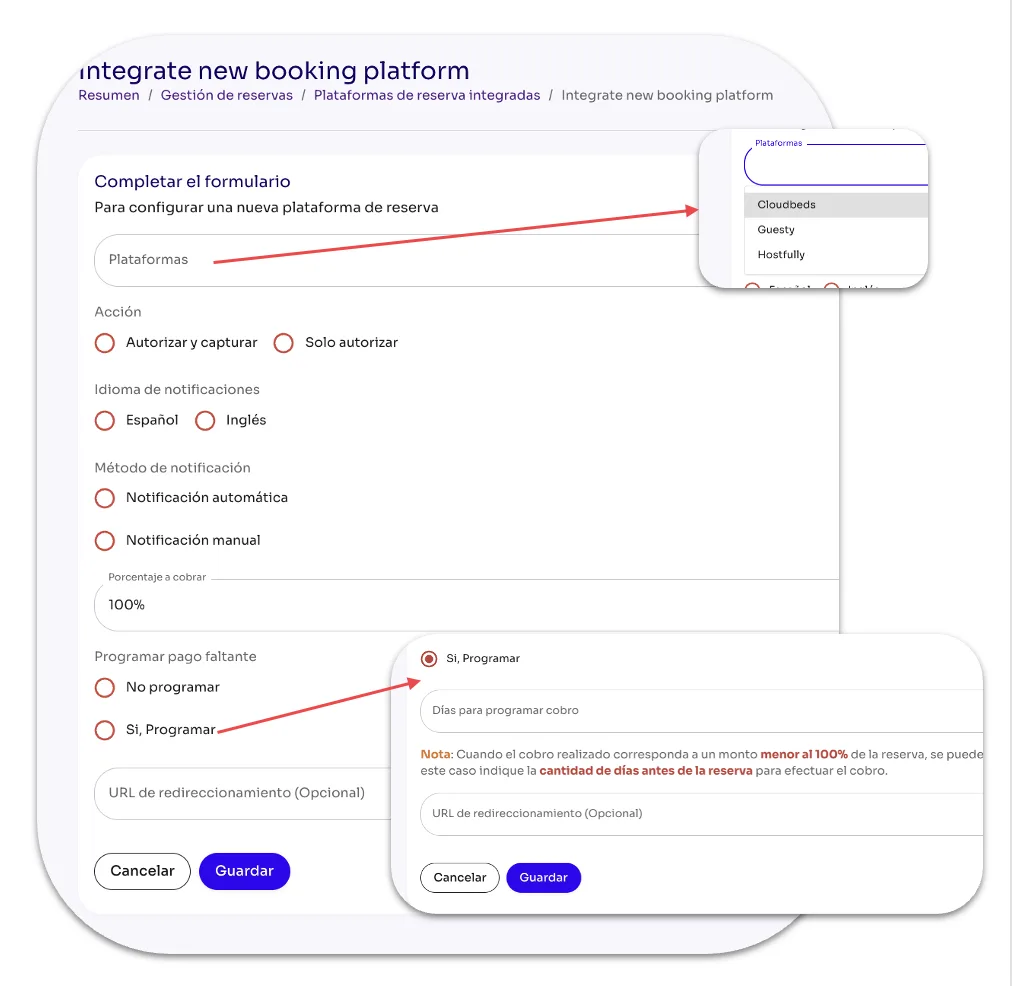
Set Up New opens the form you need to complete to configure each Platform integration.
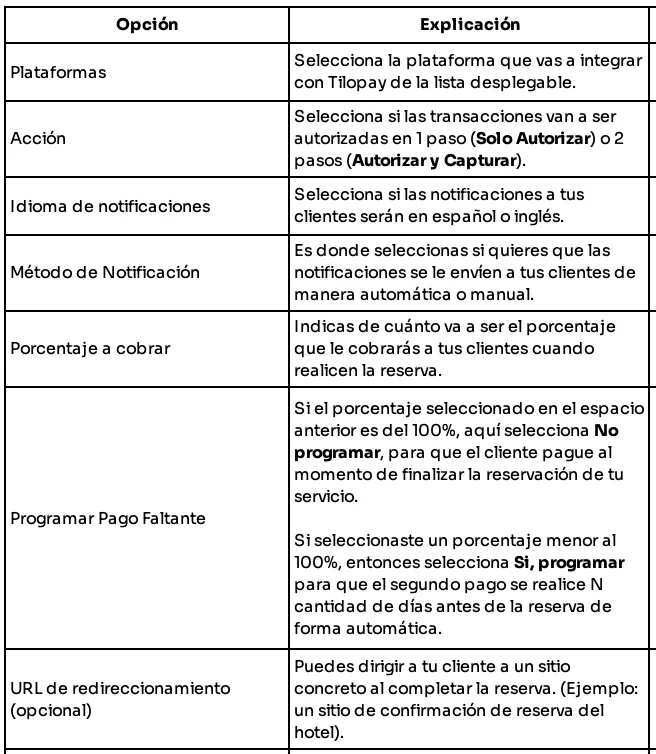
You can find the setup instructions for the Guesty and Hostfully platforms on ChargeAutomation.