¿Cómo configuro Pagos a Cuotas en VTEX?
VTEX es la plataforma disponible para que tu tienda acepte tarjetas de crédito y débito en Centroamérica y el Caribe.
Debes instalar la aplicación que interactúa con el conector y el flujo de pago de VTEX que encontrarás en el siguiente enlace: https://{VTEXACCOUNT}.myvtex.com/admin/apps/tilopaypartnercr.tiloappcreditcard@1.0.0/install
Debes sustituir {VTEXACCOUNT} por tu cuenta de VTEX para instalar la aplicación.
Para instalar dicho conector:
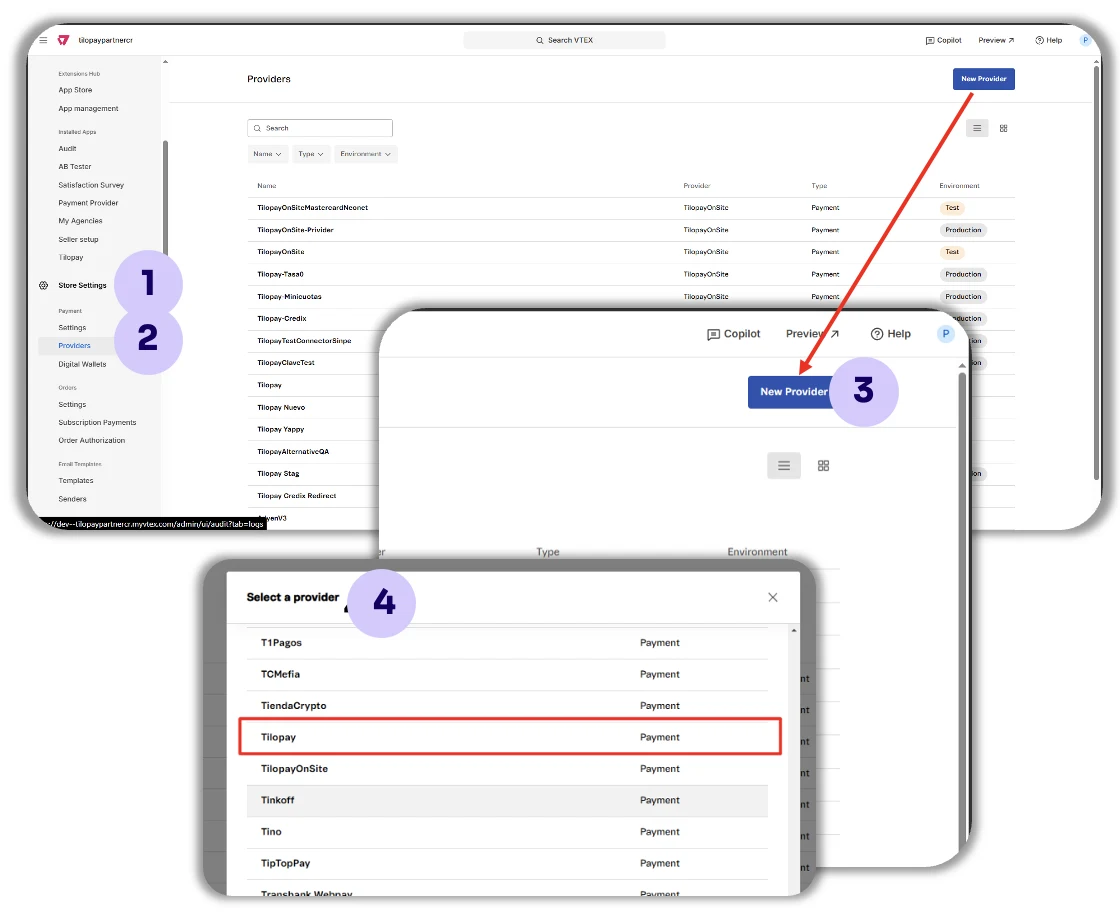
Haz clic en Configuración
Luego en Proveedores
Y en Nuevo Proveedor
Busca TilopayOnSite.
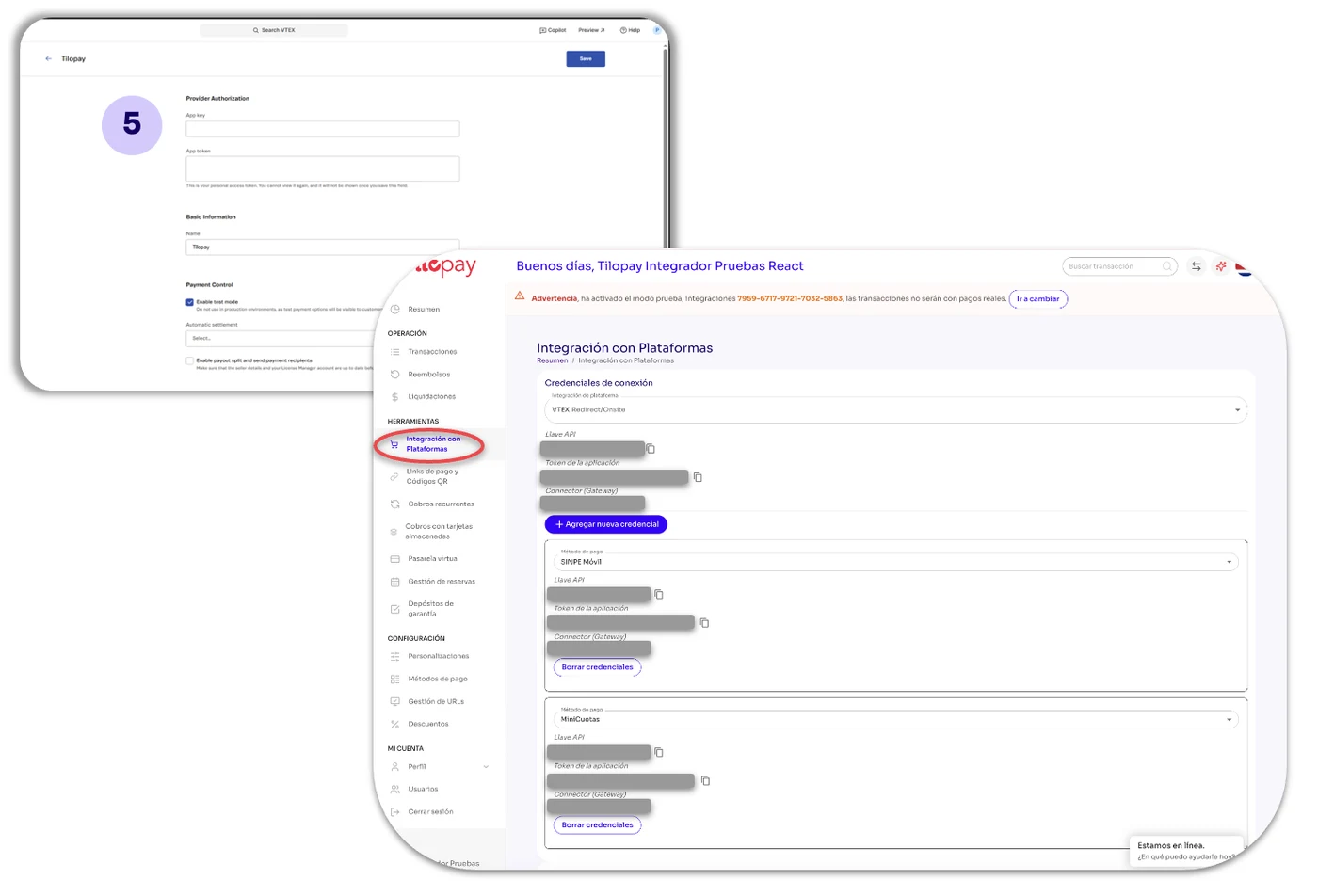
Llena el formulario con la información de la API del Panel Administrativo de Tilopay.
Desde el Panel Administrativo de Tilopay.
Dirígete al módulo de Herramientas, haz clic en Integración con Plataformas y selecciona VTEX de la lista desplegable.
Copia las credenciales de la API en el formulario de tu tienda VTEX en el punto 5.
Para crear diferentes condiciones de pago Tilopay en VTEX:
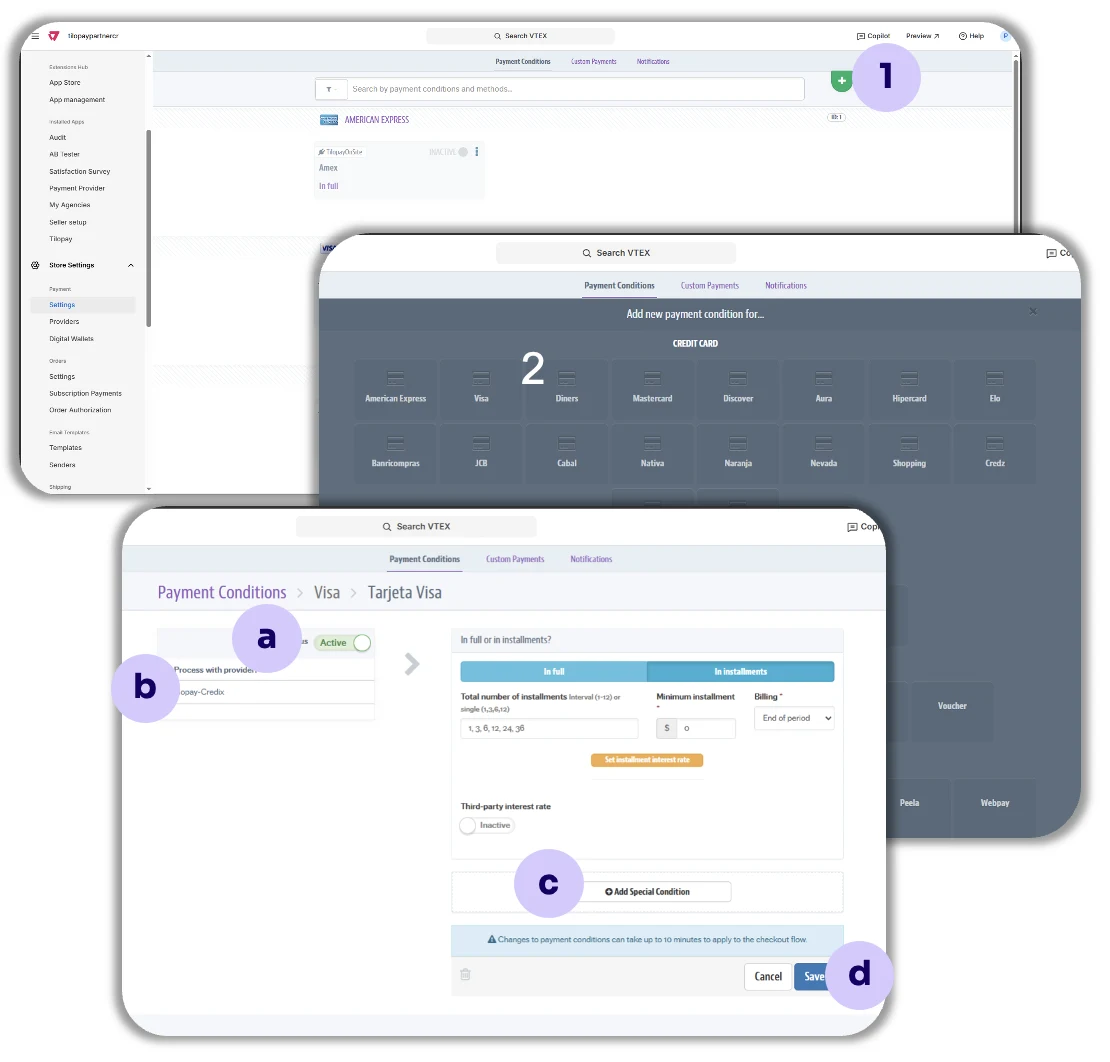
Ingresa a la pestaña Condiciones de pago y haz clic en el símbolo positivo ( + ).
Luego selecciona las marcas de las tarjetas que vas a procesar en tu tienda VTEX: Visa, MasterCard y Amex.
Luego configura la Condición de pago de la siguiente manera:
a. Status: Activa el estado de la condición de pago haciendo clic en el toggle correspondiente.
b. Procesar con afiliación: Selecciona el conector TilopayOnSite de la lista desplegable.
c. Agregar condición especial: Si lo deseas, puedes agregar condiciones especiales para cada condición de pago.
d. Guardar: Siempre recuerda guardar tus selecciones.
Para configurar Tilopay en VTEX para pagos con métodos locales o alternativos
Ingresa a la pestaña Pagos personalizados y completa los espacios con los datos que te solicitan.
Luego crea la Condición de pago tal como lo hiciste durante la Configuración del conector TilopayOnSite en VTEX.
Esto debe hacerse para cada tipo de pago que quieras agregar: pagos con tarjetas, cobros recurrentes, SINPE, etc.
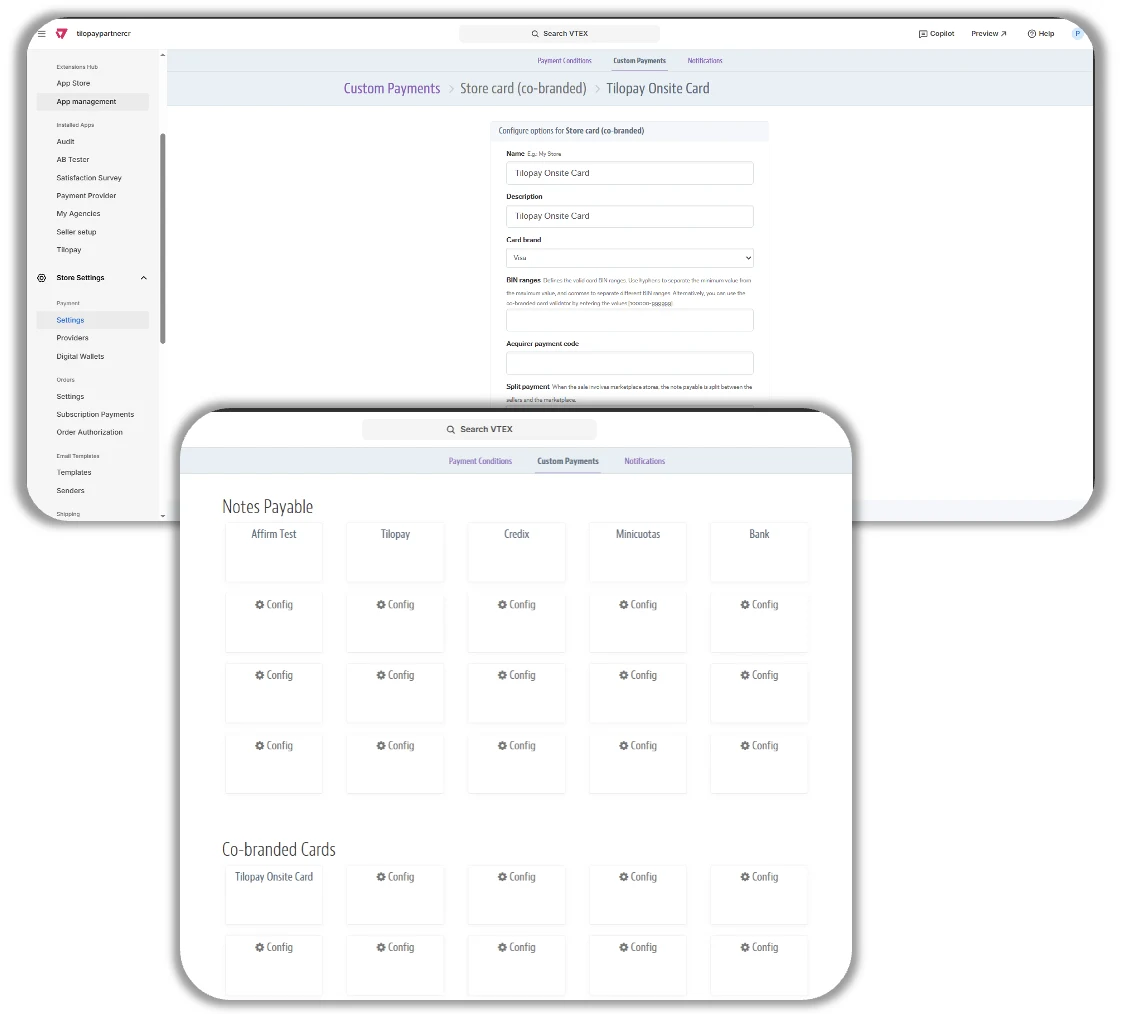
Para configurar Pagos a Cuotas en VTEX
Para configurar Pagos a Cuotas dirígete al menú Store Settings en VTEX selecciona la sección de Providers, luego presiona el botón de New Provider y busca y selecciona TilopayOnSite de la lista.
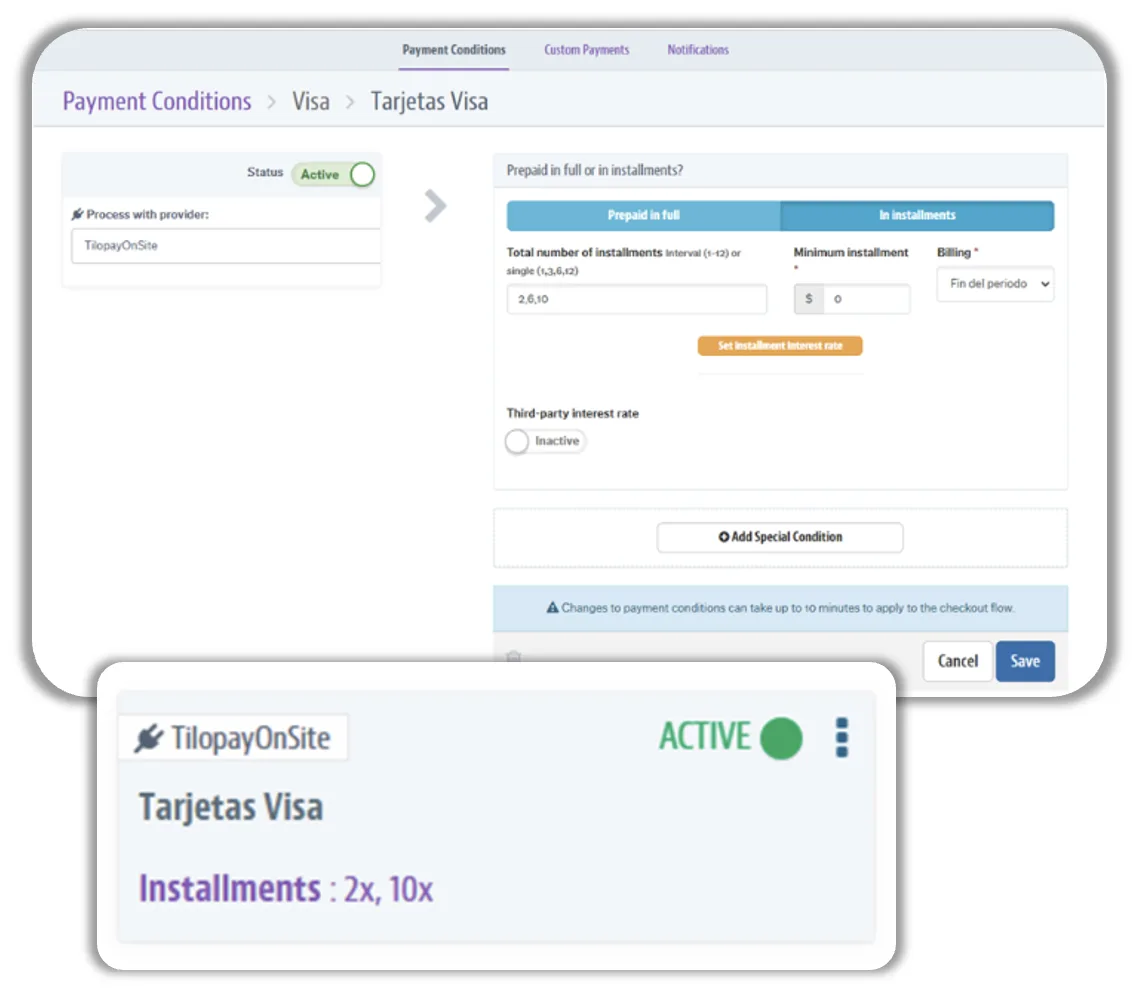
Luego ingresa las credenciales API de Tilopay en los espacios que aparecen en pantalla, y sigue los mismos pasos para activar pagos con tarjeta, solo que esta vez seleccionas In installments para activar los pagos a cuotas.
Debes definir las cuotas a utilizar en el campo Total number of installments con el formato Single o sea, siempre agregar la unidad (1) en la cantidad de cuotas.
Por ejemplo, si con Visa vas a aceptar solo 2, 6 y 10 cuotas, ingresa 1,2,6,10 en Total number of installments.
Debes hacer lo mismo para cada una de las tarjetas con las que aceptarás pagos en cuotas.