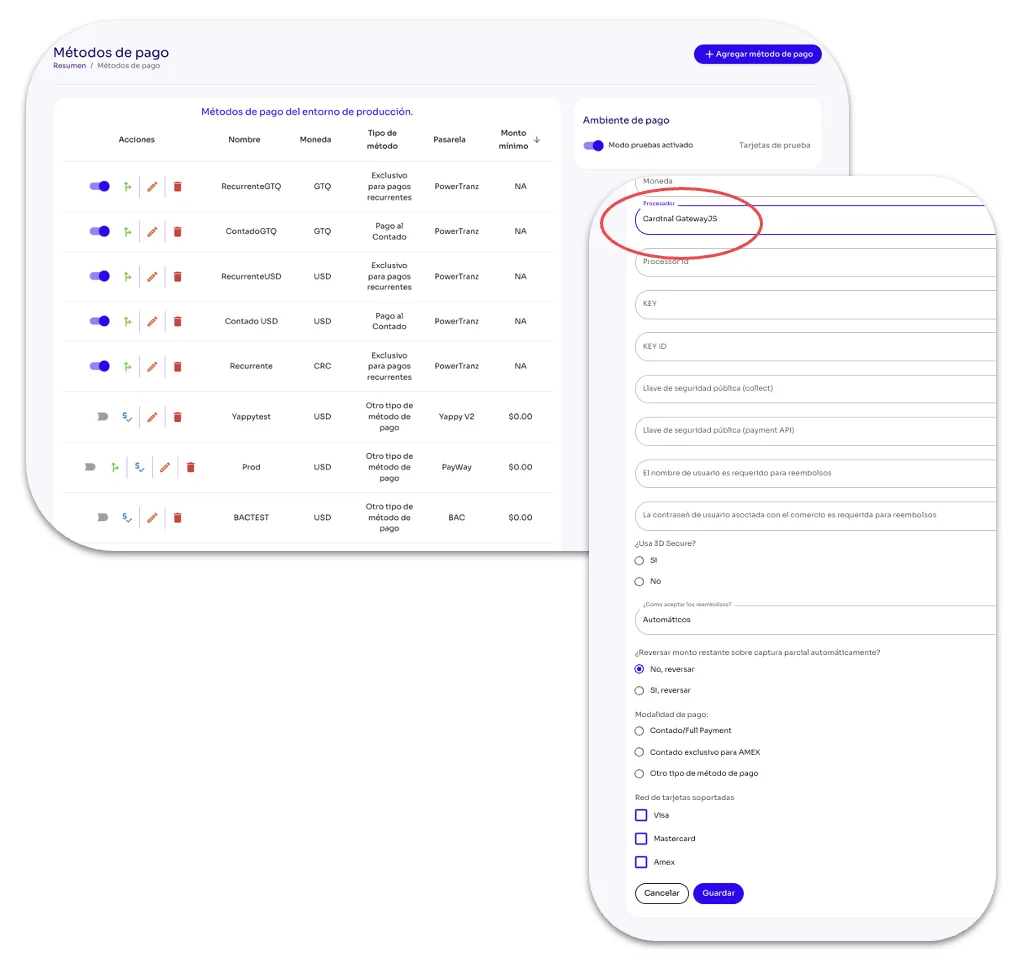
Activa Cardinal en tu cuenta Tilopay
Crea un entorno de pago blindado con nuestra guía de Cardinal.
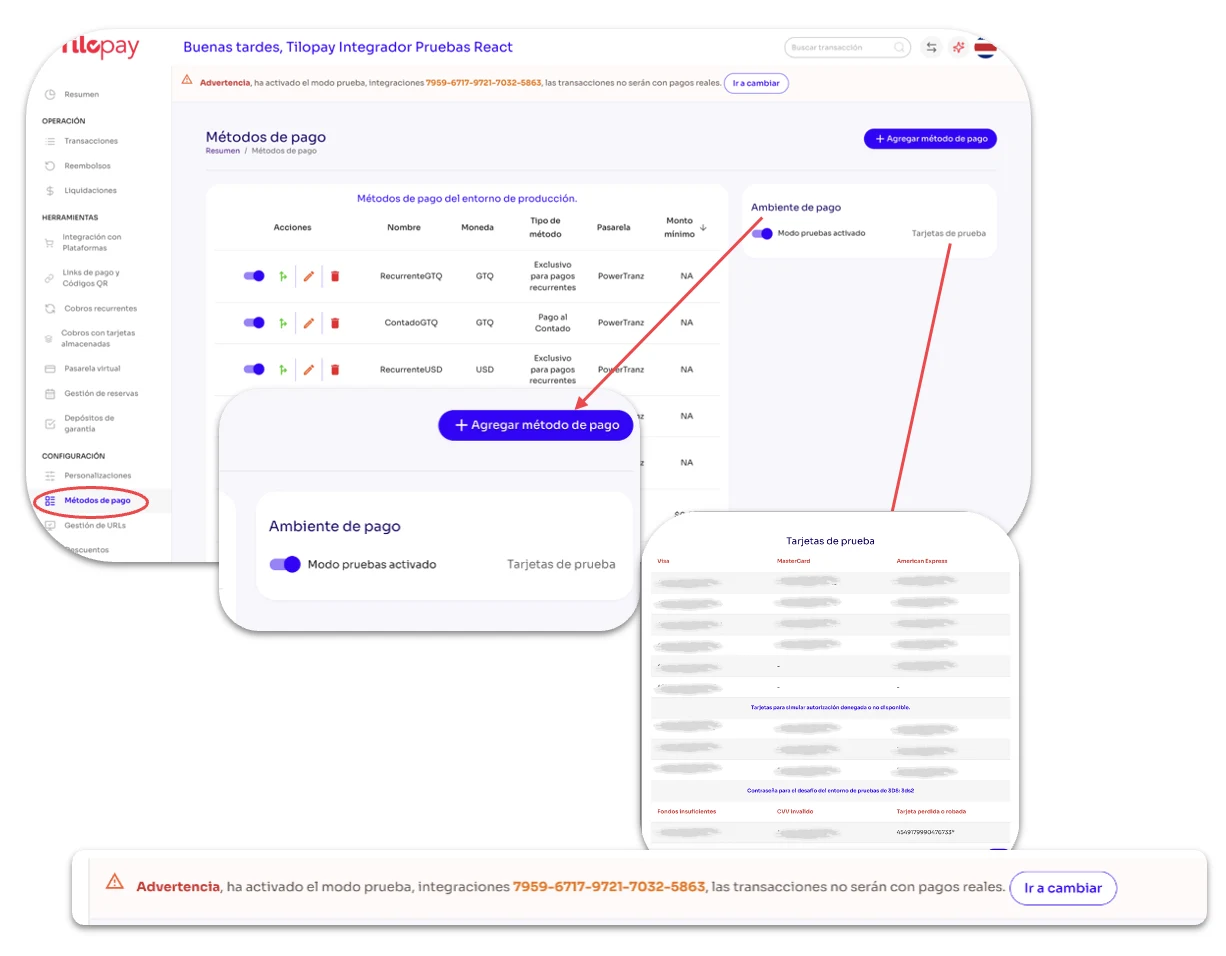
Para agregar el Método de Pago Cardinal puedes acceder al formulario de la sección de +Agregar Método de Pago desde la sección de Personalizaciones o desde la sección de Métodos de Pago del Panel Administrativo de Tilopay.
También tienes disponible el toggle para activar el Modo Prueba si deseas realizar pruebas de los diferentes Métodos de Pago que has activado. A su lado encontrarás Tarjetas de Prueba que ponemos a tu disposición para que realices las pruebas en un ambiente seguro.
Cuando actives el Modo Prueba tendrás un mensaje en la parte superior de todas las pantallas del Panel Administrativo de Tilopay alertando de que te encuentras en este modo.
* El Modo Prueba solo sirve para transacciones de prueba de contado, no para cobros recurrentes.
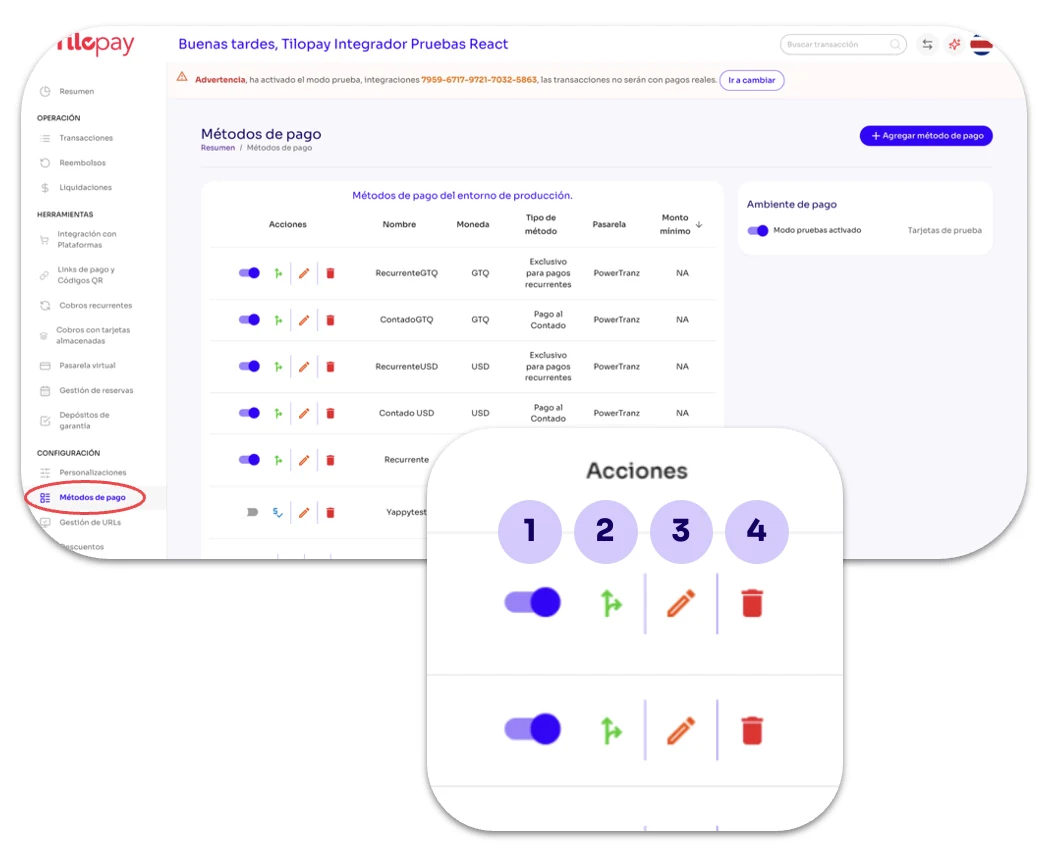
Toggle para Activar: Aquí activas o desactivas el Método de Pago seleccionado.
SmartRouting: En Tilopay ponemos a tu disposición la posibilidad de activar SmartRouting para cada Método de Pago.
Este es el enrutamiento inteligente de transacciones que ayuda a mejorar la tasa de aprobación, aumentando así los ingresos de tus negocios.
Editar: Utilízalo cuando requieras Editar los detalles del Método de Pago.
Basurero: Utilízalo cuando desees eliminar registros de links de pago. Esta acción NO puede deshacerse.
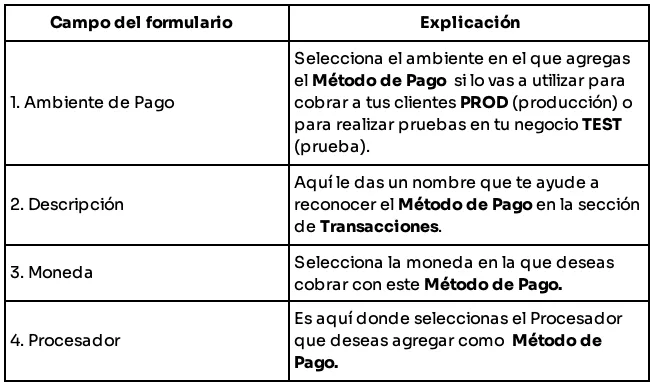
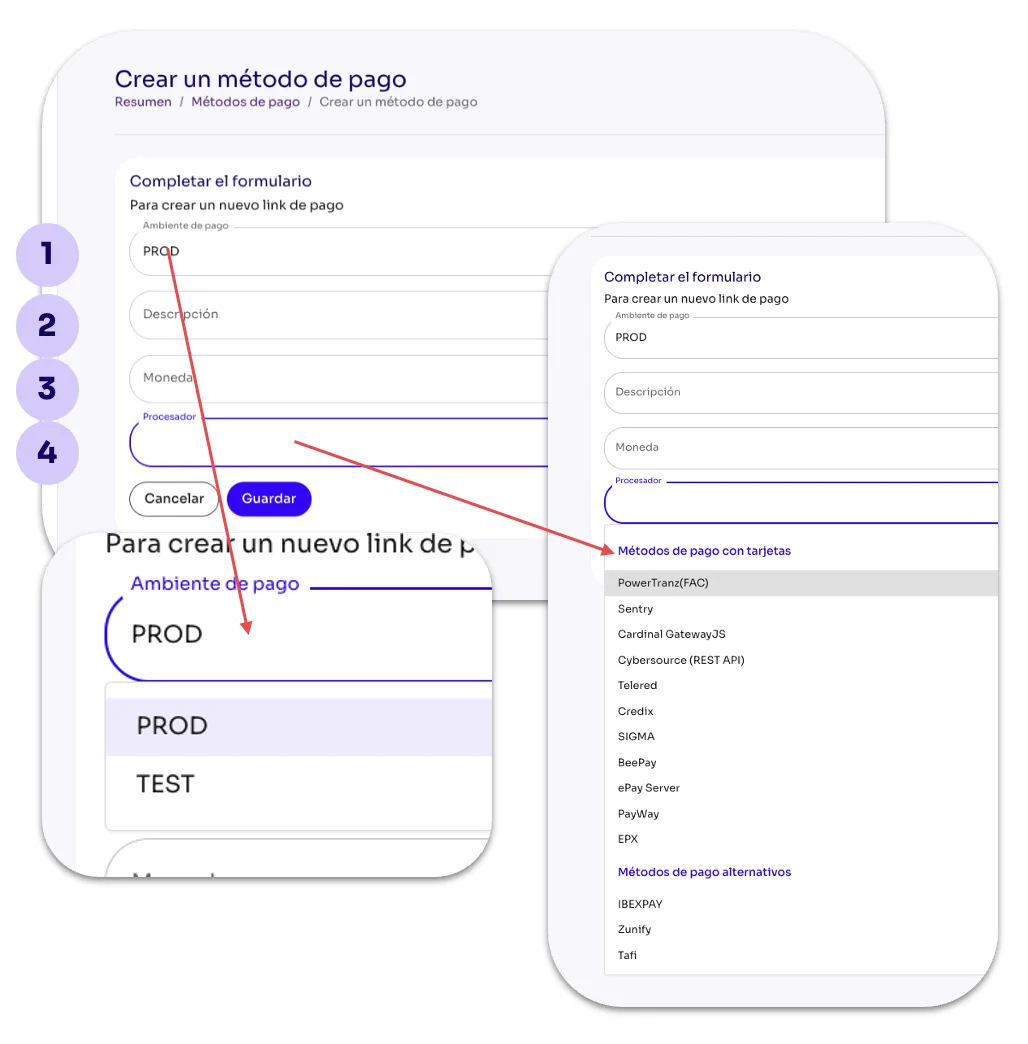
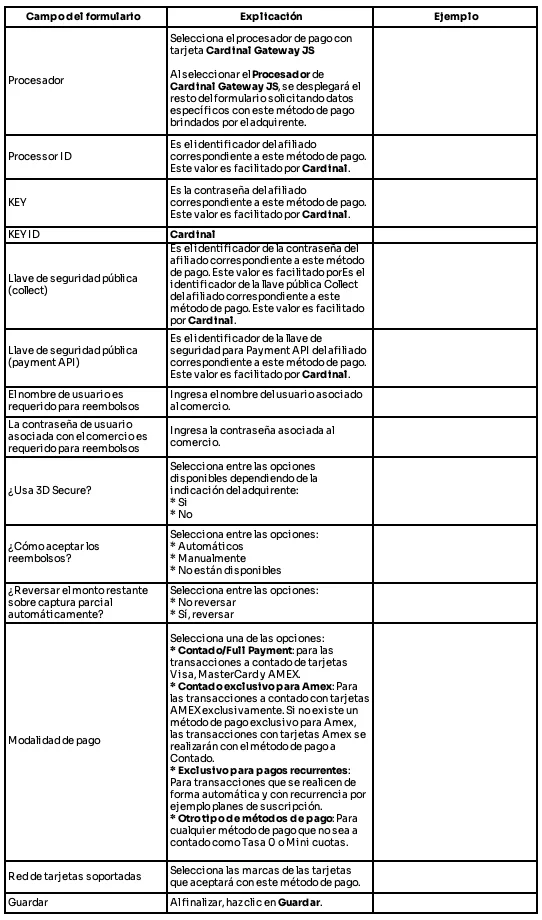
Una vez hayas completado el formulario para agregar Cardinal como Método de Pago, recuerda Activarlo desde la sección de Métodos de Pago.