
How do I integrate Tilopay with Magento or Adobe Commerce Cloud?
The official Tilopay extension for Adobe Commerce, Adobe Commerce Cloud, and Magento Open Source 2.4 processes card payments directly in your checkout without redirecting customers away from your store. It also lets you capture, refund, and void payments from the Magento admin.
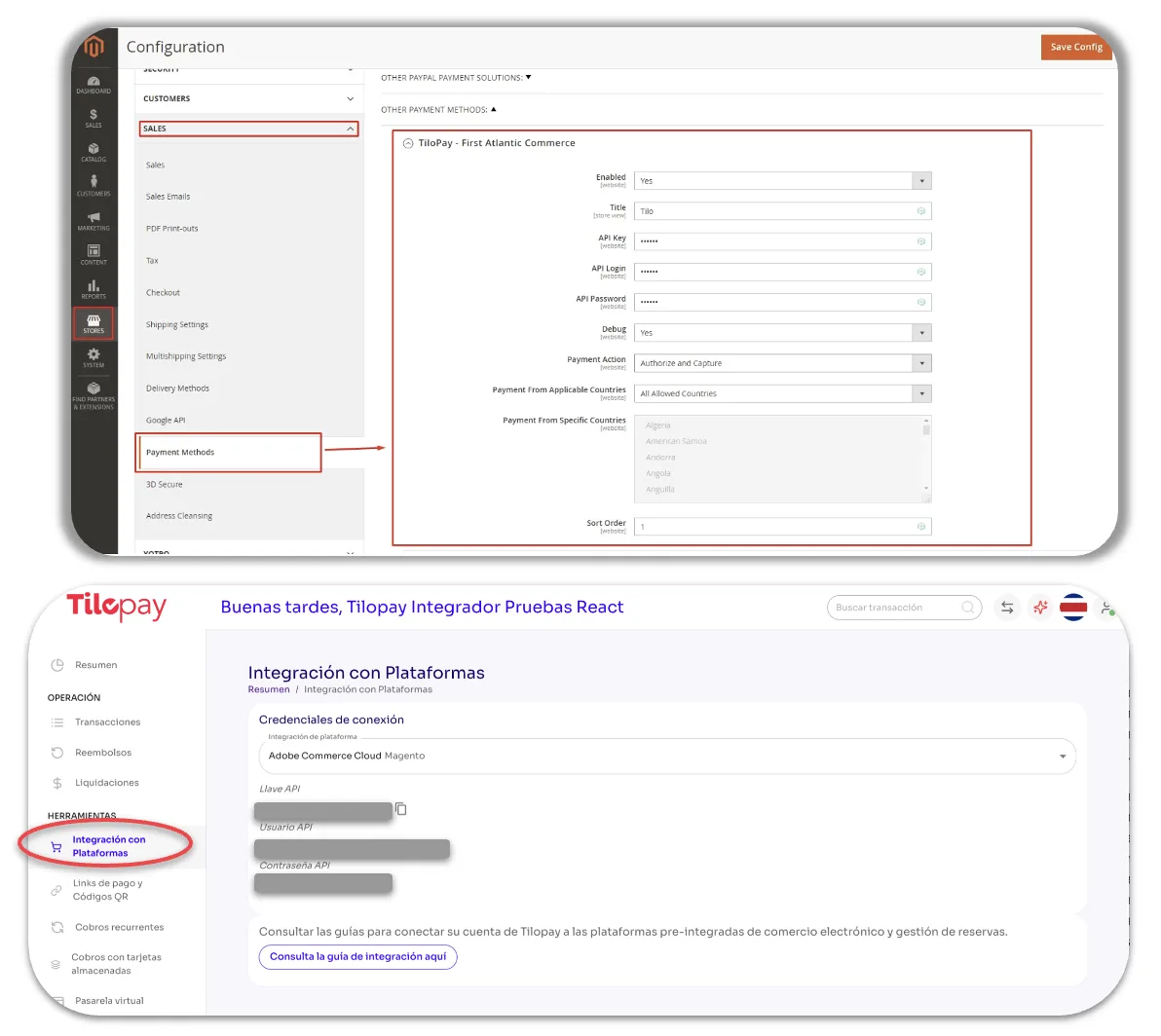
Download the extension from the Adobe Commerce / Magento page or from your Tilopay Admin Dashboard under Platform Integrations. The credentials you’ll need to configure it (API Key, API User, and API Password) are available in the Dashboard.
Requirements
Adobe Commerce or Magento Open Source 2.4.6 or later.
PHP 8.1 through 8.5, depending on what your Magento release supports.
A Tilopay account with an API Key, API User, and API Password.
Command-line access to your store’s server to run
bin/magentocommands.
Installation
In the commands below, <locales> means the space-separated list of locales used by your store views (for example, en_US es_CR).
Via Composer (recommended)
composer require tilopay/module-payment
bin/magento module:enable Tilopay_Payment
bin/magento setup:upgrade
bin/magento setup:di:compile
bin/magento setup:static-content:deploy -f <locales>
bin/magento cache:flush
By copying the code
Create the module directory:
mkdir -p app/code/Tilopay/PaymentExtract the package contents there, then run:
bin/magento module:enable Tilopay_Payment
bin/magento setup:upgrade
bin/magento setup:di:compile
bin/magento setup:static-content:deploy -f <locales>
bin/magento cache:flush
Important in production mode: the setup:static-content:deploy -f step is required, and you must explicitly list every locale used by your store views. If you skip it or run it without the actual locales, the payment method simply won’t appear at checkout, and no error message will be displayed.
If you’re updating the module on Magento 2.4.7 or later
Magento 2.4.7+ generates integrity attributes (SRI) for its static files. When updating in production mode, you must regenerate static content from scratch. Otherwise, the browser will block the checkout JavaScript and the payment method will disappear:
bin/magento maintenance:enable
rm -rf pub/static/frontend/* pub/static/adminhtml/* pub/static/deployed_version.txt
rm -rf var/view_preprocessed/* var/cache/* var/page_cache/*
bin/magento setup:di:compile
bin/magento setup:static-content:deploy -f <locales>
bin/magento cache:flush
bin/magento maintenance:disable
Also purge Varnish or your hosting cache, if applicable, and test in an incognito window.
Configuration
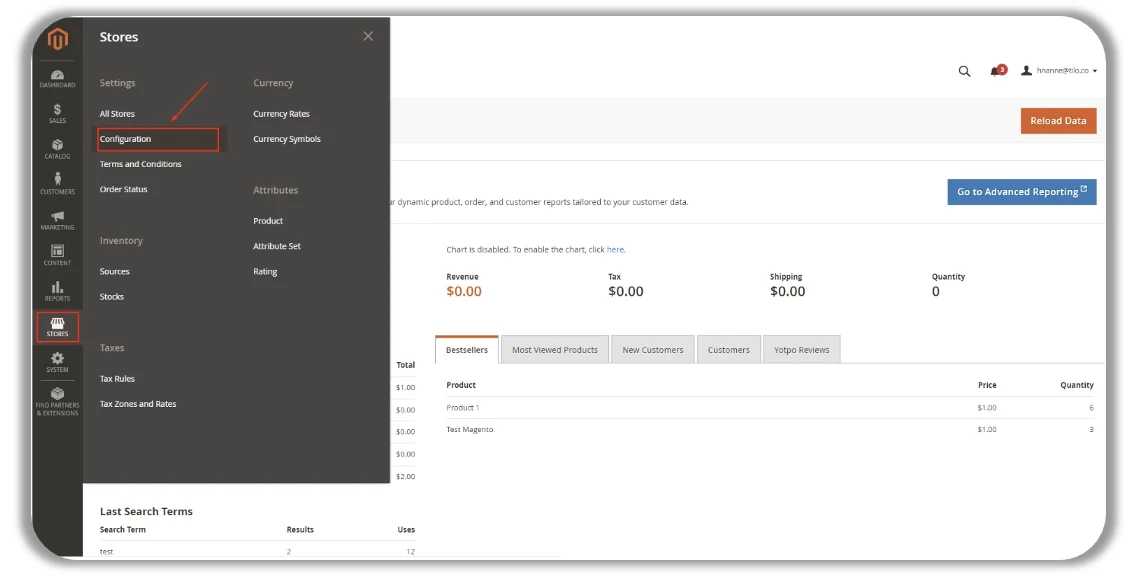
Log in to your store’s admin (the /admin path on your domain) and go to Stores → Configuration.
Go to Sales → Payment Methods → Tilopay and complete the fields. The module includes field names in English and Spanish; the Spanish label appears in parentheses.
Enabled (Habilitado): select Yes to enable the payment method at checkout.
Title (Título): the text your customer will see when selecting this payment method.
Environment (Ambiente): Production or Sandbox / Testing. It must match the environment for the credentials you enter below, based on your Tilopay account settings.
API Key, API User, and API Password: the credentials from your Tilopay Admin Dashboard. Magento stores them encrypted.
Payment Action (Acción de pago):
Authorize and Capture (autorizar y capturar), recommended: the payment is captured at the time of purchase.
Authorize Only (solo autorizar): the payment is authorized and captured later when you create the Invoice from the admin.
New Order Status (Estado de la orden nueva): the status Magento assigns when it creates the order before processing the payment.
Accepted Credit Card Types (Tarjetas aceptadas): the card brands displayed at checkout.
Sort Order (Orden): the payment method’s position in the checkout list.
Debug Mode (Modo de depuración): leave this set to No during normal operation. If you enable it, API requests and responses are written to
var/log/tilopay_payment.log, with credentials and card data always redacted.
The Tilopay API and SDK URLs are hardcoded in the module and can’t be configured, so an admin account can’t redirect the script that captures card data to another host.
Credentials and settings support store view scope, so a single Magento installation can run multiple stores with different Tilopay accounts.
What your customer will see at checkout
Available payment methods are retrieved dynamically from your Tilopay account, so the checkout only displays the methods enabled for your account.
Credit or debit card: an embedded form with tokenization and real-time card brand detection. If the issuer requires 3DS, the challenge appears in an overlay within the same checkout.
Cuotas Tasa 0: the same card form; customers select the plan from the payment method selector.
SINPE Móvil: no fields to complete. After the customer confirms the order, the destination number, exact amount, and description code are displayed, and the order is confirmed automatically once the deposit is detected. The transfer amount is rounded up to a whole number.
Yappy: redirects customers to the Tilopay Hosted Payment Page.
Apple Pay: a native button in Safari on Apple devices, with server-side payment verification.
Saved cards: available when enabled for your account.
Managing transactions from the admin
Capture
With Authorize and Capture, the payment is captured automatically at the time of purchase.
With Authorize Only, the payment is captured when you create the order’s Invoice.
Refunds
Issue refunds using an online Credit Memo for the invoice. Full and partial refunds are supported.
Refunds are only available for captured orders. This is a Tilopay rule, not a Magento limitation.
Void
Available only for authorized orders that haven’t been captured yet. If the order has already been captured, you’ll need to issue a refund instead.
The order view displays the card brand, last 4 digits, and authorization code, which are automatically retrieved from Tilopay when you open the order.
How each payment is confirmed
The extension never approves a payment based on return URL parameters:
The order is created in Magento with pending status before processing the payment, ensuring that no charge exists without a corresponding order record.
When the customer returns from the payment flow, the transaction is verified directly against the Tilopay API before the order is confirmed.
The success page and checkout session are only provided for an order placed by that same session, so the sequential order number in the return URL can’t be used to access another customer’s order.
The endpoint that cancels an abandoned order only acts on an order placed by the same session and only if it’s a Tilopay order.
If the payment is declined, the pending order is canceled, the cart is preserved, and the reason appears during the payment step so the customer can try again.
Credentials, card numbers, CVVs, and Apple Pay tokens are always redacted before any log is written.
Before going live
Hosting providers with a WAF or mod_security (such as Cloudways): the SDK callback to the
tilopay/response/indexpath may be blocked. The extension is resilient and will still confirm the payment by checking with Tilopay, but you should ask your hosting provider to allowlist this path and verify it with a test purchase.Apple Pay only appears in Safari on Apple devices with Wallet configured. It also requires Apple Pay to be enabled for your Tilopay account and your store’s domain to be verified with Apple. Tilopay handles this verification.
SINPE Móvil uses whole-number amounts: the total is rounded up for the transfer.
Confirmation emails: the module doesn’t change how Magento sends email, but in a store with a slow SMTP relay, synchronous delivery may delay order placement for any payment method. If this happens, enable asynchronous sending under Stores → Configuration → Sales → Sales Emails.
This version doesn’t include recurring payments or subscriptions.
Need help?
Email us at soporte@tilopay.com with the order number and, if Debug Mode is enabled, the relevant excerpt from var/log/tilopay_payment.log.