Subscription Billing

How do I create coupons for a plan in Subscription Payments?

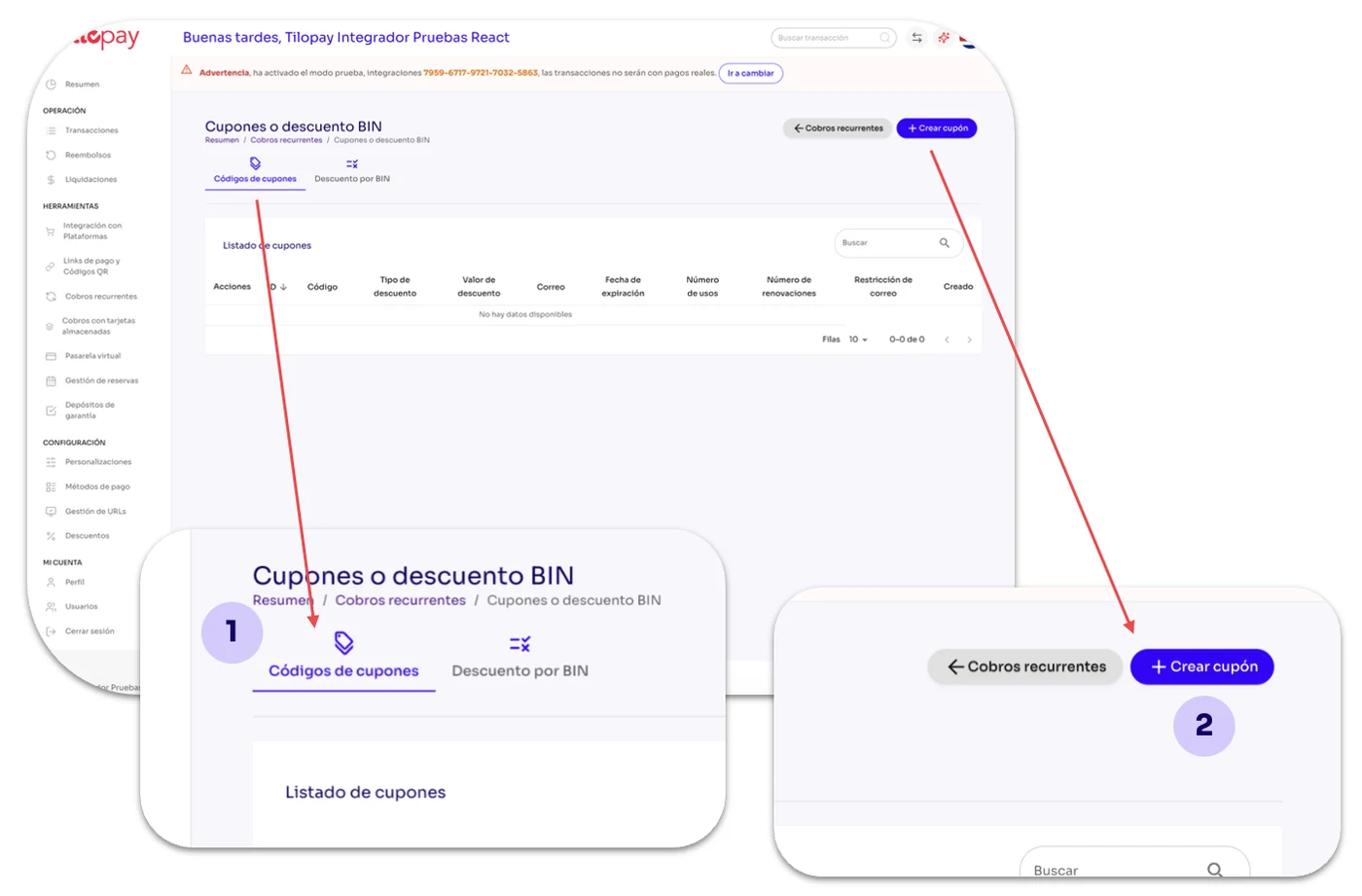
From the Recurring Payments section, click the Coupon Codes or BIN Discounts icon under the Actions menu to activate them automatically.

How do I create coupons for a plan in Subscription Payments? — screen 104

From the Recurring Payments section, click the Coupon Codes or BIN Discounts icon under the Actions menu to activate them automatically.

Coupon Codes: When you click Coupon Codes, the Create Coupon button will be available so you can create coupons for the recurring plan you selected.

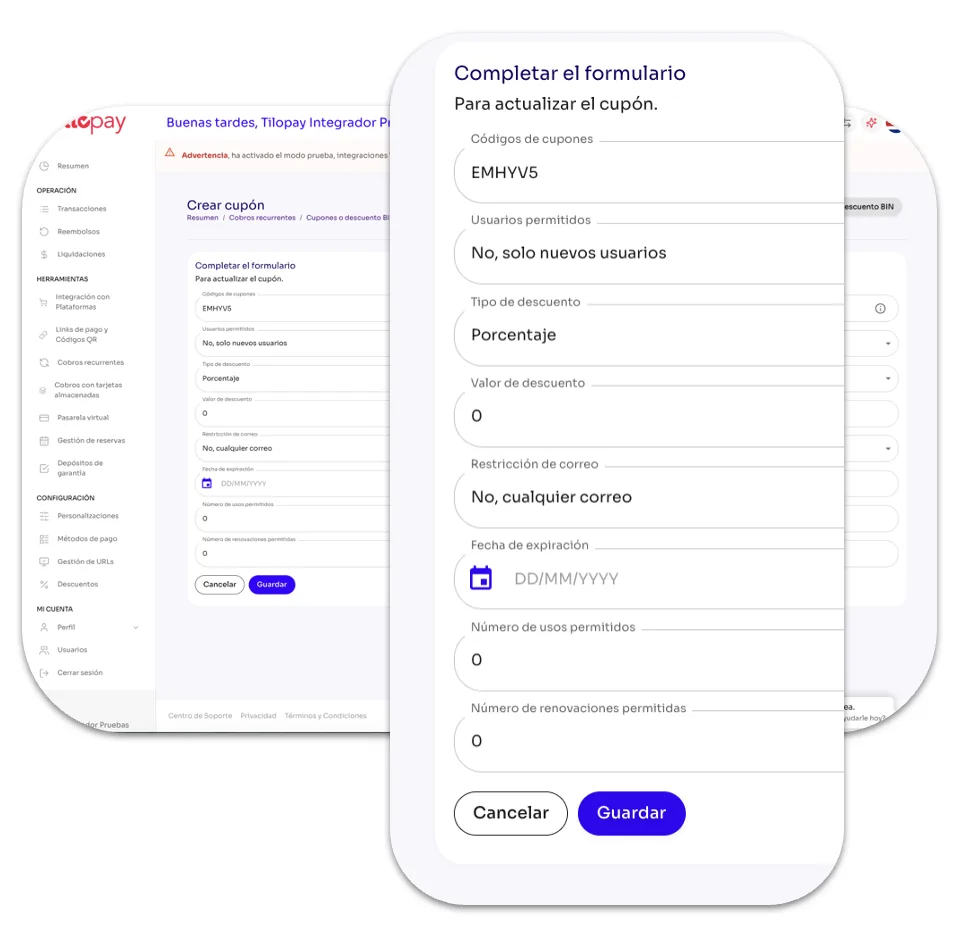
When you click Create Coupon, a form will open asking for information.

How do I create coupons for a plan in Subscription Payments? — screen 105
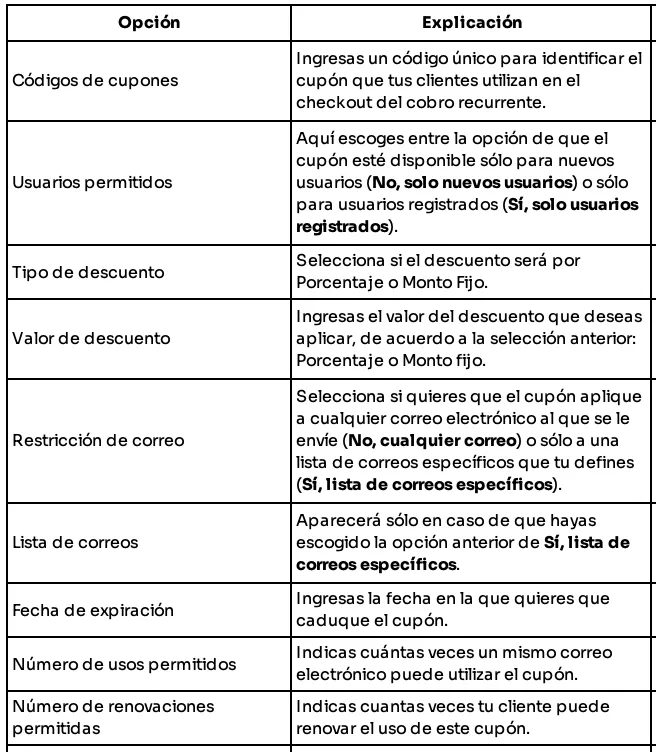
OptionExplanation
Coupon codesEnter a unique code to identify the coupon your customers will use during checkout for the recurring payment.
Allowed usersChoose whether the coupon will be available only to new users (No, new users only) or only to registered users (Yes, registered users only).
Discount typeSelect whether the discount will be a Percentage or Fixed Amount.
Discount valueEnter the discount value you want to apply based on your previous selection: Percentage or Fixed Amount.
Email restrictionSelect whether you want the coupon to apply to any email address it is sent to (No, any email address) or only to a list of specific email addresses that you define (Yes, list of specific email addresses).
Email listThis will only appear if you selected Yes, list of specific email addresses above.
Expiration dateEnter the date when you want the coupon to expire.
Number of allowed usesSpecify how many times the same email address can use the coupon.
Number of allowed renewalsSpecify how many times your customer can renew the use of this coupon.
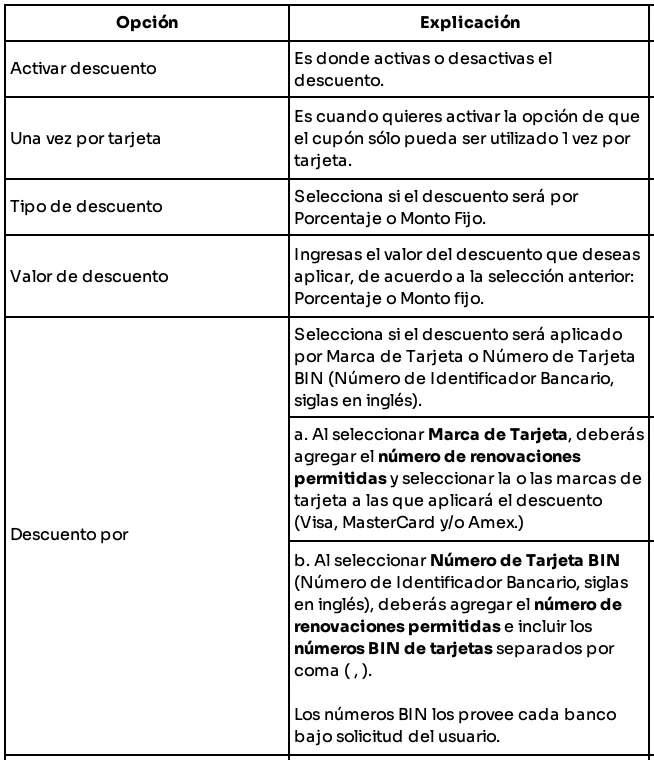
OptionExplanation
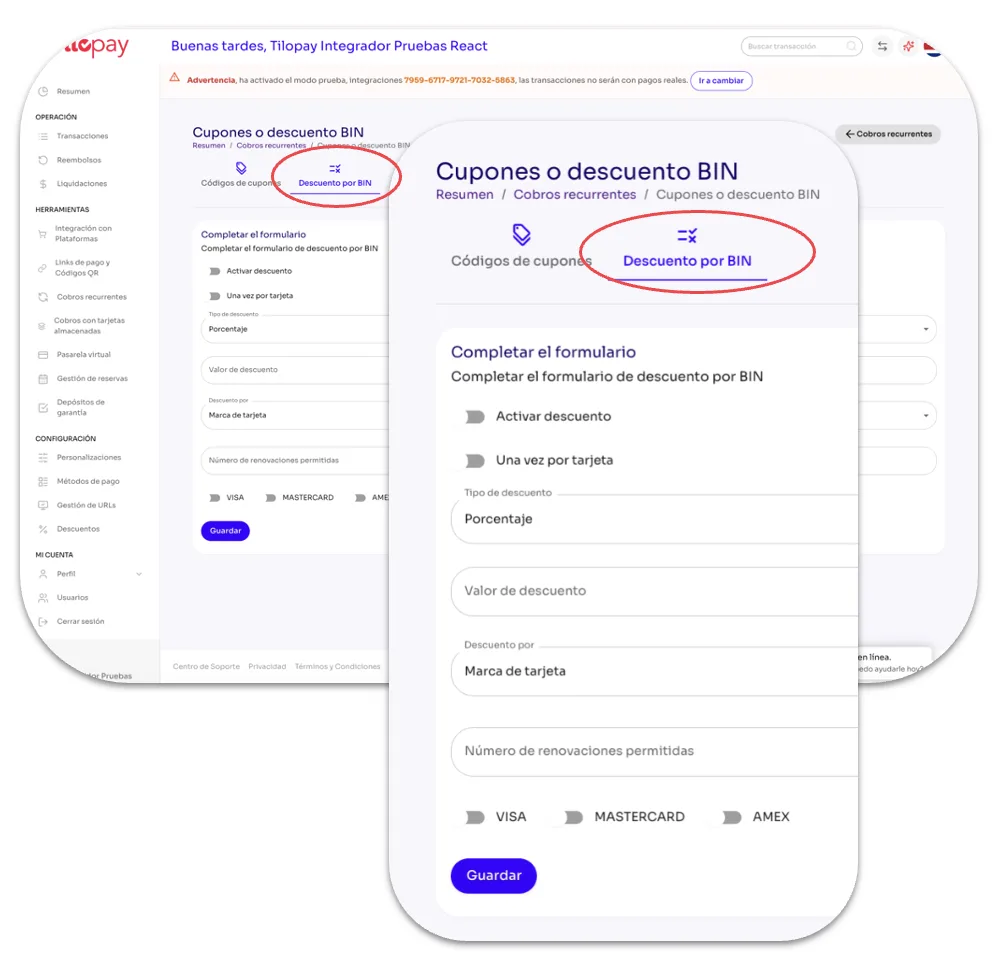
Activate discountUse this option to activate or deactivate the discount.
Once per cardUse this option if you want the coupon to be used only once per card.
Discount typeSelect whether the discount will be a Percentage or Fixed Amount.
Discount valueEnter the discount value you want to apply based on your previous selection: Percentage or Fixed Amount.
Discount by

Select whether the discount will be applied by Card Brand or Card BIN (Bank Identification Number).

a. When you select Card Brand, you must enter the number of allowed renewals and select the card brand or brands to which the discount will apply (Visa, MasterCard, and/or Amex).

b. When you select Card BIN (Bank Identification Number), you must enter the number of allowed renewals and include the card BINs separated by commas ( , ).

Each bank provides its BINs upon the user's request.

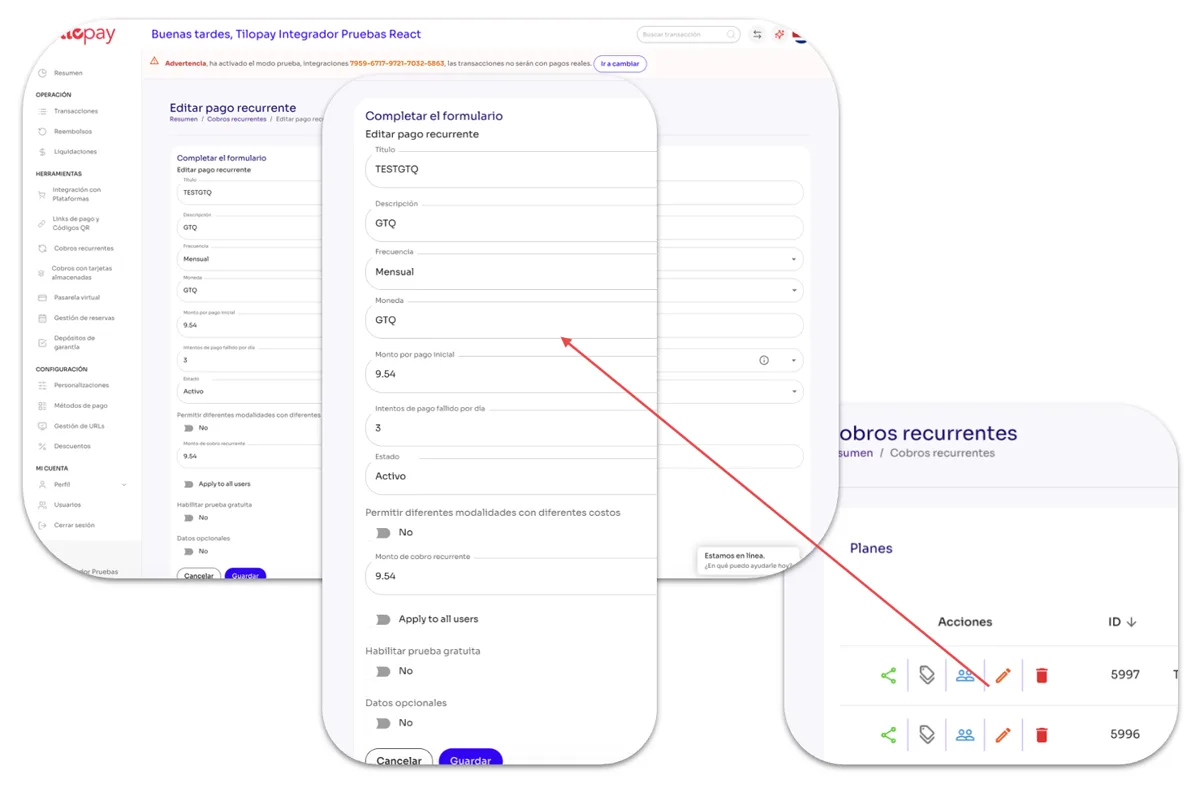
From the Recurring Payments section, you can edit a plan's details by clicking the Edit icon under the Actions menu. ​

When you click the Edit button, the form for the Recurring Payment plan you need to update will open.

Remember to click the Save button so you don't lose your changes.

Need help with this guide?

Our team can support you through the integration.

Technical Support