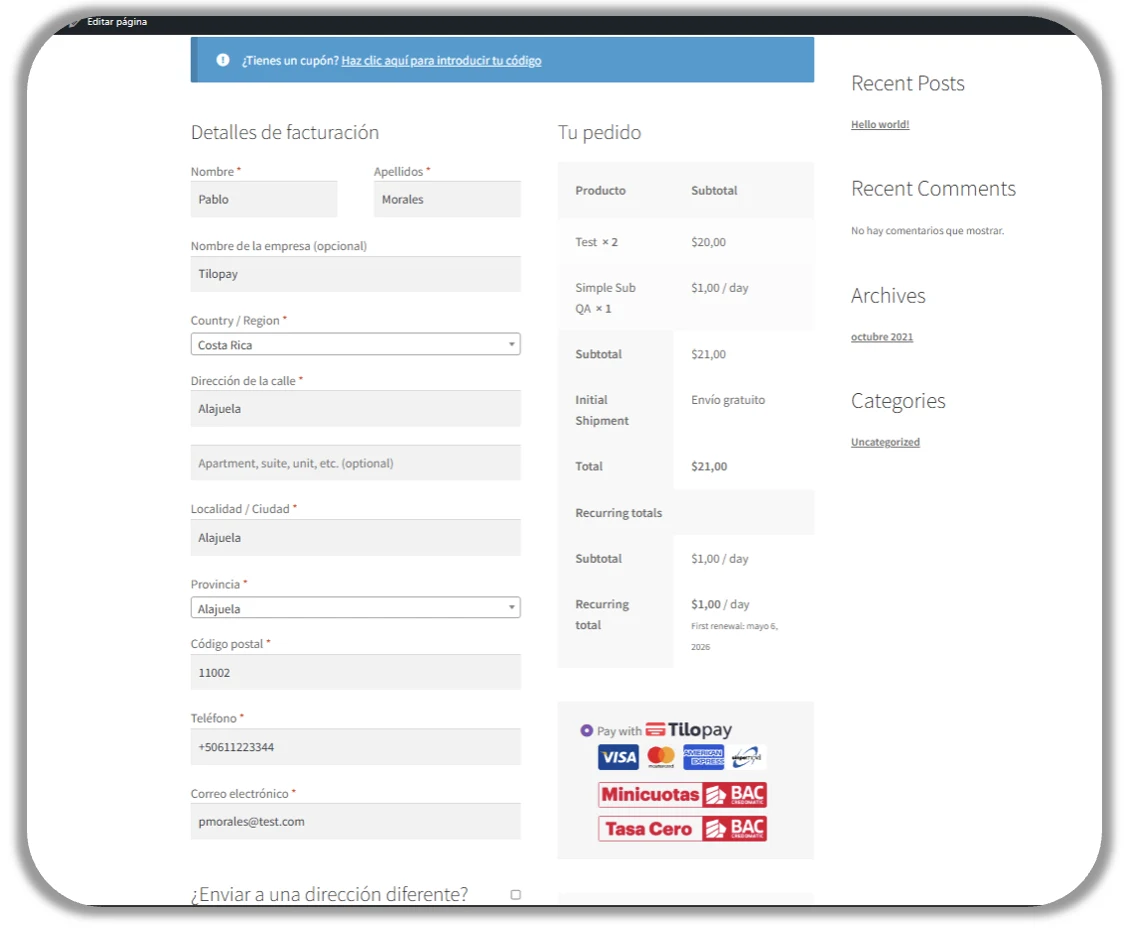
¿Cómo configuro Tarjetas de Crédito o Débito en WooCommerce?
WooComerce es la plataforma disponible para que tu tienda acepte tarjetas de crédito y débito en Centroamérica y el Caribe.
Para configurar el plugin de Tilopay para WooCommerce, dirígete al menú de WooCommerce -> Ajustes -> Pagos. Busca Tilopay y procede a Instalar ahora y después haz clic en Activar.
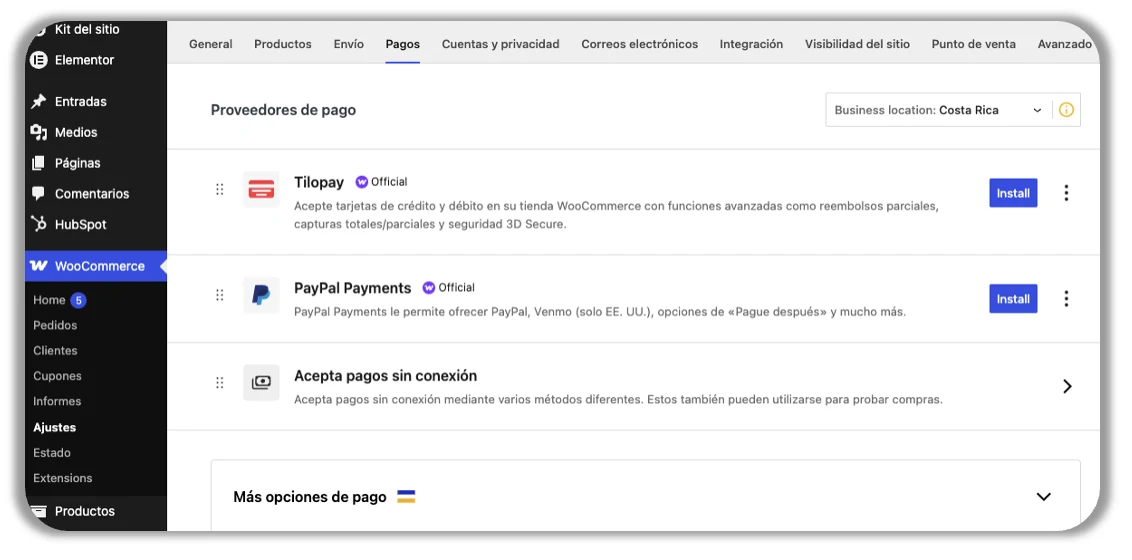
Configura el pago con tarjetas
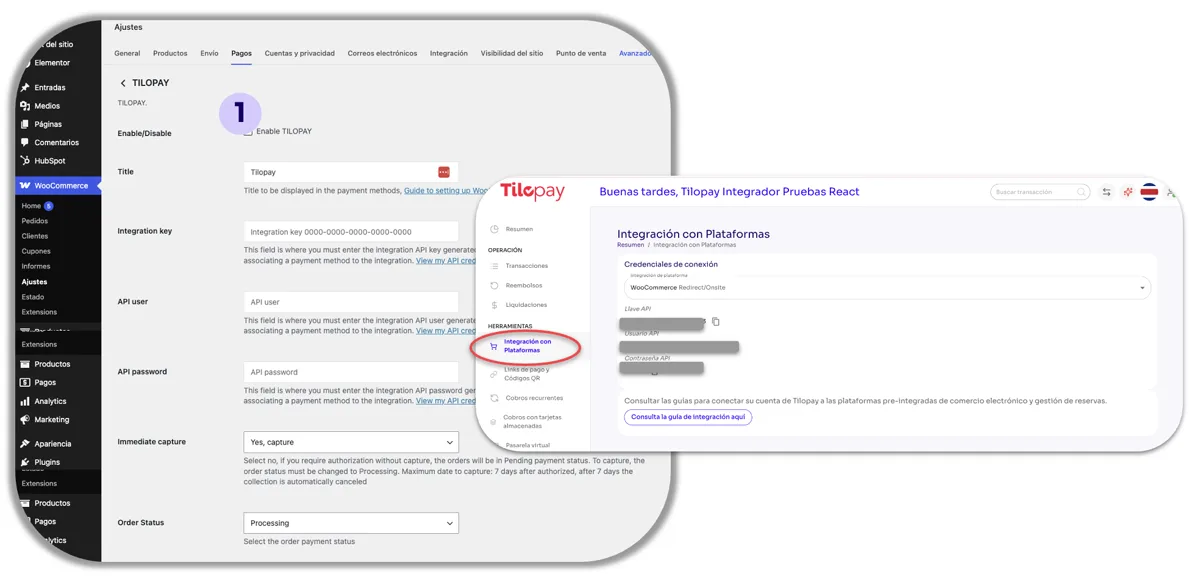
Para configurar el pago con tarjeta en WooCommerce, haz clic en Completar Configuración, llena el formulario que se te presenta con la información de la API del Panel Administrativo de Tilopay.
Las credenciales de Tilopay para integrarte con WooCommerce las encuentras en el Panel Administrativo de Tilopay, haciendo clic en la sección Integración con Plataformas y buscando WooCommerce en la lista desplegable.
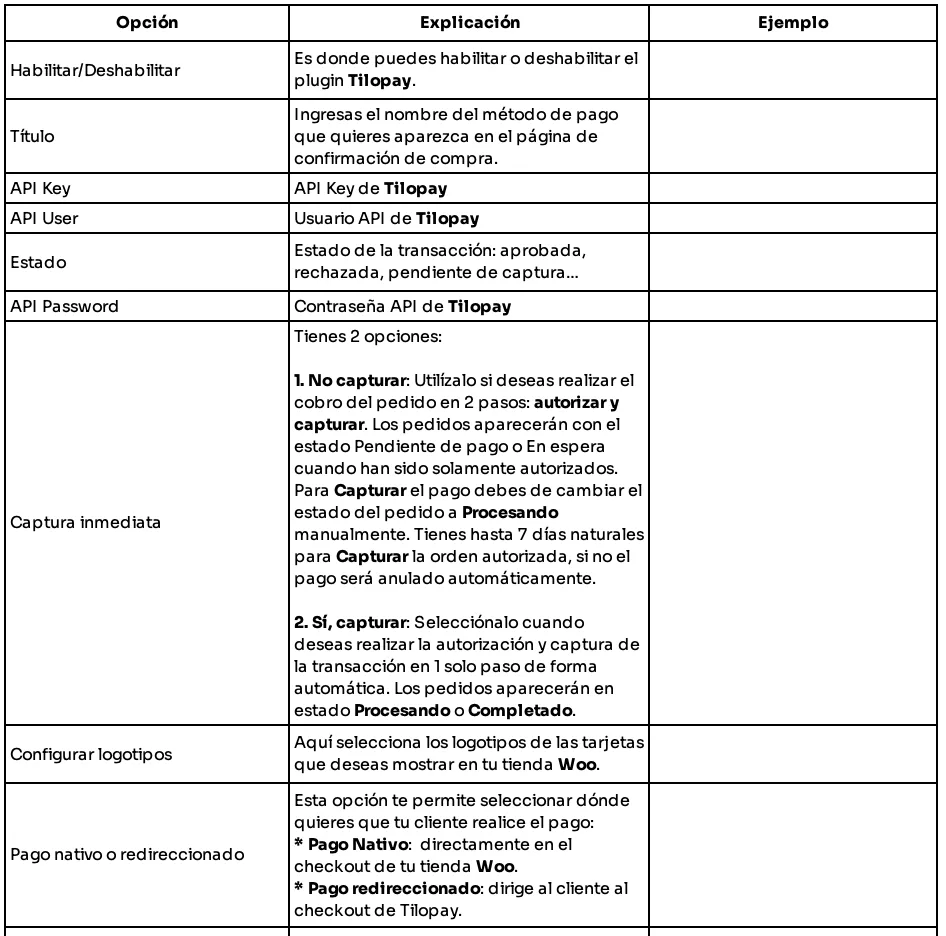
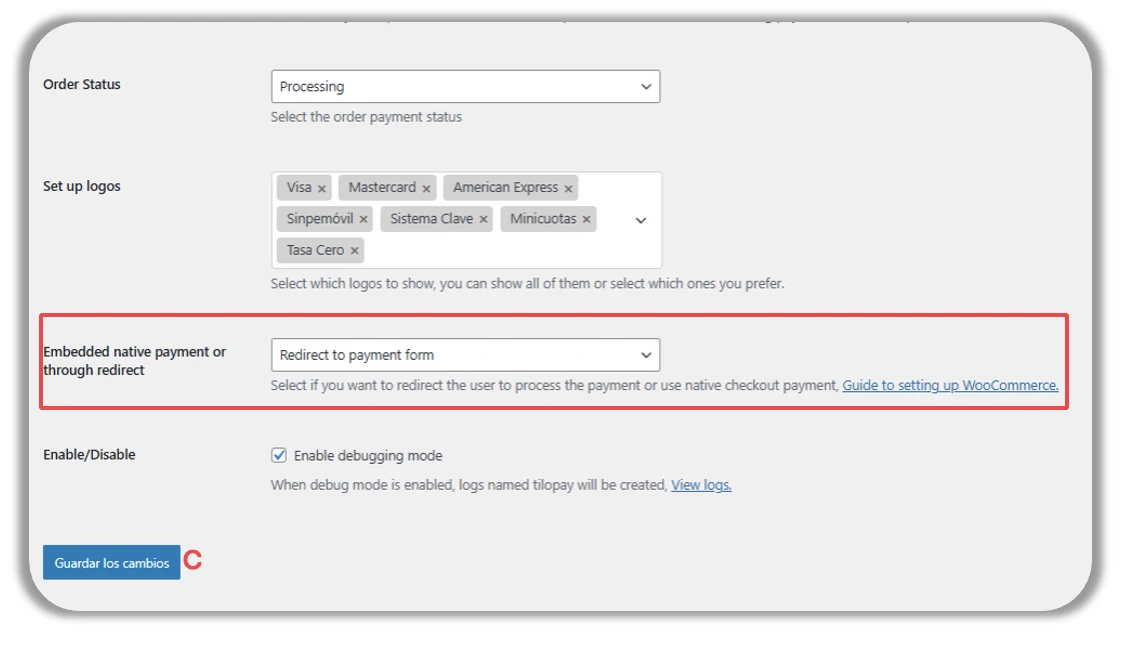
Hacia el final del formulario, tienes la opción para seleccionar dónde quieres que tu cliente procese su pago:
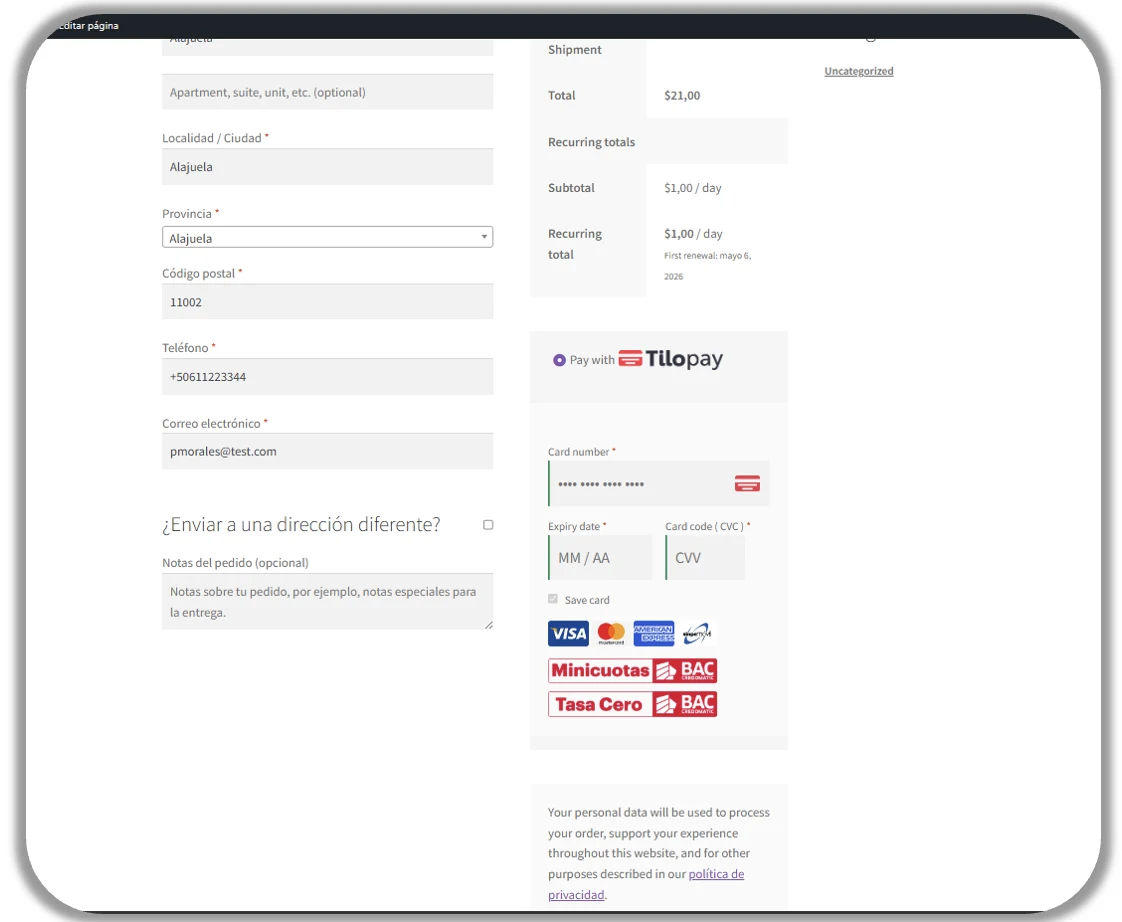
Directamente desde tu tienda WooCommerce al seleccionar la opción de Pago Nativo.
Directamente desde Tilopay al seleccionar la opción de Pago Redireccionado.
Enable debugging mode: Cuando esta casilla está activa, Tilopay y WooCommerce obtienen acceso a los logs de las transacciones, lo cual es indispensable para poder responder tus dudas y asistirte en caso de que tengas problemas con alguna transacción.
Así es como tu cliente verá el checkout cuando hayas seleccionado Pago Nativo para pagos con métodos alternativos o locales:
Así es como tu cliente verá el checkout cuando hayas seleccionado Pago Redireccionado para pagos con métodos alternativos o locales: