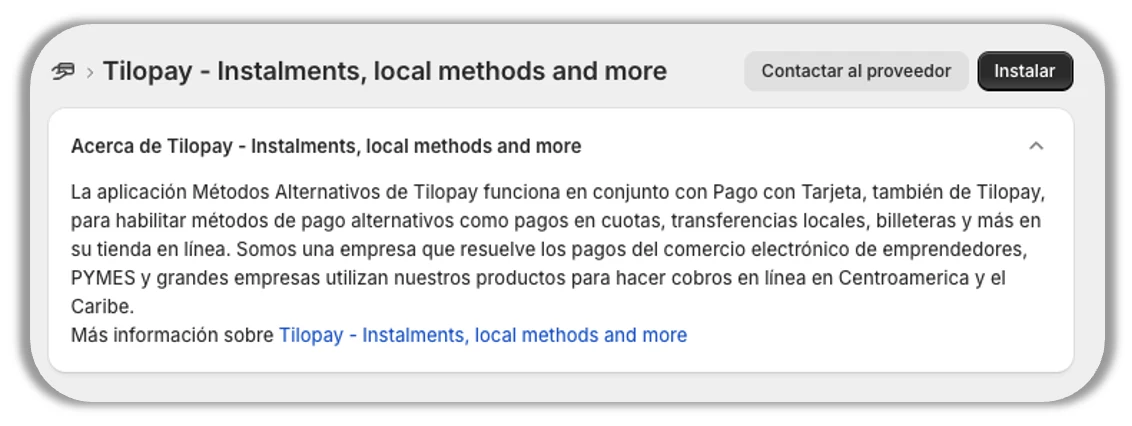
¿Cómo configuro Crediviva en Shopify?
Crediviva solo está disponible en Panamá.
Para que tu tienda en Shopify acepte pagos con Crediviva, realiza la instalación desde: https://apps.shopify.com/tilopay-crediviva?locale=es
Sólo debes hacer clic en el botón Instalar y seguir las instrucciones.
Las credenciales que te solicita son las mismas que utilizas para ingresar a la cuenta principal del Panel Administrativo de Tilopay.
El Modo Prueba para este Método de Pago NO está disponible en el Panel Administrativo de Tilopay.
Cuando recibas el mensaje de Conexión exitosa, haz clic en el botón OK y luego en Activar.
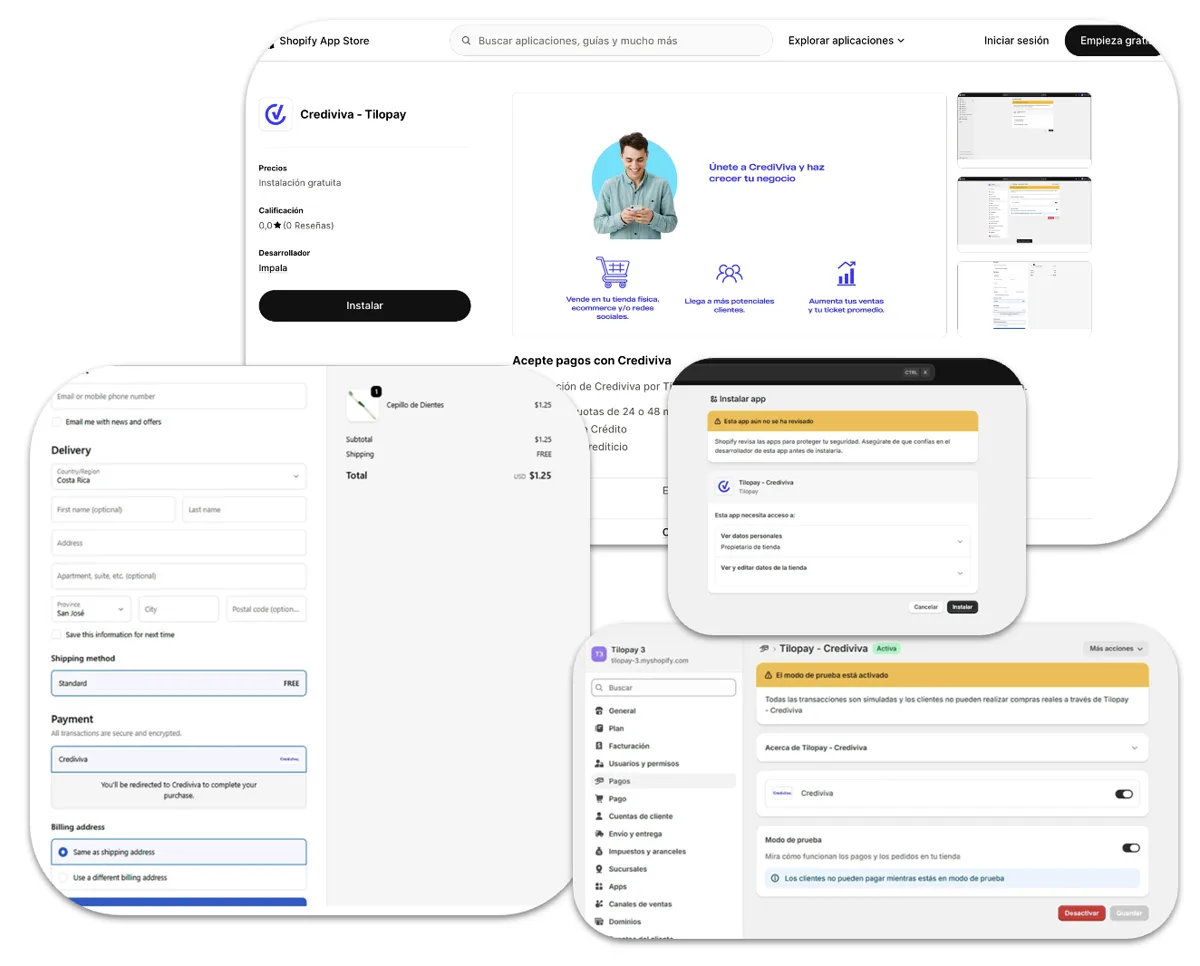
Las siguientes son las instrucciones para que tu tienda Shopify acepte pagos de contado con métodos alternativos o locales como Crediviva por medio de Tilopay:
Ingresa al panel administrativo de tu tienda en Shopify
Dirígete a la sección de Configuración y haz clic en Pagos
En Proveedores de Pago Adicionales, busca Tilopay como proveedor y selecciona entre las opciones que se te presentan para activar los Métodos de Pago que tenemos disponibles en tu país.
Haz clic en cada una de tus selecciones de Proveedor para activar los Métodos de Pago que desees para tus clientes y activar/desactivar el Modo de Prueba de tu tienda Shopify.
* Recuerda que el Modo Prueba se debe activar y desactivar en ambas plataformas para que funcione correctamente.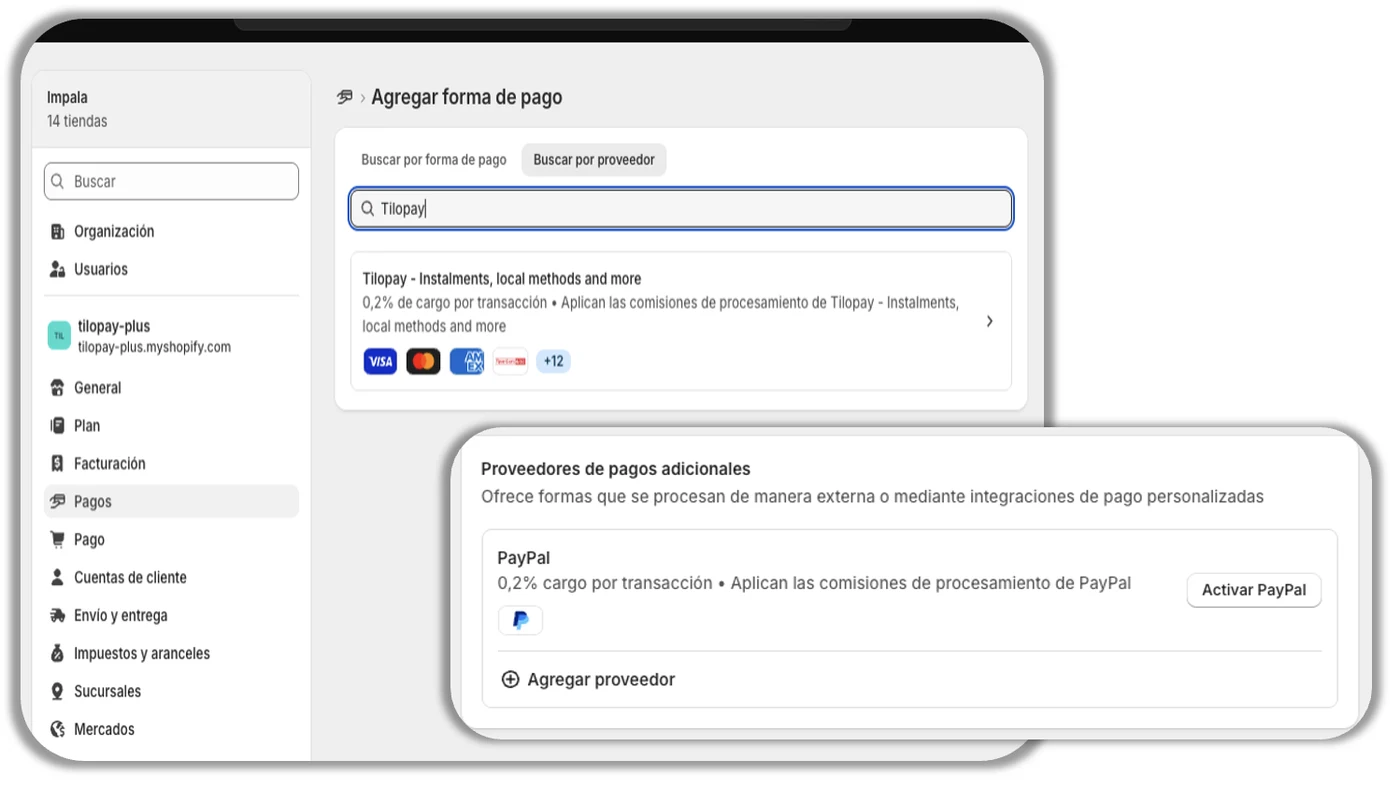
Una vez activado el Método de Pago sigue las instrucciones. Cuando te soliciten ingresar credenciales, estas son el usuario y la contraseña de la cuenta principal que utilizas para ingresar al Panel Administrativo de Tilopay.
Shopify te indicará cuando estés conectado a Tilopay, y se te solicitará que actives los métodos de pago que vayas a utilizar en tu comercio marcando la casilla correspondiente a cada uno (tarjetas y métodos alternativos)
Luego haz clic en Activar Tilopay.