
¿Cómo integro Tilopay a Magento o Adobe Commerce Cloud?
La extensión oficial de Tilopay para Adobe Commerce, Adobe Commerce Cloud y Magento Open Source 2.4 procesa pagos con tarjeta dentro de tu propio checkout, sin sacar al cliente de la tienda, y te deja capturar, reembolsar y anular desde el mismo admin de Magento.
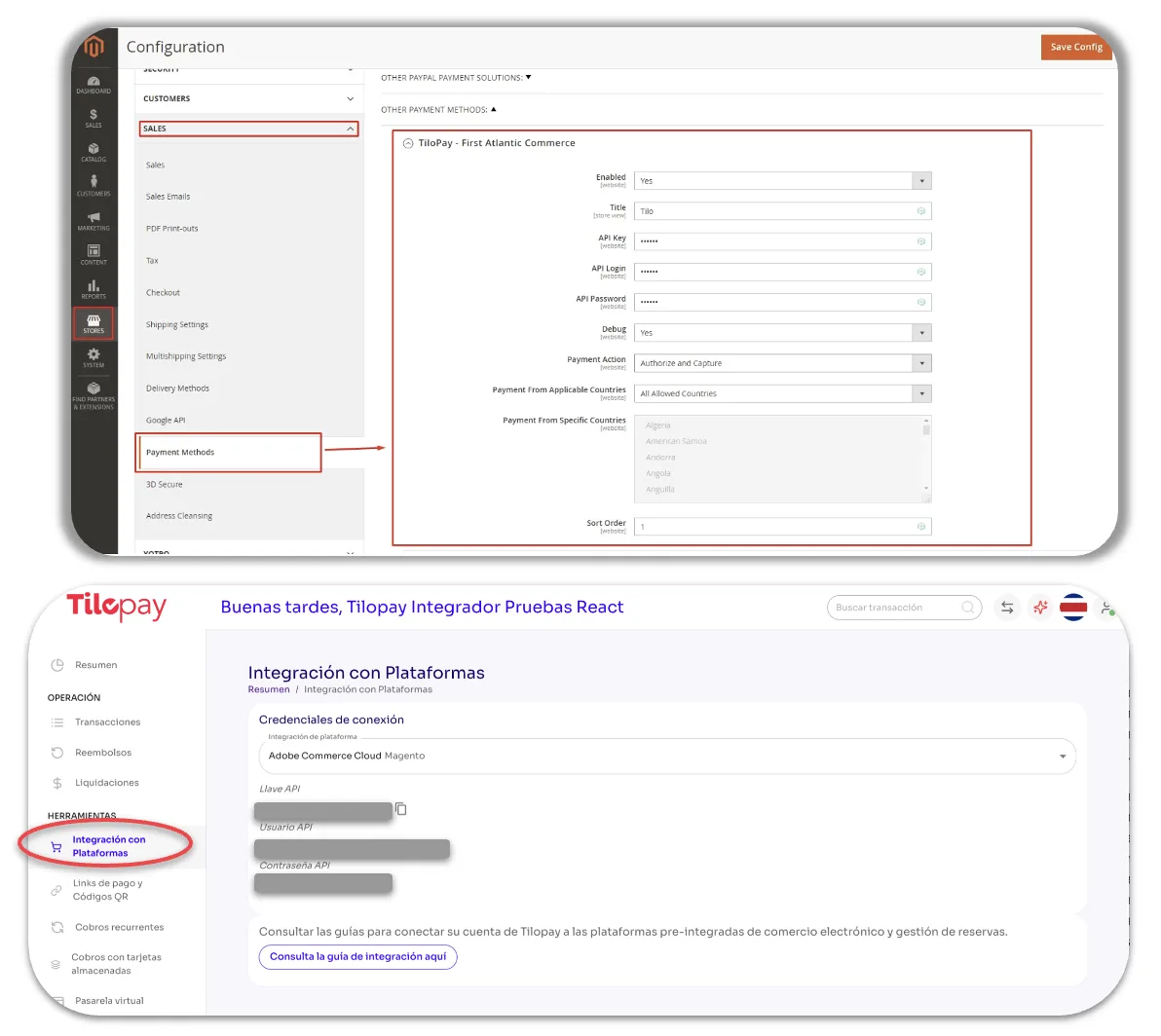
Descargá la extensión desde la página de Adobe Commerce / Magento o desde tu Panel Administrativo de Tilopay, en la sección Integración con Plataformas. Las credenciales que vas a necesitar para configurarla (API Key, API User y API Password) están en el Panel.
Requisitos
Adobe Commerce o Magento Open Source 2.4.6 o superior.
PHP 8.1 a 8.5, según lo que soporte tu línea de Magento.
Una cuenta de Tilopay con API Key, API User y API Password.
Acceso por consola al servidor de la tienda para correr los comandos de
bin/magento.
Instalación
En los comandos, <locales> significa la lista de locales que usan tus store views, separados por espacios (por ejemplo en_US es_CR).
Vía Composer (recomendada)
composer require tilopay/module-payment
bin/magento module:enable Tilopay_Payment
bin/magento setup:upgrade
bin/magento setup:di:compile
bin/magento setup:static-content:deploy -f <locales>
bin/magento cache:flush
Por copia de código
Creá la carpeta del módulo:
mkdir -p app/code/Tilopay/PaymentDescomprimí ahí el contenido del paquete y luego ejecutá:
bin/magento module:enable Tilopay_Payment
bin/magento setup:upgrade
bin/magento setup:di:compile
bin/magento setup:static-content:deploy -f <locales>
bin/magento cache:flush
Importante en modo producción: el paso setup:static-content:deploy -f es obligatorio y tenés que nombrar explícitamente cada locale que usan tus store views. Si se omite o se corre sin los locales reales, el método de pago simplemente no aparece en el checkout, sin ningún mensaje de error.
Si vas a actualizar el módulo en Magento 2.4.7 o superior
Magento 2.4.7+ emite atributos de integridad (SRI) para sus archivos estáticos. Al actualizar en modo producción hay que regenerar los estáticos desde cero, o el navegador bloqueará el JavaScript del checkout y el método desaparecerá:
bin/magento maintenance:enable
rm -rf pub/static/frontend/* pub/static/adminhtml/* pub/static/deployed_version.txt
rm -rf var/view_preprocessed/* var/cache/* var/page_cache/*
bin/magento setup:di:compile
bin/magento setup:static-content:deploy -f <locales>
bin/magento cache:flush
bin/magento maintenance:disable
Purgá también Varnish o la caché de tu hosting si existe, y probá en una ventana de incógnito.
Configuración
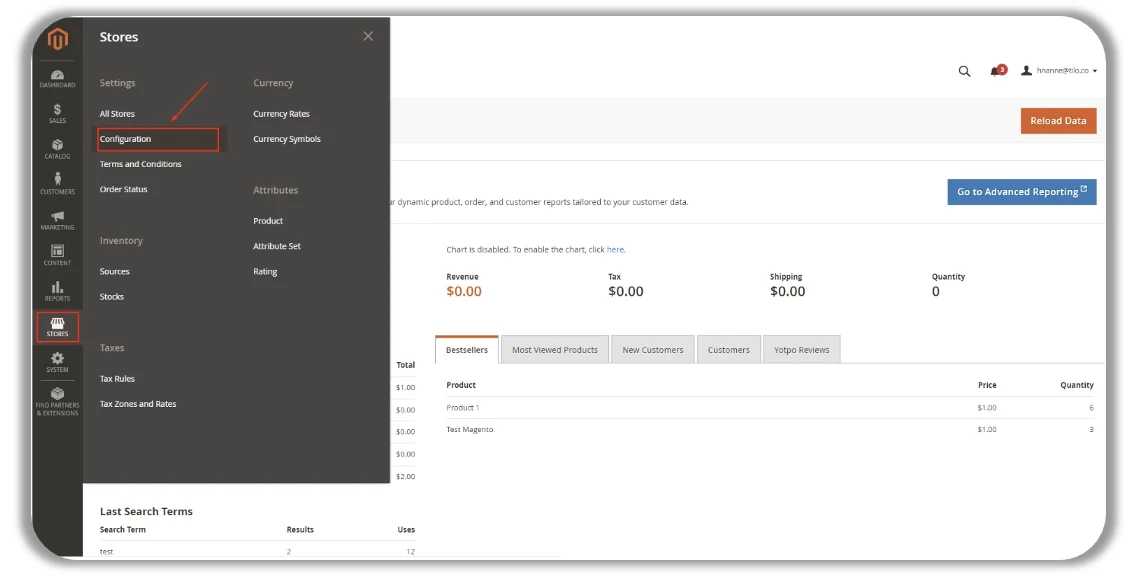
Iniciá sesión en el admin de tu tienda (la ruta /admin de tu dominio) y andá a Stores → Configuration.
Navegá a Sales → Payment Methods → Tilopay y completá los campos. El módulo trae los nombres en inglés y en español; entre paréntesis está la etiqueta en español.
Enabled (Habilitado): seleccioná Yes para activar el método en el checkout.
Title (Título): el texto que verá tu cliente cuando elija este método de pago.
Environment (Ambiente): Production o Sandbox / Testing. Debe coincidir con el modo de las credenciales que ponés abajo, según la configuración de tu cuenta de Tilopay.
API Key, API User y API Password: las credenciales de tu Panel Administrativo de Tilopay. Magento las guarda cifradas.
Payment Action (Acción de pago):
Authorize and Capture (autorizar y capturar), la recomendada: el cobro se captura en el momento de la compra.
Authorize Only (solo autorizar): el cobro queda autorizado y lo capturás después, generando el Invoice desde el admin.
New Order Status (Estado de la orden nueva): el estado con el que Magento crea la orden antes de cobrar.
Accepted Credit Card Types (Tarjetas aceptadas): las marcas que se muestran en el checkout.
Sort Order (Orden): la posición del método en la lista del checkout.
Debug Mode (Modo de depuración): dejalo en No en operación normal. Si lo activás, las peticiones y respuestas del API quedan en
var/log/tilopay_payment.log, siempre con las credenciales y los datos de tarjeta redactados.
Las URL del API y del SDK de Tilopay están fijas en el módulo y no son configurables, así que una cuenta de admin no puede reapuntar a otro host el script que captura los datos de tarjeta.
Las credenciales y los ajustes soportan alcance por store view, así que un mismo Magento puede operar varias tiendas con cuentas de Tilopay distintas.
Qué verá tu cliente en el checkout
Los métodos disponibles se leen dinámicamente de tu cuenta de Tilopay: el checkout solo ofrece lo que tu cuenta tiene habilitado.
Tarjeta de crédito o débito: formulario embebido con tokenización y detección de marca en vivo. Si el emisor exige 3DS, el reto se muestra en un overlay dentro del mismo checkout.
Cuotas Tasa 0: el mismo formulario de tarjeta; el plan se elige en el selector de métodos.
SINPE Móvil: sin campos que llenar. Al confirmar el pedido se muestran el número destino, el monto exacto y el código de descripción, y la orden se confirma sola cuando se detecta el depósito. El monto de la transferencia se redondea hacia arriba a un entero.
Yappy: redirección a la Página de Pago Hospedada de Tilopay.
Apple Pay: botón nativo en Safari sobre dispositivos Apple, con el cobro verificado del lado servidor.
Tarjetas guardadas: disponibles cuando tu cuenta las tiene habilitadas.
Gestión de transacciones desde el admin
Captura
Con Authorize and Capture, la captura es automática al momento de la compra.
Con Authorize Only, la captura se ejecuta al generar el Invoice de la orden.
Reembolsos
Se hacen con un Credit Memo online sobre el invoice, y admiten monto total o parcial.
Solo están disponibles para órdenes ya capturadas: es una regla de Tilopay, no una limitación de Magento.
Anulación (void)
Disponible solo para órdenes autorizadas que todavía no se capturaron. Si la orden ya se capturó, el camino es el reembolso.
La vista de la orden muestra la marca de la tarjeta, los últimos 4 dígitos y el código de autorización, que se completan automáticamente desde Tilopay al abrir la orden.
Cómo se confirma cada pago
La extensión nunca aprueba un cobro por los parámetros de la URL de retorno:
La orden se crea en Magento antes de cobrar, en estado pendiente, para que no exista ningún cargo sin su registro.
Cuando el cliente vuelve del pago, la transacción se verifica directamente contra el API de Tilopay antes de confirmar la orden.
La página de éxito y la sesión de checkout solo se conceden para una orden que colocó esa misma sesión, así que el número de orden secuencial de la URL de retorno no sirve para llegar a la orden de otro cliente.
El endpoint que cancela una orden abandonada actúa solo sobre una orden de la sesión que la colocó, y solo si es una orden de Tilopay.
Si el pago se rechaza, la orden pendiente se cancela, el carrito se conserva y el motivo aparece en el paso de pago para que el cliente reintente.
Las credenciales, el número de tarjeta, el CVV y los tokens de Apple Pay se redactan siempre antes de escribir cualquier log.
Antes de salir a producción
Hostings con WAF o mod_security (por ejemplo Cloudways): el callback del SDK hacia la ruta
tilopay/response/indexpuede quedar bloqueado. La extensión es resiliente y confirma el pago igual consultando a Tilopay, pero conviene pedirle al hosting una exención para esa ruta y verificarlo con una compra de prueba.Apple Pay solo aparece en Safari sobre dispositivos Apple con Wallet configurado, y requiere Apple Pay habilitado en tu cuenta de Tilopay con el dominio de la tienda verificado con Apple. Esa verificación la gestiona Tilopay.
SINPE Móvil usa montos enteros: el total se redondea hacia arriba para la transferencia.
Correos de confirmación: el módulo no cambia cómo Magento envía correo, pero en una tienda con un relay SMTP lento el envío síncrono puede demorar la colocación de la orden en cualquier método de pago. Si te pasa, activá el envío asíncrono en Stores → Configuration → Sales → Sales Emails.
Esta versión no incluye cobros recurrentes ni suscripciones.
¿Necesitás ayuda?
Escribinos a soporte@tilopay.com con el número de orden y, si tenés el modo debug activo, el fragmento correspondiente de var/log/tilopay_payment.log.