
¿Cómo configurar Hostfully en Tilopay?
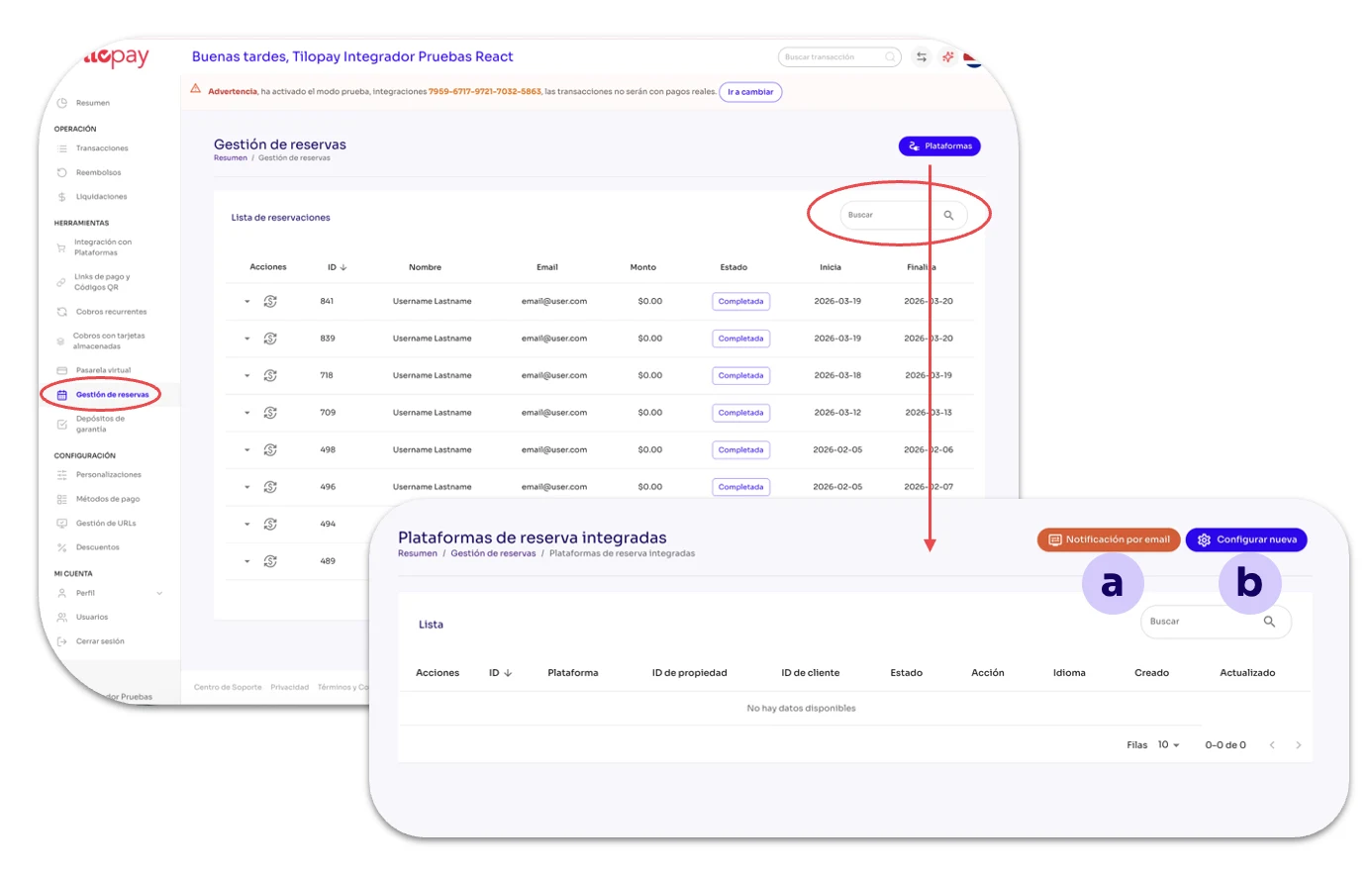
La sección de Gestión de Reservas en el módulo de Herramientas del Panel Administrativo de Tilopay es donde podrás integrar tu plataforma de hospitality con Tilopay.
La pantalla cuenta con una celda para realizar Búsquedas de Reservas por cualquiera de los detalles de la reserva.
En la sección de Gestión de Reservas tienes el botón de Plataformas desde el cual tendrás acceso a otros 2 botones:
a. Notificar por Email
b. Configurar Nueva
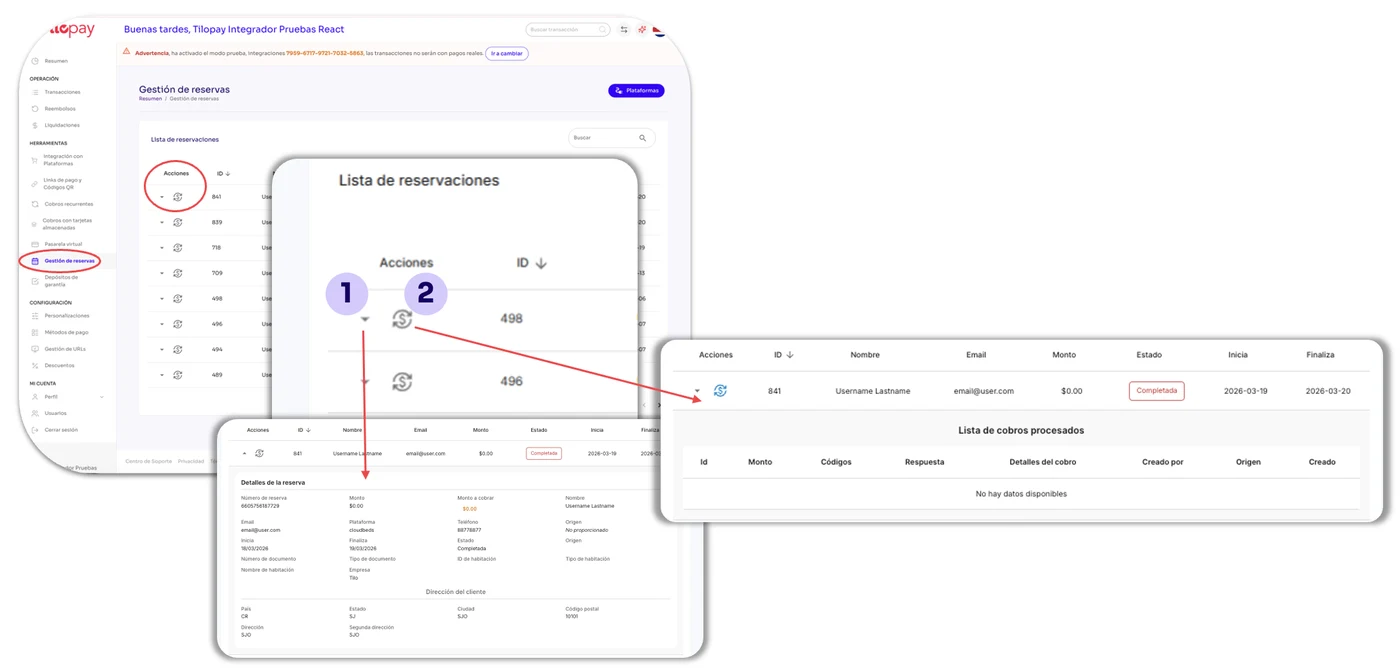
En la pantalla principal de Gestión de Reservas tendrás acceso a la Lista de reservas que han transaccionado mediante Tilopay.
Detalles: Es el ícono de la flecha que encuentras al lado izquierdo de la Reserva. Al darle clic se despliegan los detalles de la Reserva.
Historial de Cobros: Despliega los datos de los clientes Afiliados a ese plan.
Botón Plataformas
Haz clic en el botón azul Plataformas para que aparezcan todas aquellas plataformas que has integrado con Tilopay.
Con los botones de Acciones podrás acceder:
Información: La información e instrucciones de configuración de la plataforma seleccionada.
Actualizar: Te presentará el formulario de integración para que puedas editarlo.
Basurero: Utilízalo cuando desees eliminar suscriptores. Esta acción NO puede deshacerse.
Además, cuenta con los botones de Notificación por Email y para Configurar Nueva plataforma.
Notificación por Email
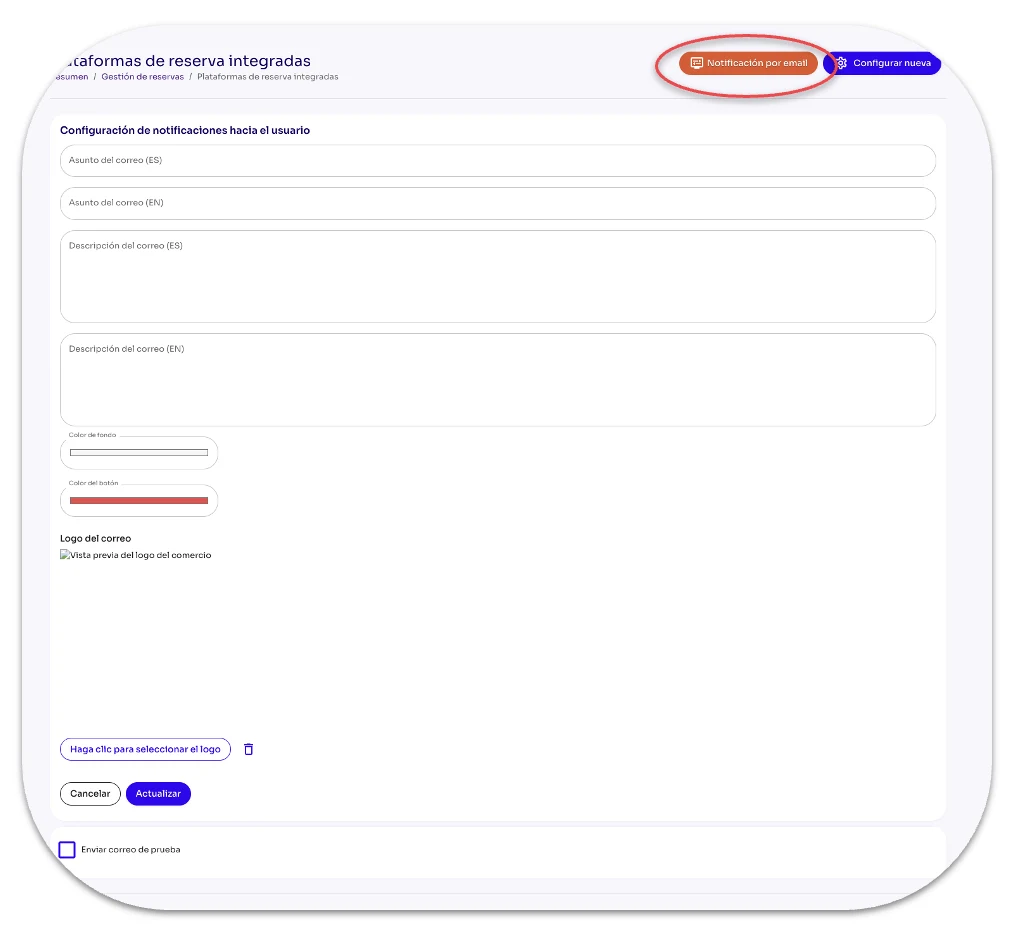
Notificación por Email es, tal cual lo dice su nombre, el botón que te permitirá configurar las notificaciones hacia tus clientes.
Asunto del correo (ES): Aquí ingresas el título que quieras darle a tu mensaje en español.
Asunto del correo (EN): Aquí ingresas el título que quieras darle a tu mensaje en inglés.
Descripción del correo (ES): Aquí ingresas el texto que quieres enviarle a tus clientes en español.
Descripción del correo (EN): Aquí ingresas el texto que quieres enviarle a tus clientes en inglés.
Color del texto: Se te mostrará una gama infinita de colores para que selecciones el que desees para el texto.
Color del botón: Se te mostrará una gama infinita de colores para que selecciones el que desees para el botón que se comparte en el email.
Logo del correo: Utilizando el botón Haga clic para seleccionar el logo tendrás acceso a buscar tu logo en el dispositivo electrónico (computador o teléfono móvil) que estás utilizando.
Configurar Nueva
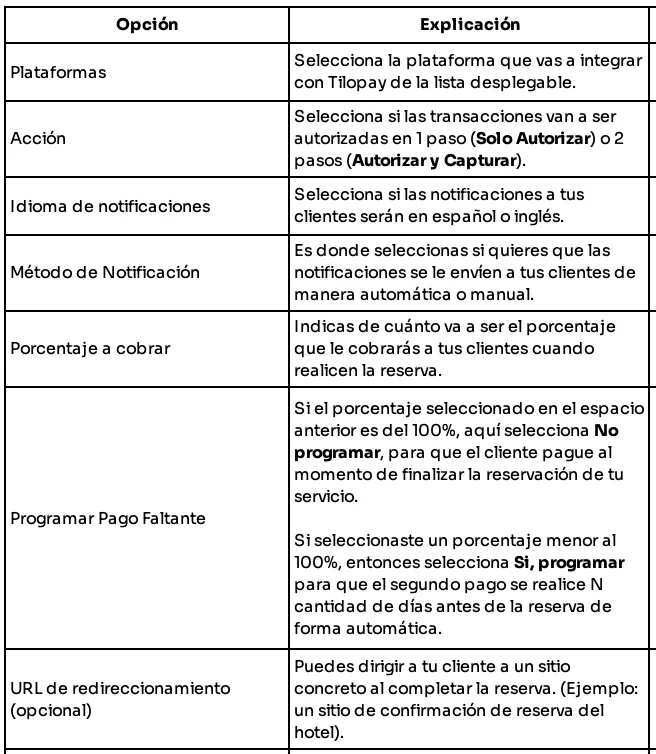
Configurar Nueva despliega el formulario que has de llenar para definir la integración de cada Plataforma.
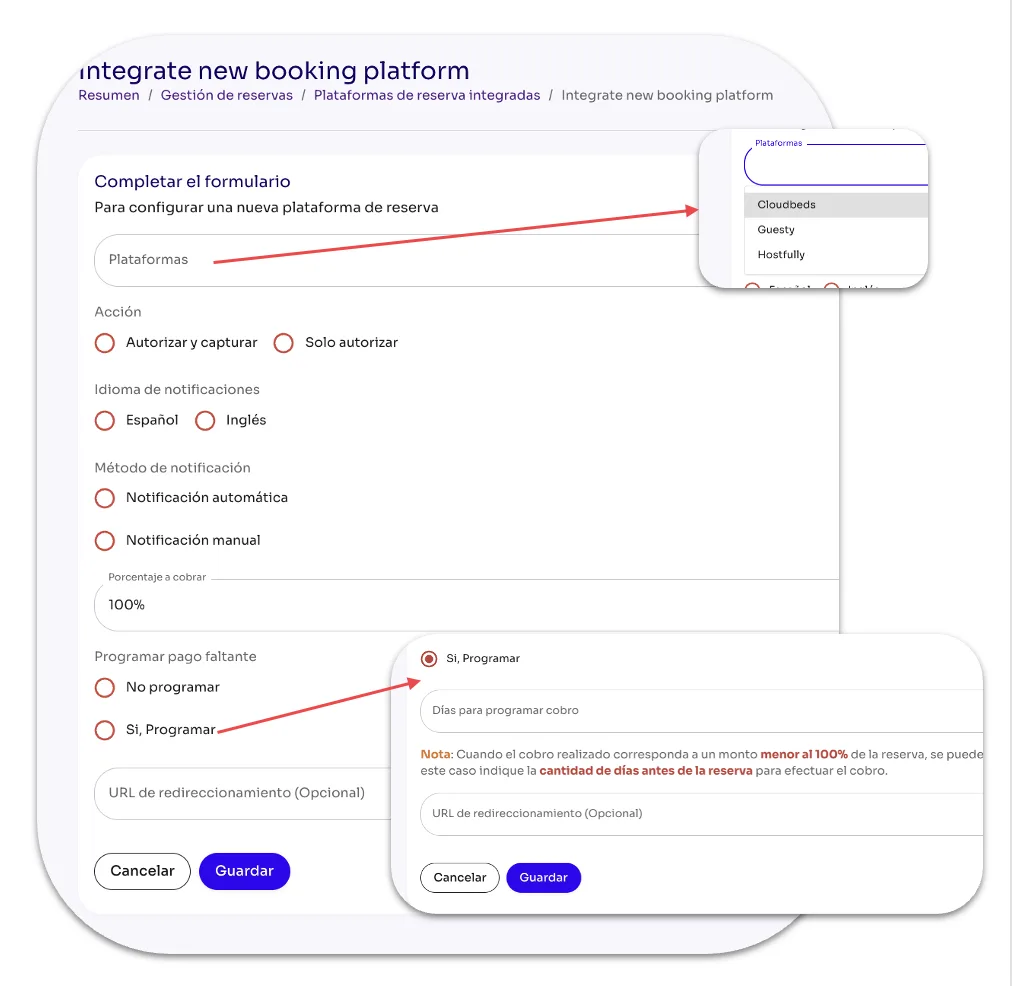
Las instrucciones de configuración de las plataformas Guesty y Hostfully las encuentras en ChargeAutomation.